
How to trim a video
Pick your video in Create a video status, open the Split tab and change Split mode to Trim. Drag the start and end handles to the section you want to keep, then export — you get one clip containing only that section.
Trimming and splitting are the same tool wearing different hats here. Splitting keeps everything and cuts it into pieces; trimming keeps one piece and discards everything else. Both live on the same Split tab, one dropdown apart.
Step by step
Open the Split tab
Home → Create a video status, pick the video. The Split tab opens by default.
Change the split mode to Trim
Tap the Split mode dropdown and choose Trim. The clip-length control is replaced by a range slider with a handle at each end.
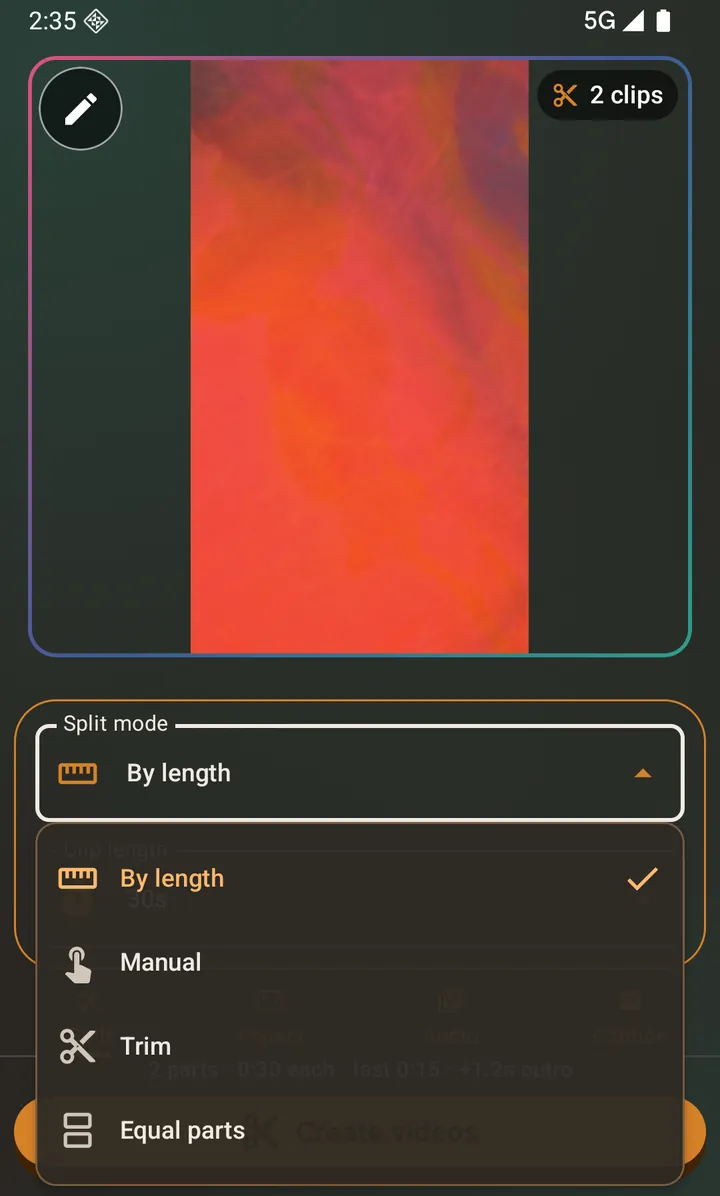
The Split mode dropdown: By length, Equal parts, Manual and Trim. Drag the handles to the part you want
Move the start handle to where the clip should begin and the end handle to where it should stop. The player follows along so you can check the exact frame.
Export the trimmed clip
Tap Create video. You get a single clip, which you can then save or share.
Trimming inside the video editor
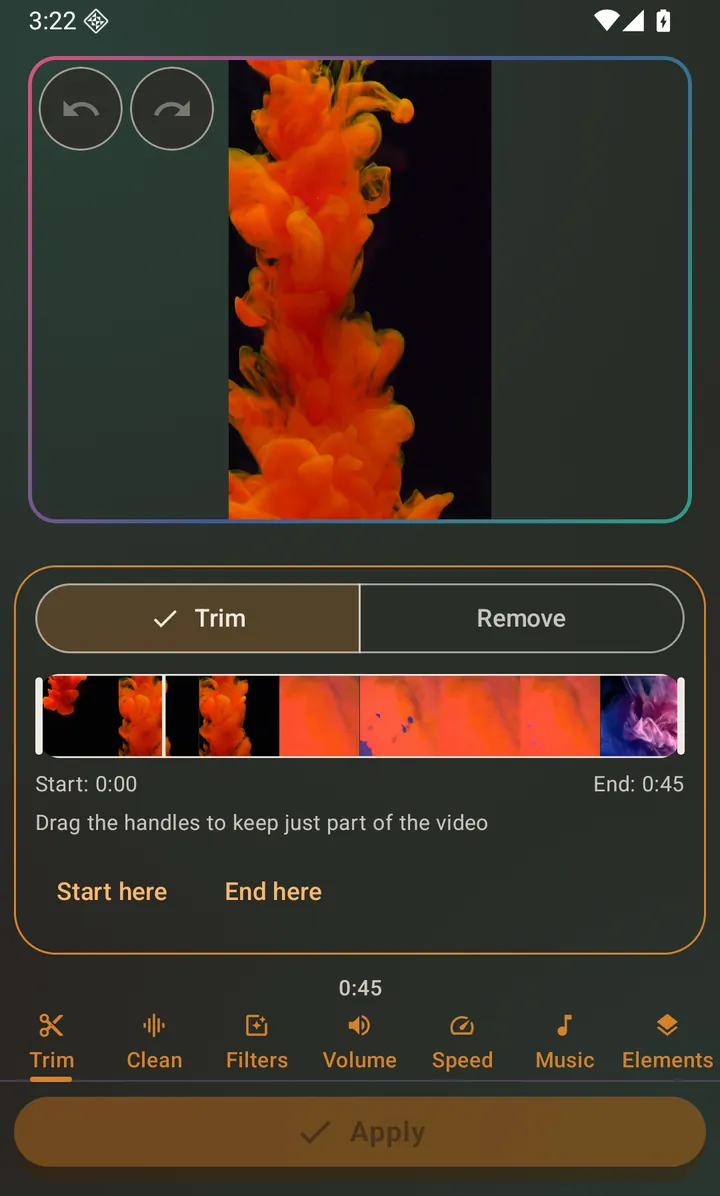
There is a second trim, in the built-in video editor — tap the pencil button on the preview to open it. Use that one when trimming is part of a bigger edit (filters, speed, background music, stickers) that you want applied to the source before it is split. Use the Split tab's trim when trimming is the whole job.
Questions about this
Does trimming re-encode the video?
Usually, but not always. If you only move the end handle, the trim still starts at the beginning of the video and the app copies it through without re-encoding. Once the start handle moves, the new start point rarely falls on a keyframe, so a clean cut needs a re-encode. That re-encode keeps the source's resolution and uses the source's own bitrate, so the difference stays invisible.
Can I trim and crop at the same time?
Yes. Trim on the Split tab, set Crop to 9:16 on the Aspect tab, and both are applied in the same export.
What if I want two separate sections of the same video?
Use Manual split mode instead, drop a split point on each side of the parts you want, and delete the clips you do not need from the results screen.
Also searched for as: video cutter, cut a video, shorten a video