
How to crop a video to 9:16
Pick your video in Create a video status, open the Aspect tab (the tabs are labelled in words, under the preview) and change it from Original to Crop to 9:16. The preview reframes immediately so you can see what will be kept, then export as usual. If you would rather keep the whole picture, Blur fill is the third choice: it fills the vertical frame without discarding any of it.
Landscape footage posted to a vertical feed either gets letterboxed into a stamp-sized strip or auto-cropped by the app you posted it to, with no say in the result. Cropping to 9:16 before you post means the frame you exported is the frame people see.
Step by step
Pick your video
Home → Create a video status, then choose the video.
Open the Aspect tab
In the tab row under the preview, tap Aspect. It shows three thumbnails of your own video — Original, Crop to 9:16 and Blur fill — each drawn the way that choice will treat the frame. Original is the default.
Switch to Crop to 9:16
Choose Crop to 9:16. The preview immediately reframes to the vertical crop, centred on the middle of the frame, so you can check nothing important is cut off before you export.
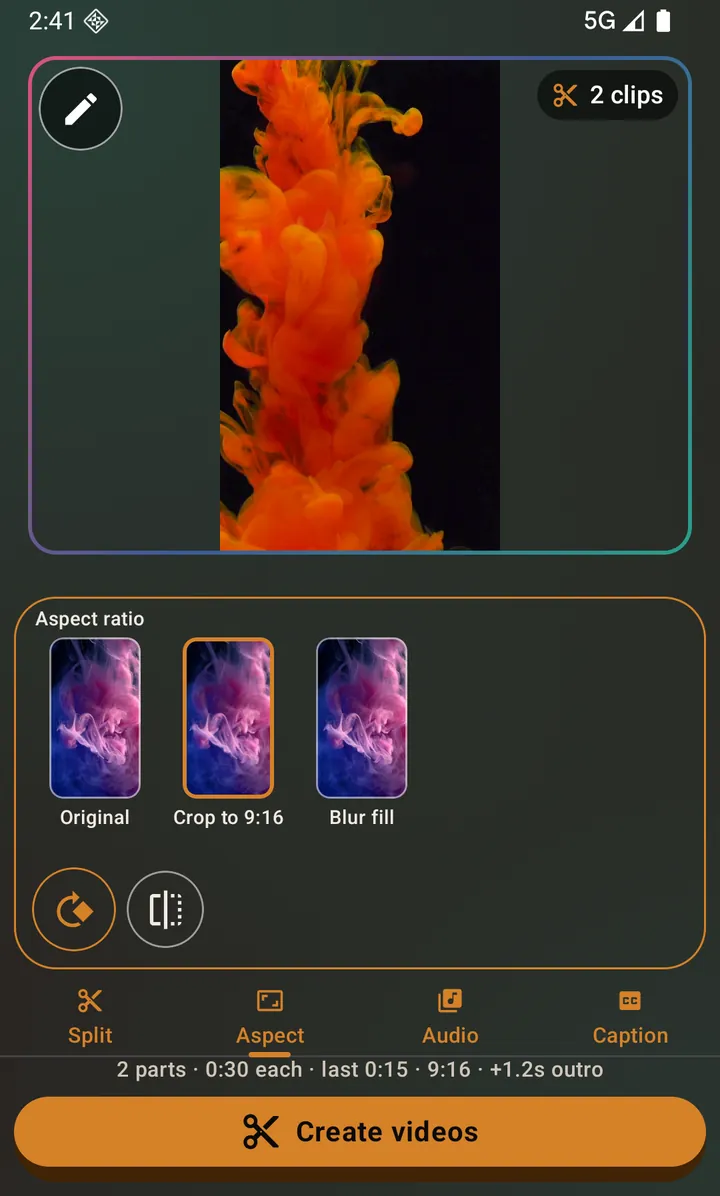
Crop to 9:16 applied — the preview shows exactly what gets exported. Export
Tap the start button at the bottom. Cropping combines with everything else on the other tabs: you can split, crop, change the audio and add a caption in a single export.
What the crop actually does
It is a centre crop, not a scale-to-fit. The app takes the tallest 9:16 rectangle that fits inside your footage and keeps that, so the output fills the screen edge to edge with no black bars — and anything outside that rectangle is genuinely gone from the exported file.
If your source is already 9:16 or taller, leaving this on Original is the better choice: it avoids a crop that has nothing to remove.
Blur fill: the vertical frame without the crop
A centre crop is the right answer when the subject is in the middle and the sides are scenery. It is the wrong answer when the thing you filmed reaches the edges — a whole table of people, a scoreboard, a wide shot of a room — because on a 16:9 source it throws away about two thirds of the frame’s width, centred, whatever happens to be there.
Blur fill is the third option and the only one that discards nothing. Your video is placed at its own size in the middle of a vertical frame, and the space above and below it is filled with a blurred copy of the same picture instead of black bars. The whole shot survives and the result still fills a phone screen.
It is not free: unlike leaving a clip on Original, blur fill re-encodes the video, so the export takes longer than a straight copy. The app remembers whichever framing you last chose and starts the next video from it.
Questions about this
Will cropping add black bars?
No. It crops rather than pads, so the result fills a vertical screen completely. Black bars are what you get from the opposite approach, and this app does not do that. If you want the whole frame kept and a full vertical screen, that is what Blur fill is for.
What is the difference between Crop to 9:16 and Blur fill?
Both give you a vertical 9:16 file. Crop to 9:16 gets there by removing the sides, so the picture fills the screen at full size but part of the shot is gone. Blur fill gets there by keeping the whole shot at its own size and filling the space around it with a blurred copy of the same frame, so nothing is lost but the picture itself is smaller on screen. Crop when the subject is centred; blur fill when the shot needs all of its width.
Can I choose which part of the frame is kept?
The video crop is centred and not adjustable. If your subject sits off to one side, the photo editor's crop tool does let you position the crop by hand — that applies to photos rather than video.
Does 9:16 work for Instagram Reels and YouTube Shorts too?
Yes. 9:16 is the same vertical frame WhatsApp Status, Instagram Reels, Instagram Stories, YouTube Shorts, TikTok and Facebook Stories all use. One crop covers all of them.
Also searched for as: vertical video converter, 9:16 crop, make video full screen for status