
How to split a video for WhatsApp Status
Open KL Status Maker, tap Create a video status on the home screen and pick your video. On the Split tab leave the mode on By length, choose a clip length (15s, 30s, 60s or 90s), then tap Create videos. The app cuts the video into equal clips and hands you a Save all and Share all button when it is done.
A status video has to be short, and a video worth posting usually is not. Splitting it by hand in a general-purpose editor means setting the same in and out points over and over and exporting each piece separately. This flow does the arithmetic for you: you pick how long each clip should be, and the app works out how many clips that is and cuts all of them in one export.
Step by step
Open the video flow
On the home screen, under Start from scratch, tap Create a video status — the row with the scissors icon. (Above it, Start from an idea covers the named outcomes that set the same screen up for you.)
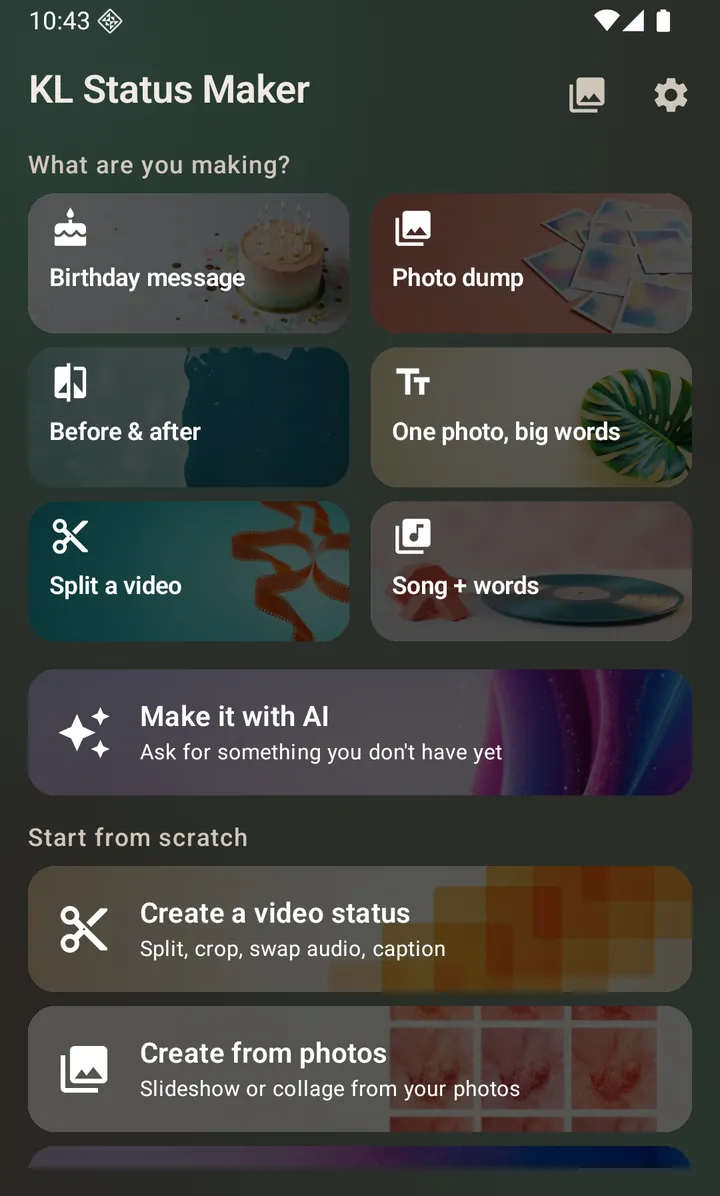
The home screen: six ready-made ideas, then <em>Make it with AI</em>, then a row for each thing you can make. Pick the video you want to split
Your phone's photo picker opens. Choose any video already on the device — there is no length limit and nothing gets uploaded anywhere.
Choose By length and a clip length
The Split tab is open by default. Leave Split mode on By length, then set Clip length to 15s, 30s, 60s or 90s. The badge in the corner of the preview updates live to show how many clips you will get — a 45-second video at 30s per clip is 2 clips.
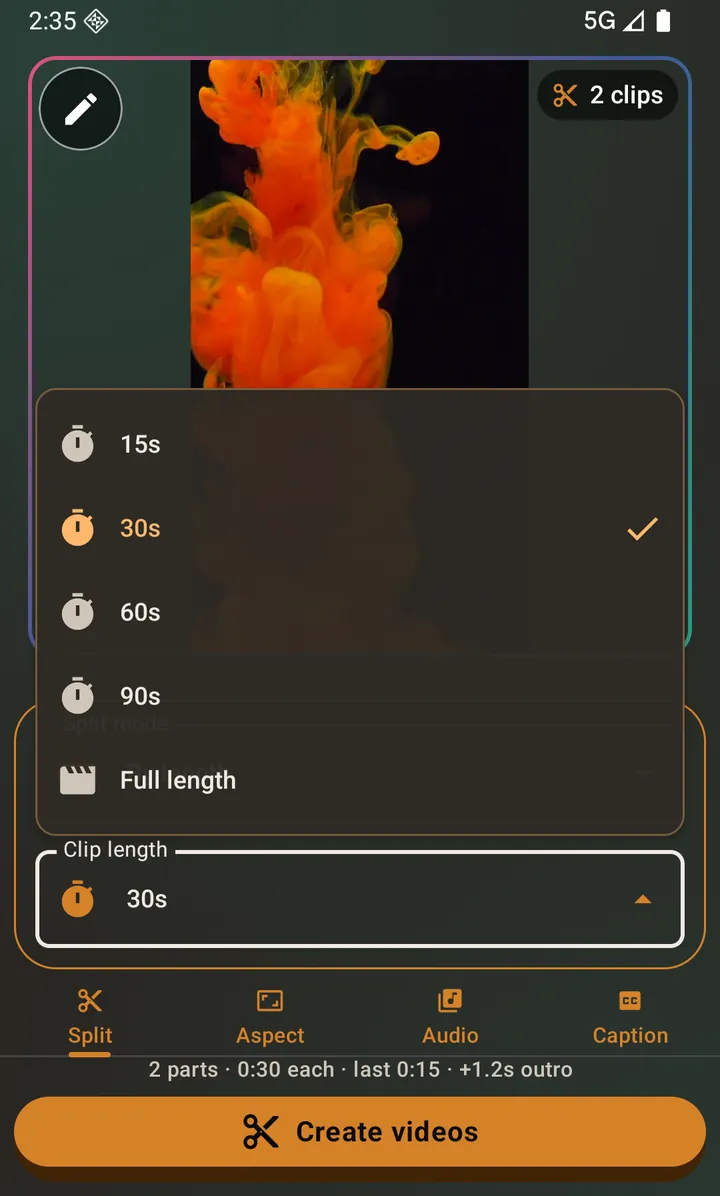
The Clip length dropdown: 15s, 30s, 60s, 90s, and Full length for one uncut clip. Tap Create videos
The export runs as a background task with a progress notification, so you can leave the app and come back. Tap Cancel at any point to stop it.
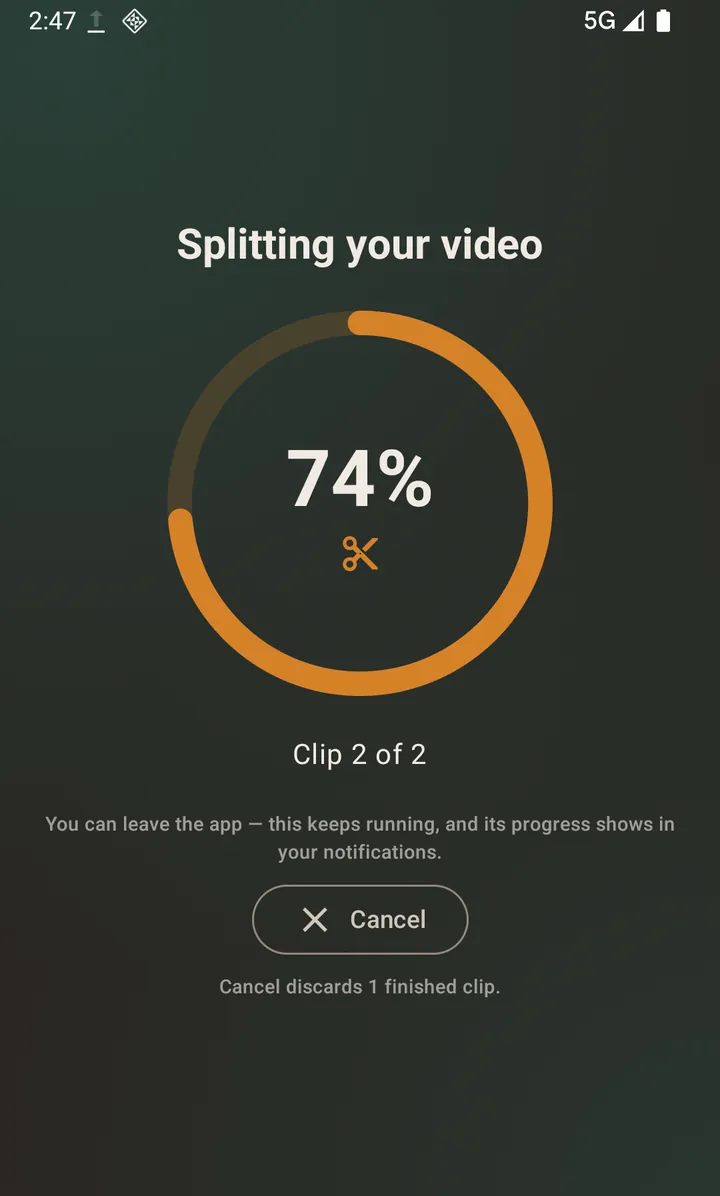
Export progress. It keeps running if you switch apps. Save or share your clips
Every clip gets its own card with a preview. Use Save all to put them in your gallery, Share all to send them straight to WhatsApp, or the per-clip buttons to handle one at a time.
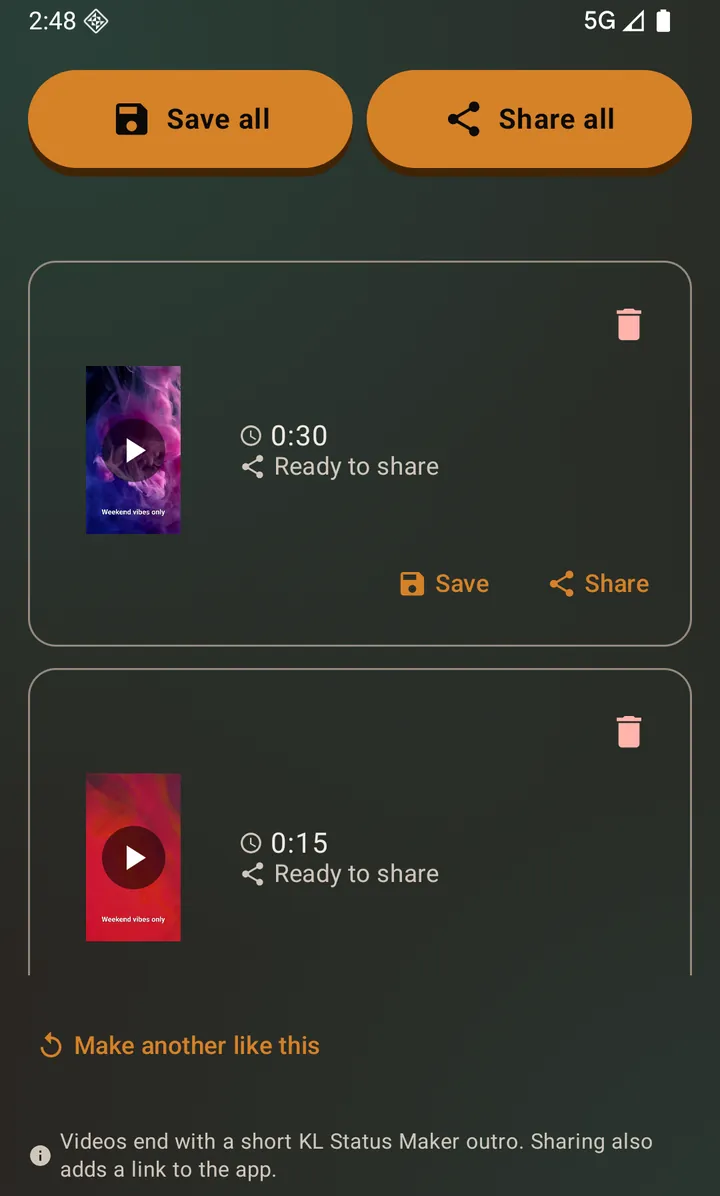
Each clip can be saved, shared or deleted on its own.
Want the cuts somewhere specific?
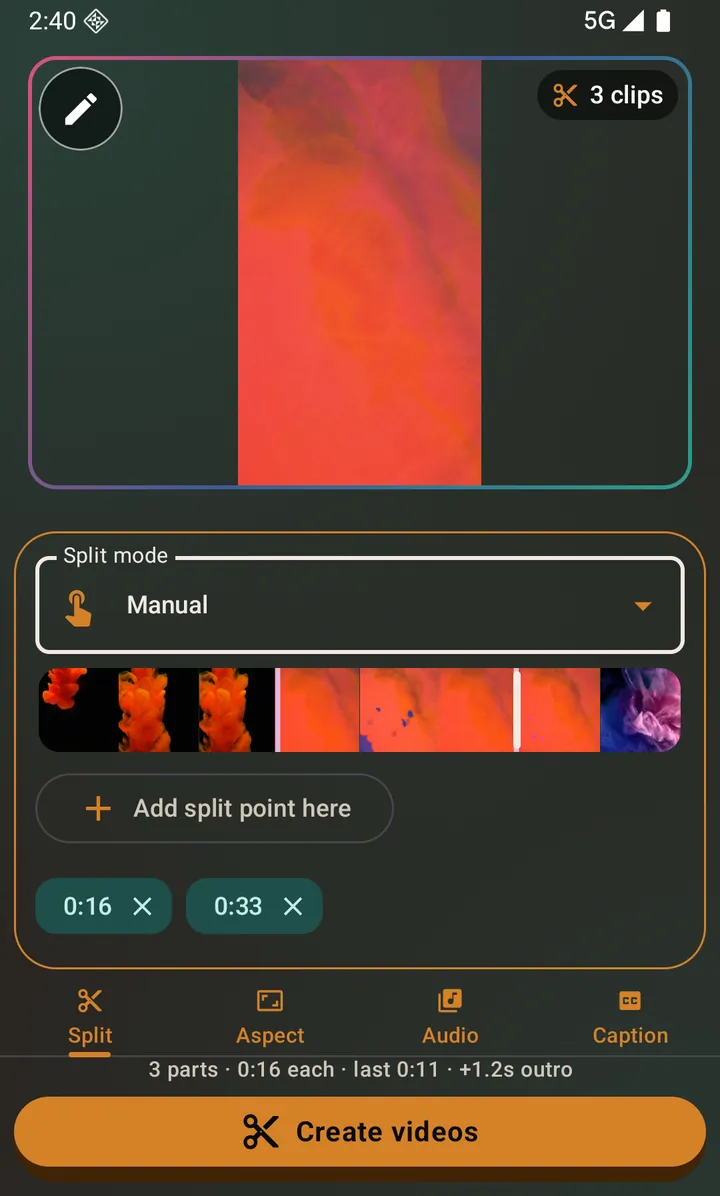
Splitting by length cuts at even intervals, which is right most of the time and wrong when a sentence or a beat lands across a boundary. Switch Split mode to Manual and you get a scrubber instead: move it to the exact moment you want a cut and tap Add split point here. Each split point becomes a chip you can remove, and the clip count updates as you go.
The same dropdown also holds Equal parts, which asks the question the other way round: pick a number from 2 to 10 and the app cuts the video into that many pieces of the same length, whatever its duration. It is the one mode whose result you can predict before you tap Create.
And it holds Trim, for keeping one section and throwing the rest away. And if you do not want the video cut at all, leave the mode on By length and set Clip length to Full length: you get one clip covering the whole video, so you can crop it or change its audio without cutting anything.
Questions about this
How many clips will I get?
The clip count badge on the preview tells you before you export. It is the video's length divided by your chosen clip length, rounded up — so a 45-second video at 30s per clip gives you two clips, the second one 15 seconds long.
Does splitting reduce the video quality?
The first clip is not re-encoded at all. It starts at the very beginning of your video, so the app copies those bytes straight through and clip one is byte-for-byte your original. Every clip after it starts part-way in, where the cut point almost never lands exactly on a keyframe, so those are re-encoded. Those clips keep the source video's own resolution and are encoded at the source's own bitrate, so the difference is not visible in normal viewing. Very large videos - above 1080p on the short side - are scaled down to 1080p when a clip is being re-encoded anyway; you can turn that off in Settings under Editing defaults.
Is there a limit on how long the source video can be?
No. The app works on whatever is on your device. Longer videos simply take longer to export, and the export runs in the background with a progress notification so you are not stuck staring at it.
How long can a WhatsApp Status video be?
WhatsApp keeps the first 90 seconds of a status video and trims the rest away without telling you, so a longer clip does post — it just arrives shortened. That is why splitting is worth doing even though nothing is rejected: each part posts whole, in order. If you tell the app where you are posting — Settings → Editing defaults → Where your status is going — the line above Create warns you when a part is longer than that, before you export it. Nothing is blocked either way, and no clip length is taken away.
Can I split a video without cropping it?
Yes. Cropping lives on its own Aspect tab and is set to Original until you change it. Splitting and cropping are independent.
Does it work without internet?
Yes. Splitting, cropping, trimming, audio changes and every other edit happen entirely on your phone. Only the optional AI tools need a connection, and they are kept clearly separate from the rest — including Restyle, the one tool in the photo editor that does.
Also searched for as: video splitter, video cutter, status video cutter, 30 second video cutter