
Turn any video, photo or thought into a status worth posting
A video editor and photo editor in one: trim, filter, speed up, add music and stickers, edit your photos, let AI write the caption — then post it as a video, photo, text or audio status.
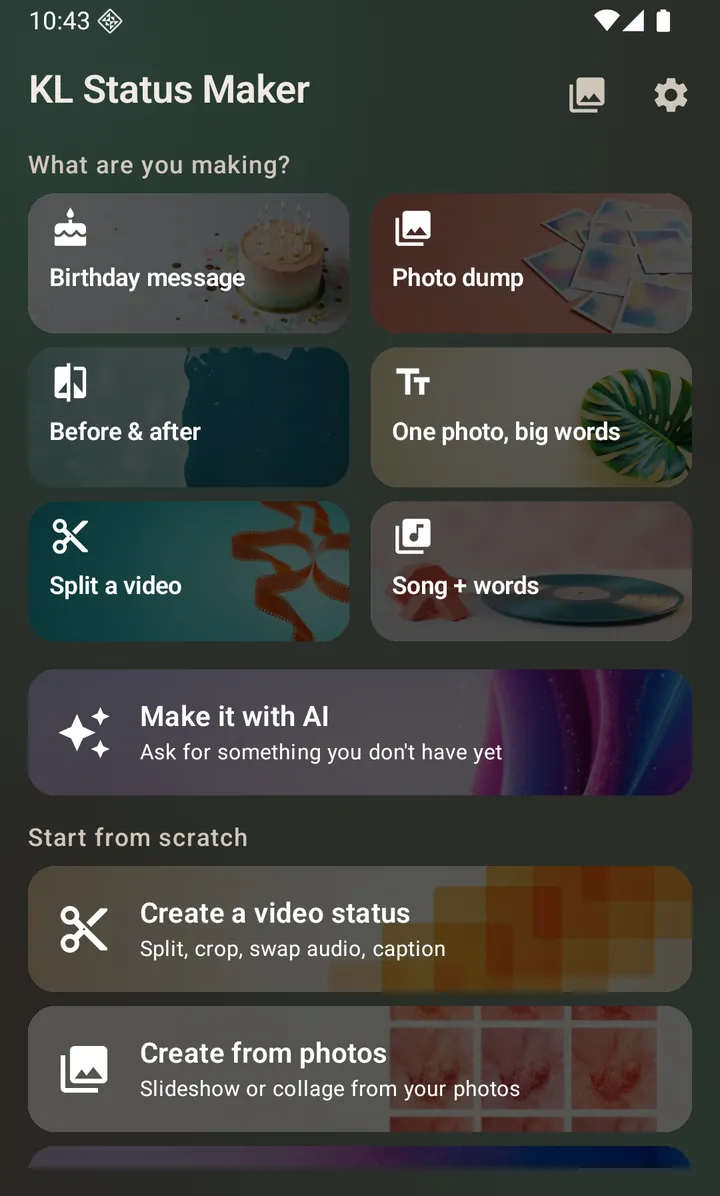
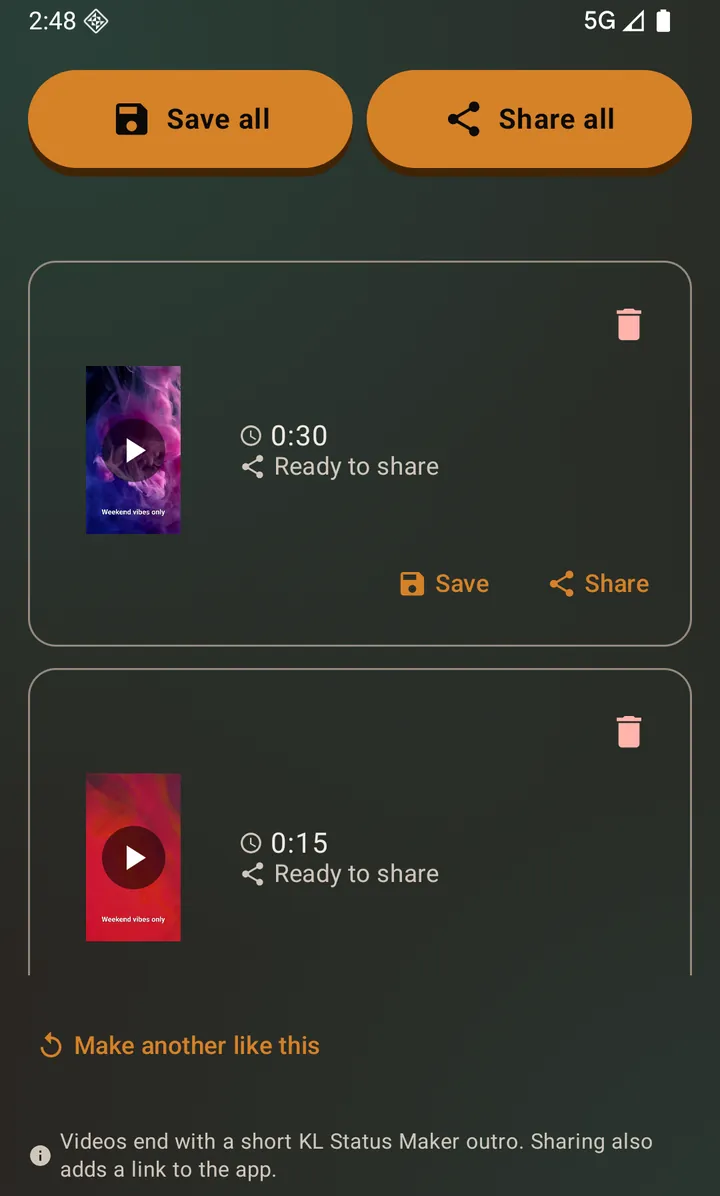
Four things it makes
One app for video, photos, audio and text — each with its own flow, all ending at the same share sheet.
A long video, cut into postable clips
Split automatically or by hand, trim, crop to 9:16, and change or mute the audio.
Photos into a slideshow or a collage
Up to 30 photos, eight transitions, seven collage layouts, and a background track.
Typed words on a styled background
Themes, font styling, and as many independently-styled pages as you want.
A song or voice note, postable
Attach audio to a text page or a slideshow and it exports as a video, so a status feed will take it.
…and the AI tools that help
Stuck for words? Ask.
Describe what you are posting and get short, medium and long captions back, then keep the chat going until it is right — in your own language. Needs a free Google sign-in, the same one the other AI tools use.
Music written for the video
Describe what you want and pick from the ideas it offers — an instrumental, or a song really sung, with the words agreed in the chat first. Lands on any audio slot in the app. Same sign-in and credits as captions.
A picture you do not have
Describe it and pick from the ideas it offers, or restyle a photo you already have — that one sends the photo, and asks first. Lands anywhere the app adds a picture. Same sign-in and credits as captions.
Background blur, on your phone
Blur the background, swap it for a colour, or crop tight to the subject — one tap. These run on the device itself, with nothing uploaded and no account.
A real video editor, on your phone
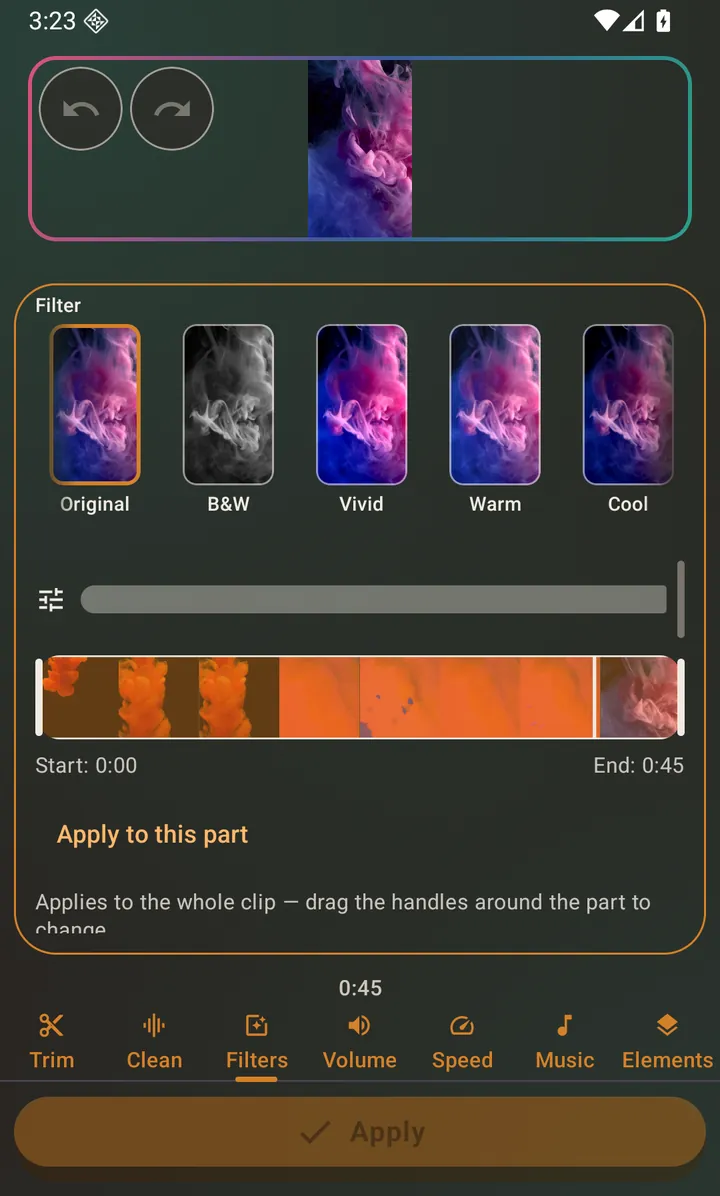
Seven tools that all render in a single pass: trim, colour filters, a volume slider you can hear in the preview, playback speed from slow motion to 3x with pitch preserved, background music mixed under the original audio, silence removal, and emoji stickers burned into every frame. Open it by tapping the pencil on any video.
- Eight looks previewed on your own photo or footage - Original, B&W, Vivid, Warm, Cool, Vintage, Fade and Custom - with a strength slider and a one-tap Auto
- 0.5x–3x speed, voices kept at natural pitch
- Music layered under the original audio, two volume sliders, a fade and auto-ducking
- Cut silent gaps and reduce background noise automatically
Cut it to the right length and shape
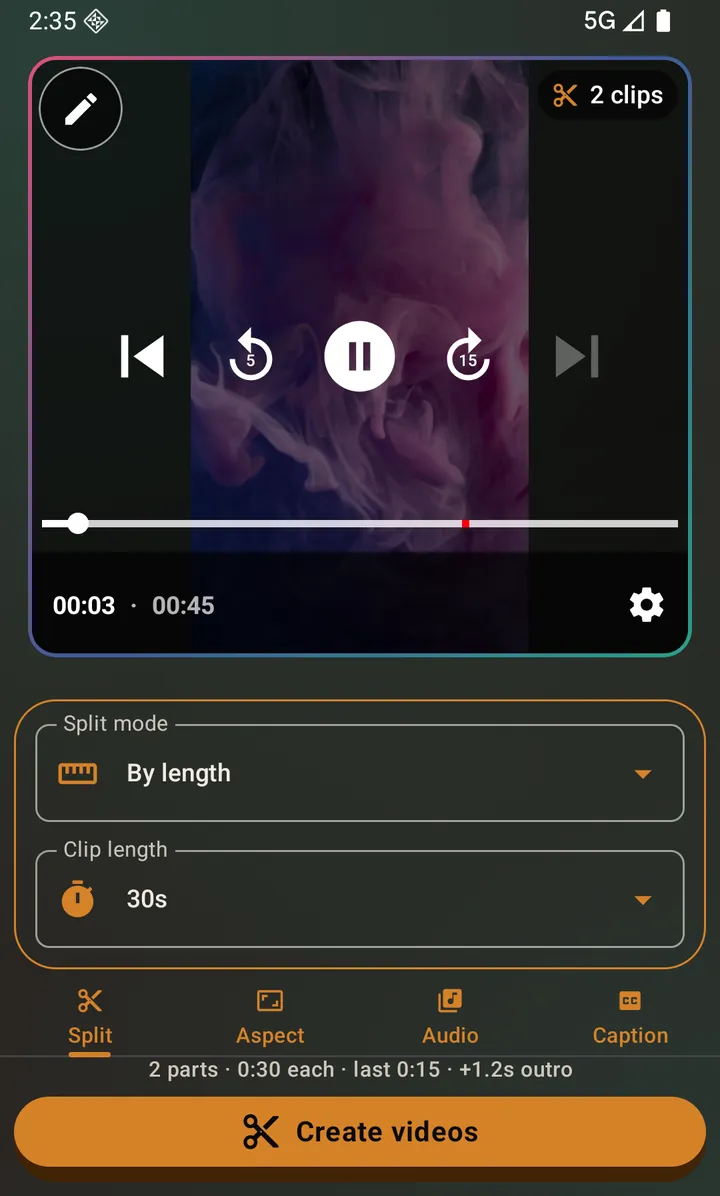
The other half of editing a video is sizing it. Trim down to the section you want, crop to a 9:16 vertical frame with no black bars, or split a long recording into Status-sized clips — pick a clip length and the app works out how many clips that is and cuts all of them in one export, or drop your own split points exactly where you want the cuts.
- Split by length at 15s, 30s, 60s or 90s, with a live clip count
- Manual split points you place on a scrubber
- Trim to one section, or skip splitting entirely
- One-tap crop to 9:16 for Status, Reels and Shorts
Captions, by hand or with AI
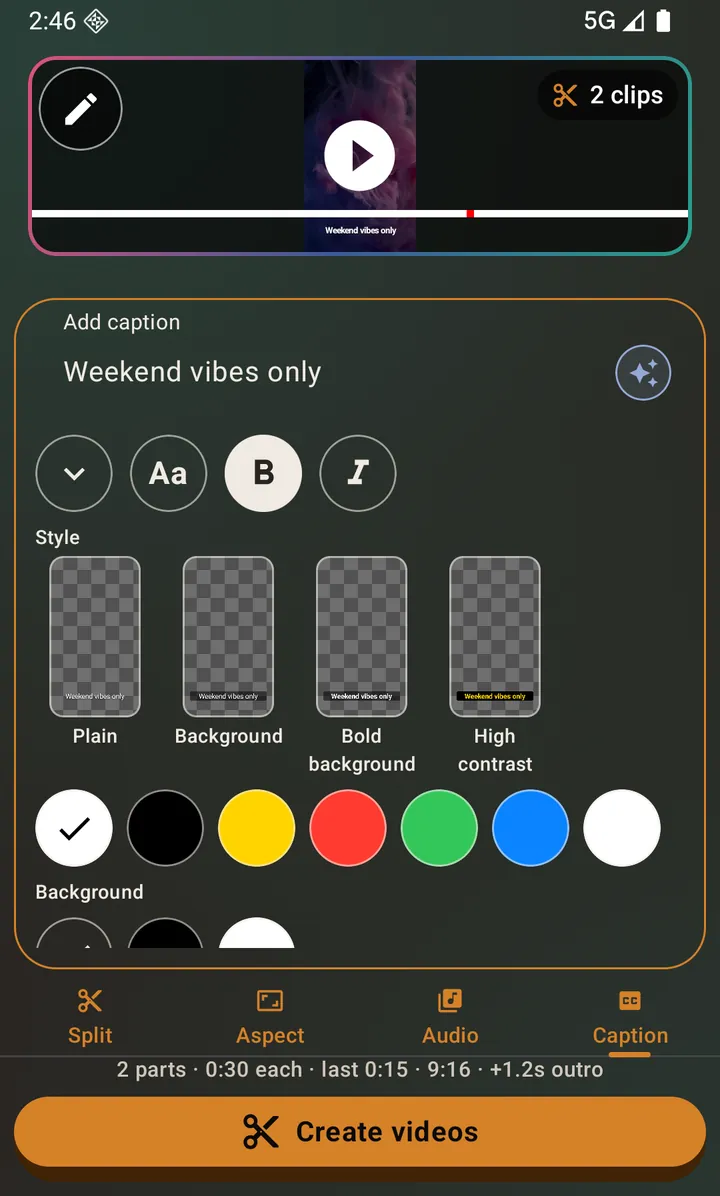
Burn a styled caption into your clips, slideshow or collage — part of the picture, so it survives being re-shared. Stuck for wording? The sparkle button opens a chat: describe what you are posting, get several different captions to choose between, and keep talking until it is right. It answers in your own language.
- Font size, bold, italic and six text colours
- Applied to every clip in a split, or to the whole slideshow
- AI captions in a chat you can refine, in your language
Photos into a slideshow or a collage
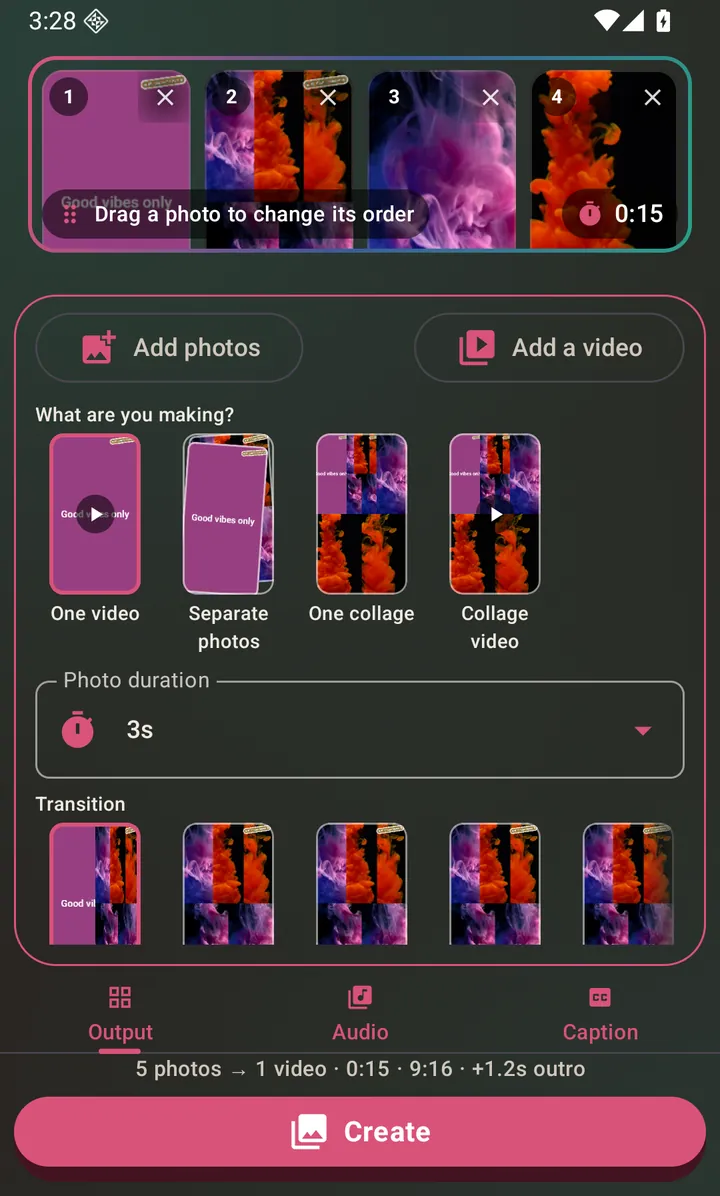
Pick up to 30 photos and choose what they become: a slideshow video with one of eight transitions, a collage in one of seven layouts as an image or a short clip, or every photo exported on its own. Drop a video clip in among the photos, and attach a background track to the whole thing.
- Eight transitions including crossfade, zoom, spin and page flip
- Seven collage layouts: grid, bordered, spotlight, tall columns, framed, polaroid, before/after
- Mix a video clip in, in the order you picked it
- Background audio that can loop, trim or mute to fit
Edit any photo before it goes in
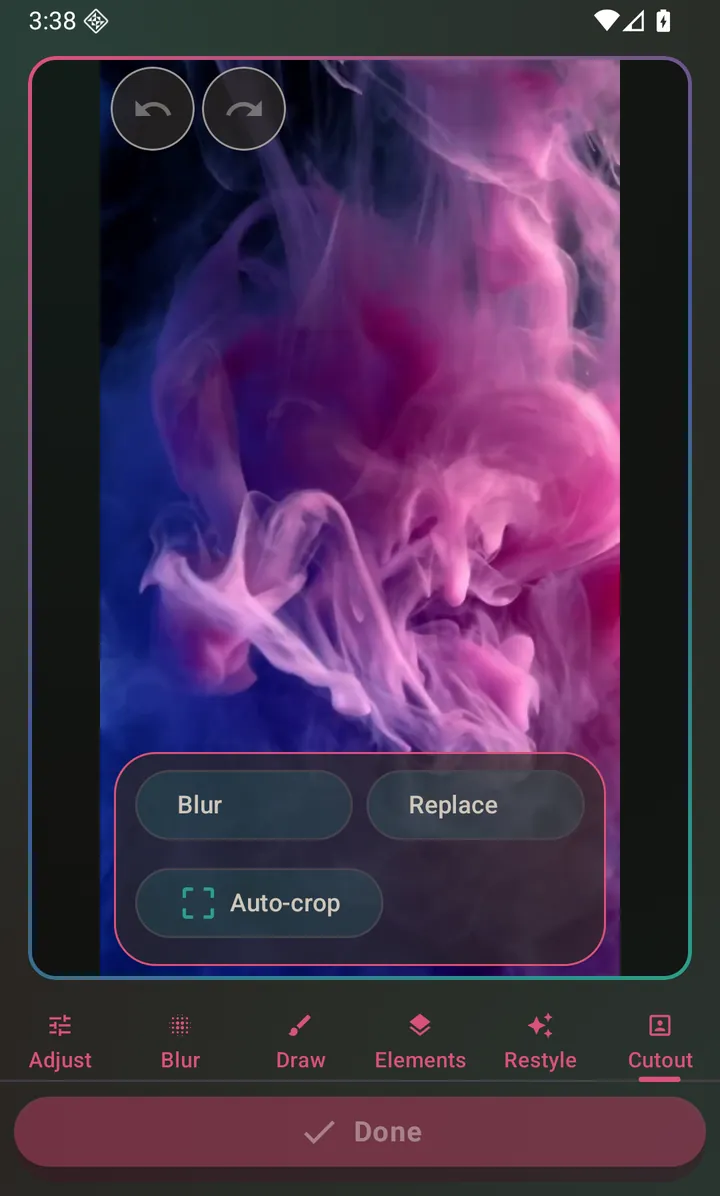
Open it from Home’s Edit a photo row, or tap a picked photo in the slideshow flow: rotate, crop and adjust it, paint a blur over anything you would rather not show, draw freehand, drag text anywhere on it, or add stickers. The Cutout tab blurs or replaces the background and crops tight to the subject — that one runs on your phone with nothing uploaded. Restyle is the opposite, and says so before it sends anything.
- Rotate, crop, brightness, contrast, saturation
- Blur brush, freehand drawing, draggable text, stickers
- Cutout: on-device AI background blur, colour replace and auto-crop
- Restyle: repaint a photo with AI — paid, signed in, and it sends that one photo
Type a status, or wrap a song in one
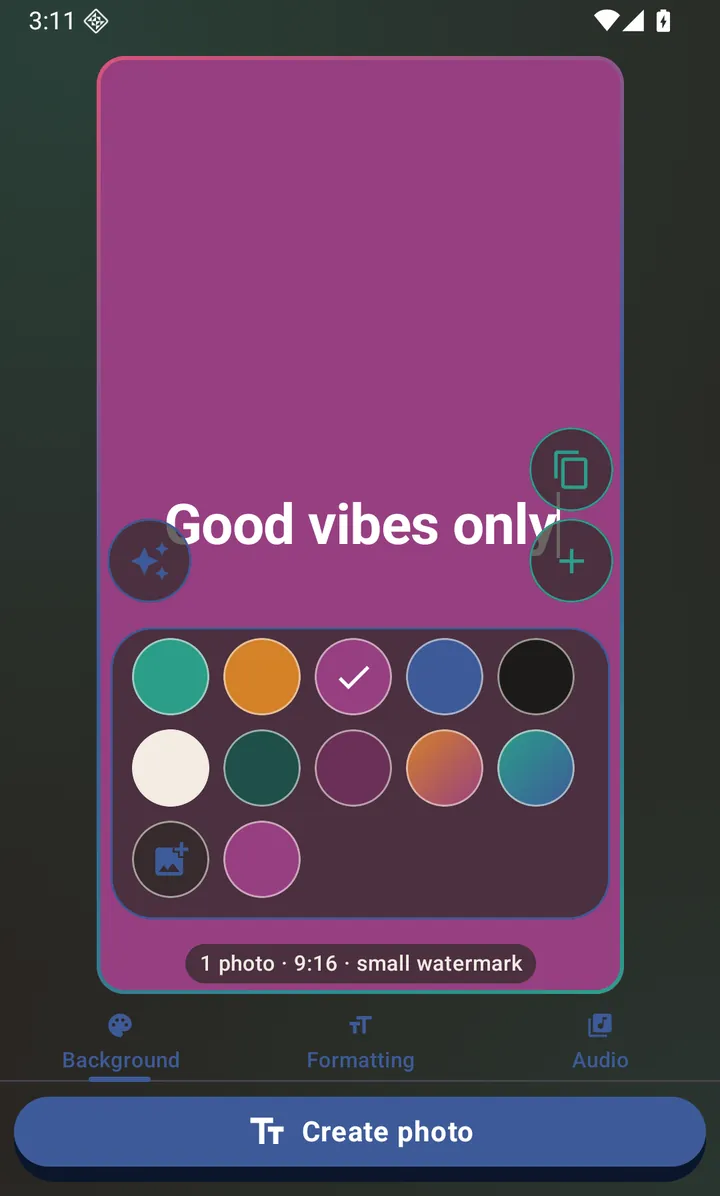
Turn typed text into a styled status over a background theme, with your choice of font size, weight and colour. Add more pages, each styled its own way, and export them as separate images or one page-flip video. Attach a track and the same page becomes an audio status.
- Ten background themes, two of them gradients — or a photo behind the words, styled per page
- Multi-page sessions you swipe between, jump around and reorder
- Export as images or one page-flip video
- Attach audio to post a song or voice note as a status
Popular how-tos
Step-by-step, with a screenshot of every screen you will actually see.
How to split a video for WhatsApp Status
Split a long video into equal WhatsApp Status clips on Android: pick a clip length of 15, 30, 60 or 90 seconds, or drop your own split points, then save or share every clip in one tap.
Crop a video to 9:16How to crop a video to 9:16
Crop any video to a 9:16 vertical frame on Android with one tap — no black bars, centred on the middle of the frame, ready for WhatsApp Status, Instagram Reels and YouTube Shorts.
Make a photo slideshowHow to turn photos into a slideshow video
Turn up to 30 photos into a vertical slideshow video on Android: pick how long each photo shows, choose one of eight transitions, add background music, and share it as one video.
Replace a video's audioHow to replace the audio in a video
Swap a video's soundtrack for a song or voice note on Android, or lift the audio out of another video — for the whole clip or just part of it.
Create a text statusHow to turn typed text into a status
Type a status, pick a background theme, set the font size, style and colour, add more independently-styled pages, and export as images or one page-flip video.
Generate captions with AIHow to write a caption with AI
Describe the status you are posting and get several different caption options back — then keep the chat going to refine them. Answers come back in your own language.
Common questions
Where do I start?
The home screen opens on six named outcomes — a birthday message, a photo dump, a before-and-after, one photo with big words, split a video, or a song with words. Tap one and the app is set up before you pick your photos. The three plain ways in are on the same screen under Start from scratch, and Edit and post below them opens the video or photo editor directly. See Start from an idea.
Is KL Status Maker free?
Yes, and there are no ads. There is an optional subscription that removes the branded ending on videos and the watermark on photos, and optional one-off AI credit packs if you want to use the AI tools.
Is KL Status Maker an alternative to CapCut, InShot, VN, KineMaster, Canva or Picsart?
Yes, for making statuses. It splits a long video into Status-length clips in one export, crops to 9:16, and makes slideshows, collages, text and audio statuses, with no ads.
Do I need an account?
Not for editing. Splitting, cropping, trimming, audio changes, the video editor, the photo editor’s own tools, slideshows, collages and text statuses all work with no account at all. A Google sign-in is only needed for the optional AI tools.
Does it work offline?
Yes. Every export, and every edit but the photo editor’s Restyle tab, runs on your phone. Only the optional AI tools need a connection — everything else, down to the photographs behind the home screen buttons, is already inside the app.
Ready to post something good?
KL Status Maker is free on Google Play. Android 7.0 or later.