
How to turn typed text into a status
Tap Create text/audio status on the home screen, type into the canvas, pick a background theme from the swatches, and tap Create photo. Use the + button on the canvas to add more pages, each with its own styling.
This one has no source file at all — the canvas is the artwork. What you see on screen is exactly what gets exported, at full resolution.
Step by step
Open the text flow
Home → Create text/audio status.
Type your status
Tap the canvas and type. The text re-fits as you go, so you can see immediately whether it is getting too long for the frame.
Pick a background
The Background tab shows theme swatches — ten of them: eight solid colours (teal, orange, purple, blue, charcoal, cream, forest and plum) plus two gradients (sunset and ocean). All ten are on screen at once — nothing to swipe for. Beside them is one more option that is not a theme: tap it to put a picture behind the words instead, and a soft dark band is drawn under the text so it stays readable over the photo.
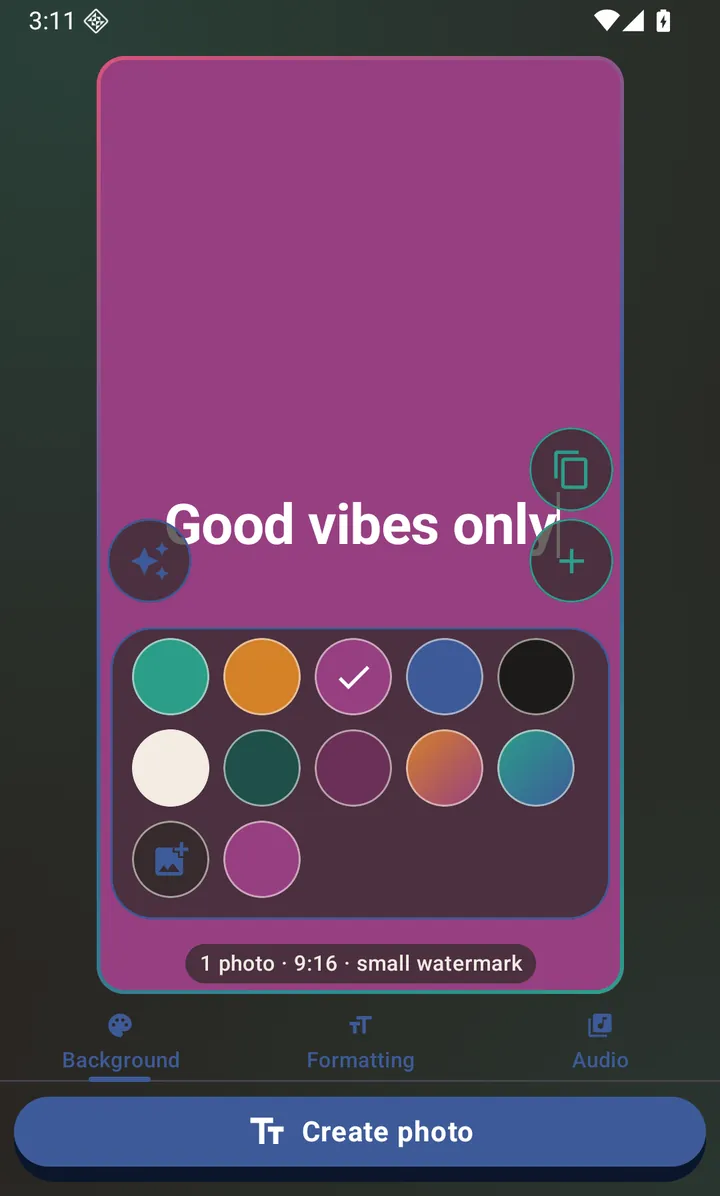
A typed status on the purple theme. All ten theme swatches are on screen at once. Style the text
The Formatting tab cycles font size (small, medium or large) and toggles bold and italic, and picks the text colour — the same swatches the caption tools offer, plus the same picker for any colour you like.
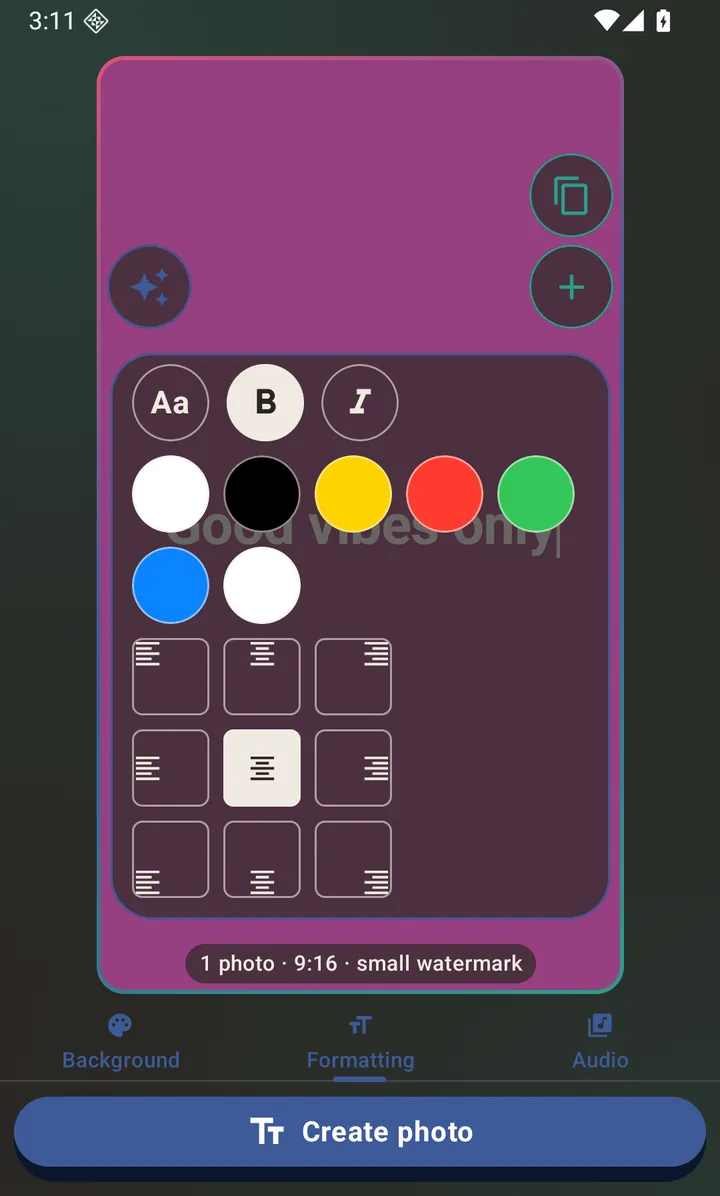
Font size, bold, italic and text colour. Add more pages (optional)
The + button on the canvas adds another page. Each one is styled independently, and you swipe between them. Tap the row of dots to open a rail of page thumbnails: tap one to jump straight to that page, or press and drag it to change the order they export in. Multiple pages export either as separate images or as a single video with a page-flip transition.
Create it
Tap Create photo. A single page with no audio renders instantly — there is no export wait at all.
Let AI help
The sparkle button in the corner of the canvas is this screen's one AI button, and it offers three things: words for the page, a track for the whole status, or a picture to sit behind the words. Each one says where it lands before you pick it, and it offers the same three whichever tab you have open.
Whatever you choose, you describe what you want in a chat and the result drops straight onto the page — keeping whatever background and styling you have already chosen.
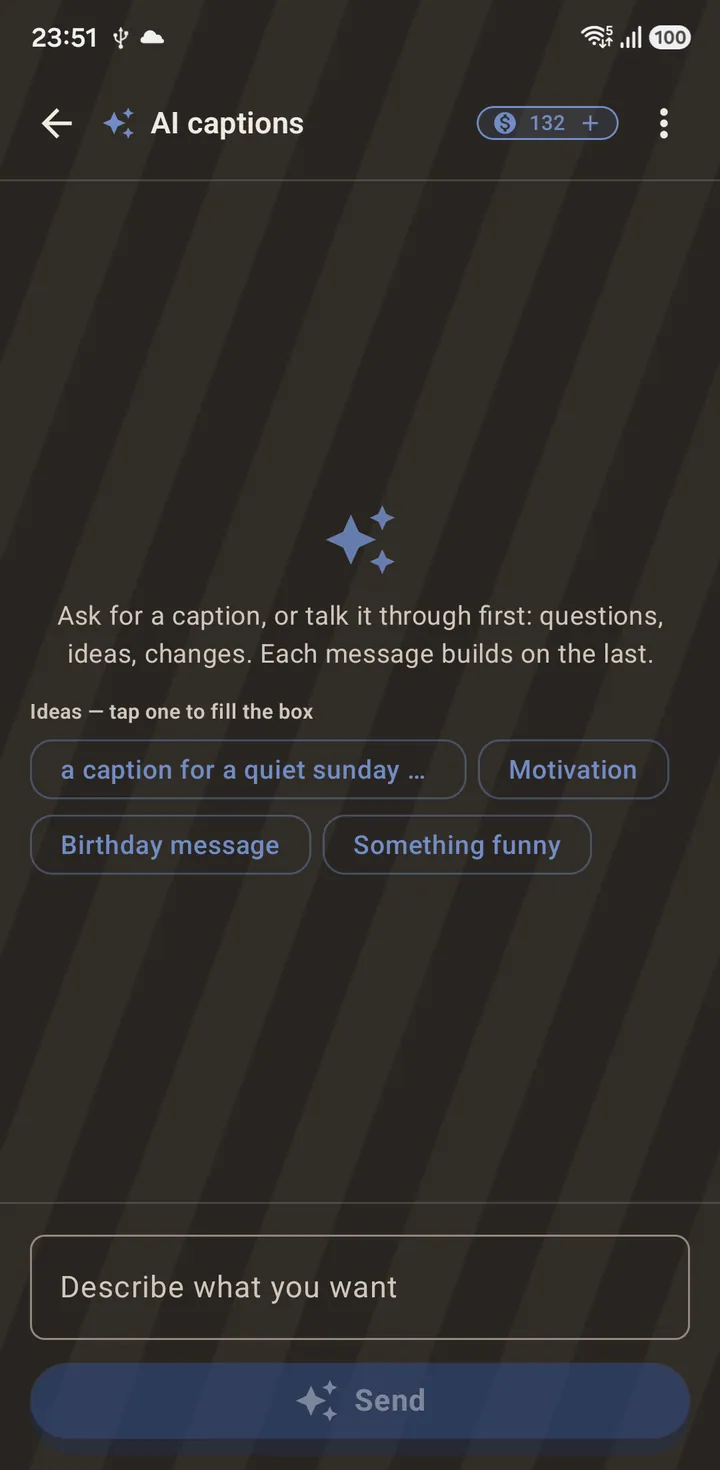
Editing one again later
A text status is the one thing you can reopen and change in place. Find it in the Gallery, tap the ⋮ on its card and choose Edit: it comes back into the editor with its text, theme and styling intact, and saving replaces the file rather than adding a second copy.
That is different from Make another like this, which every card offers: that one reuses the settings to make a new status and leaves the saved one alone.
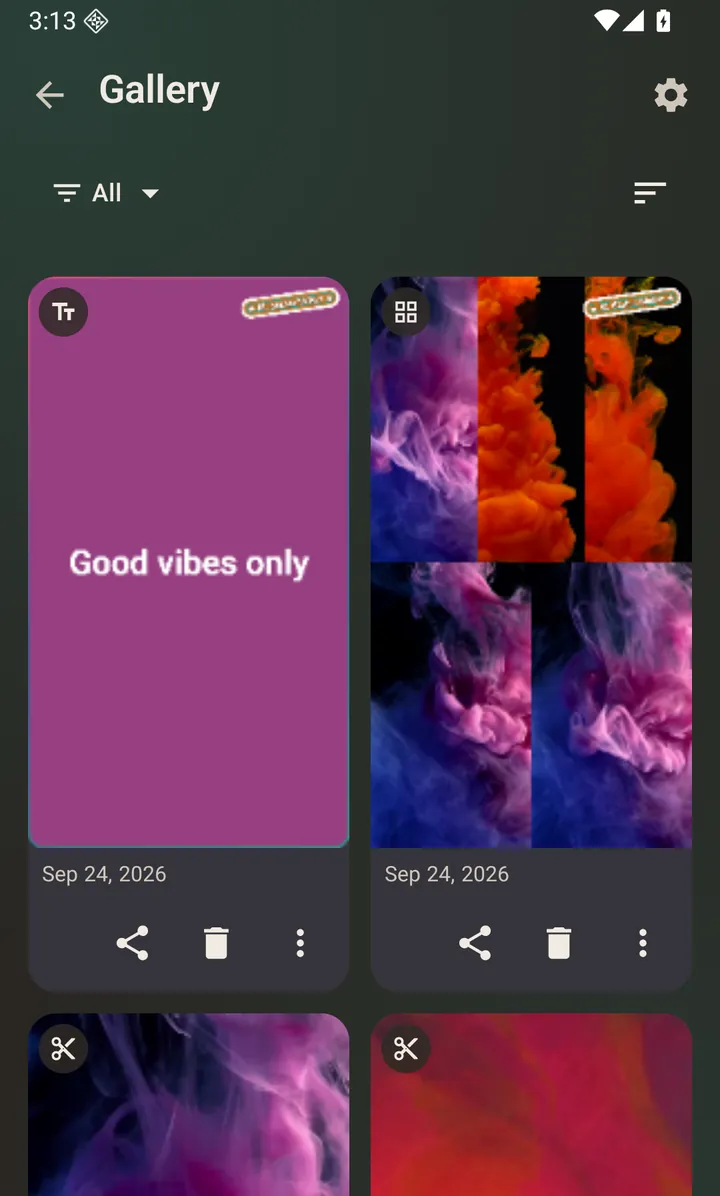
Questions about this
Can I use my own background image?
Yes. Beside the ten theme swatches on the Background tab there is one more option: tap it and pick where the picture comes from — your own photos, or one made with AI — and it fills the page behind your words with a soft dark band under the text so it stays readable. It is set per page, so one page can be a photo and the next a plain colour, and tapping the × beside the swatch puts the page back on its theme. If you would rather keep the photo at full size and put words on top of it, the photo editor's Text tool and a burned-in caption both still do that.
How many pages can one status have?
Enough for any normal status. Each page is styled on its own, so a multi-page status can change background colour part-way through.
What is the difference between separate images and the page-flip video?
Separate images post as several status entries that people tap through. The page-flip video is one entry that turns the pages for them — and it is the only one of the two that can carry audio.
Also searched for as: text status maker, quote maker, text on background, typography status