
How to turn photos into a slideshow video
Tap Create from photos on the home screen, pick your photos, then on the Output tab choose One video under What are you making?. Choose a transition, optionally attach background audio on the Audio tab, and tap Create. The line above the button tells you what you are about to get.
The same photo flow makes four quite different things, and you choose between them as one question — a row of cards showing each outcome rendered from your own photos. This guide covers the slideshow video; the same screen also makes a collage and can export every photo separately.
Step by step
Open the photo flow
Home → Start from scratch → Create from photos.
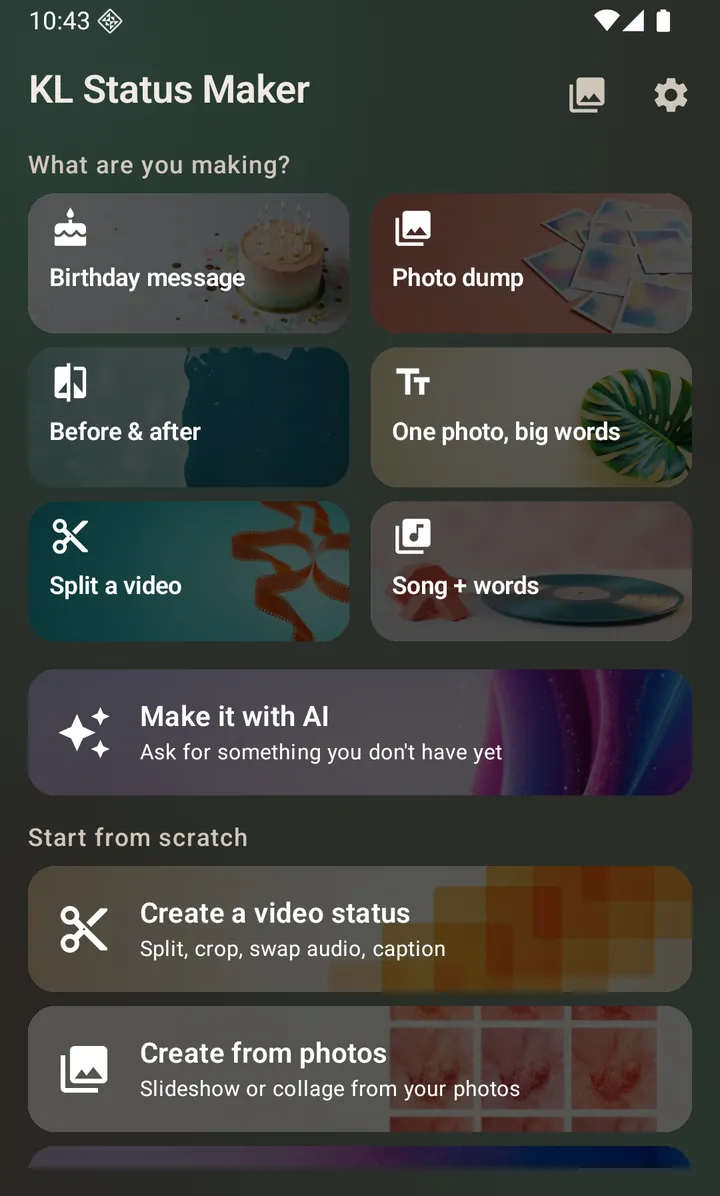
The home screen. <em>Create from photos</em> sits under <em>Start from scratch</em>, below the ideas and the AI row. Pick your photos
Select up to 30 at a time. The order you pick them in is the order they appear. Use Add photos on the Output tab if you want to add more later.
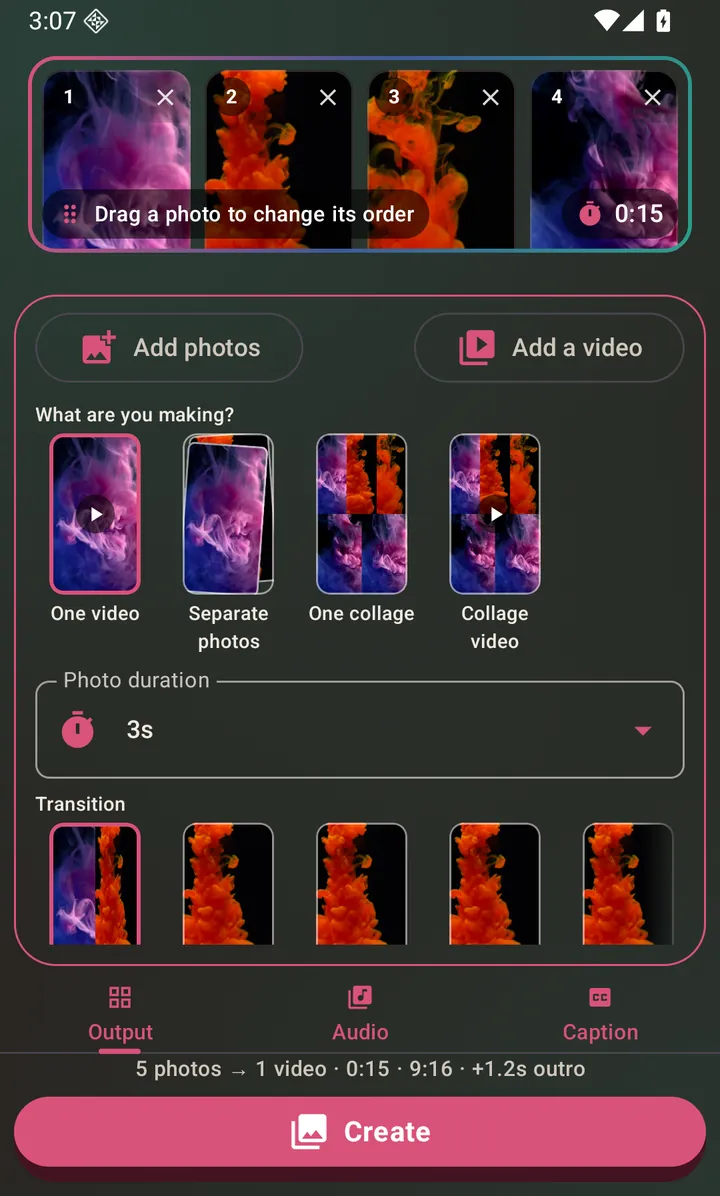
Five photos picked. Tap any thumbnail to edit that photo before it goes in. Choose One video
What are you making? is a row of cards, each showing what that choice produces built from the photos you just picked: One video, Separate photos (every picture exported on its own), One collage and Collage video. One video is the slideshow.
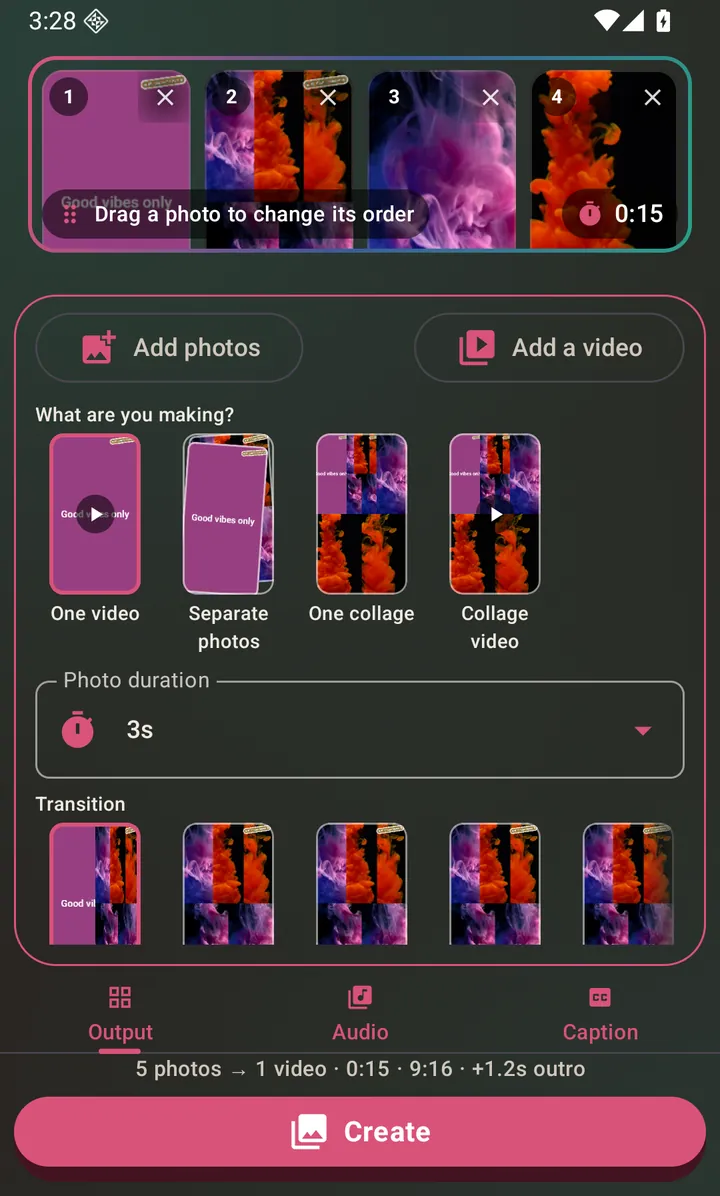
One video chosen. The line above Create states what you will get. Choose a transition
Eight styles, shown as a row of small animating previews built from your own first two photos rather than as a list of names: Hard cut, Crossfade, Slide, Slide up, Slide down, Zoom, Spin and Page flip. Swipe the row to see them all.
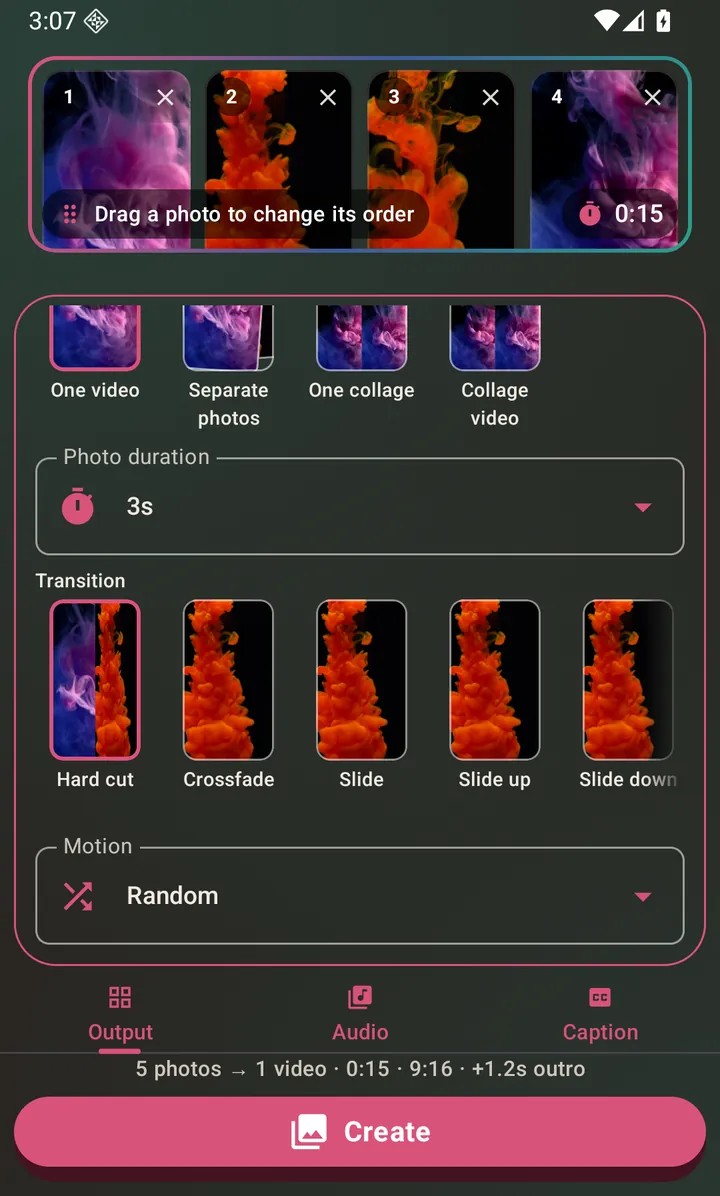
The transition row, previewed on your own photos. Swipe it for the rest. Choose how the photos move (optional)
Every slideshow video gives each photo a slow Ken Burns drift. Motion is where you choose it: Random (the default, a different one each time you export), None for a completely still photo, Zoom in, Zoom out, Pan left, Pan right, Pan up, Pan down, Zoom in + pan left or Zoom in + pan right.
Add background music (optional)
The Audio tab offers three sources for one track under the whole slideshow: an audio file, the sound from a video, or a track made with AI music.
Create the video
The line above the button states what you are about to get — how many photos go in, what comes out, how long it runs, the 9:16 frame, and the short branded ending added for anyone without the support subscription. Tap Create. When it finishes you can preview, save to your gallery, or share it.
How long the slideshow ends up
Each photo shows for 3 seconds unless you say otherwise, so six photos is an 18-second video. The Per-photo duration control on the Output tab picks 2, 3 or 5 seconds instead. It used to be hidden behind a Settings switch; it is simply there now.
Background audio changes the arithmetic. If the track is longer than the photos, the track sets the length and the photos repeat — rounded up to a whole photo, so no picture is ever cut off half-way through. Whether the audio itself loops, stops or trims across the difference is the Audio/video length mismatch setting, which defaults to Mute.
Mixing a video clip in among the photos
Once the output format is Video, an Add a video button appears next to Add photos. The clip drops into the sequence at the position you picked it, so you can open on three photos, cut to a few seconds of footage, and finish on more photos. Tapping the video's thumbnail opens the full video editor for it.
Questions about this
How many photos can I use?
Up to 30 per selection, and you can add more afterwards with Add photos, which offers your own gallery or a picture made with AI.
Can I reorder the photos?
Yes — press and hold a thumbnail and drag it where you want it. The numbered badge on each thumbnail shows the current order, and it renumbers as you drag. Order decides the sequence in a slideshow and which cell each photo lands in inside a collage — in the Spotlight layout the first photo is the large one.
Can I put a caption across the whole slideshow?
Yes — the Caption tab burns one styled caption onto the output. See the captions guide.
What if my photos are different shapes?
They are fitted into the same vertical frame. If a particular photo needs different framing, tap its thumbnail to open the photo editor and crop it first.
Also searched for as: slideshow maker, photo video maker, photos to video, photo status maker