
How to burn a caption onto a video or photo
Both the video flow and the photo flow have a Caption tab, last in the tab row. Type your caption there, style it with the size/bold/italic/colour controls, and it is burned into every clip or photo the export produces.
A burned-in caption is part of the picture, so it survives being re-shared, downloaded and re-uploaded — unlike a caption typed into the app you posted to, which disappears the moment someone saves the file.
Step by step
Open the Caption tab
It is the last tab in the row, labelled Caption. You will find it in Create a video status and in Create from photos.
Type your caption
Tap the field and type. The preview above updates live, so you can see exactly where the text will sit on the finished clip.
Style it
The row of controls under the field cycles the font size, toggles bold and italic, and sets the text colour — any colour you like. Six ready-made swatches sit on one line, nothing to swipe for, and a seventh opens hue, saturation and brightness sliders for anything else. Pick whichever reads best against your footage. A Style strip above them sets the whole look in one tap, and under them a Background row puts a semi-transparent plate behind the words — none, black or white, with its own opacity slider — for footage that is too busy for plain text to read against. If the colour you picked and the plate behind it are hard to read together, the app says so and offers to switch the text to whichever of black or white reads better; it never stops you. Under that, a 3×3 grid places the caption: left, centre or right, along the top, middle or bottom of the frame.
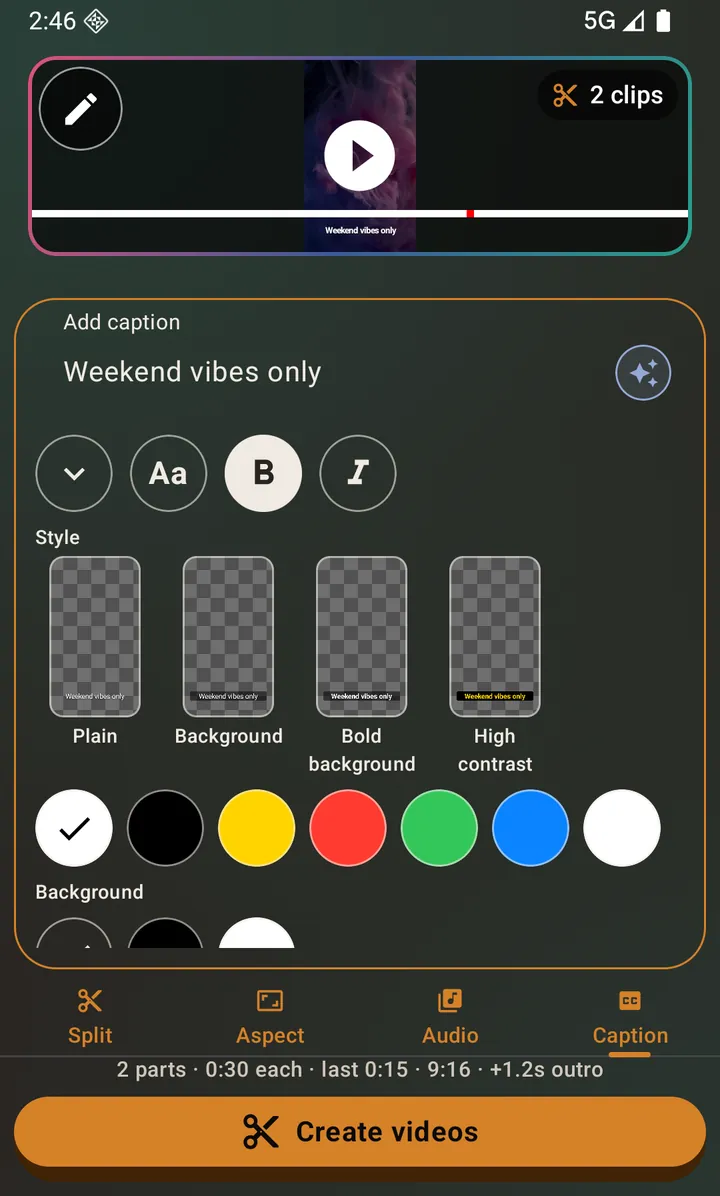
A yellow caption burned into the preview. The six ready-made swatches are on screen at once. Export
The caption is applied to every clip a split produces, or to the slideshow or collage in the photo flow.
Stuck for wording?
The sparkle button beside the caption field opens AI caption generation. It is a chat: describe the status you are posting, get several different captions back, and keep talking until it is right.
It starts from whatever you had already typed — tapping the sparkle carries the words in the caption field into the composer, so you are refining your own idea rather than starting from a blank box.
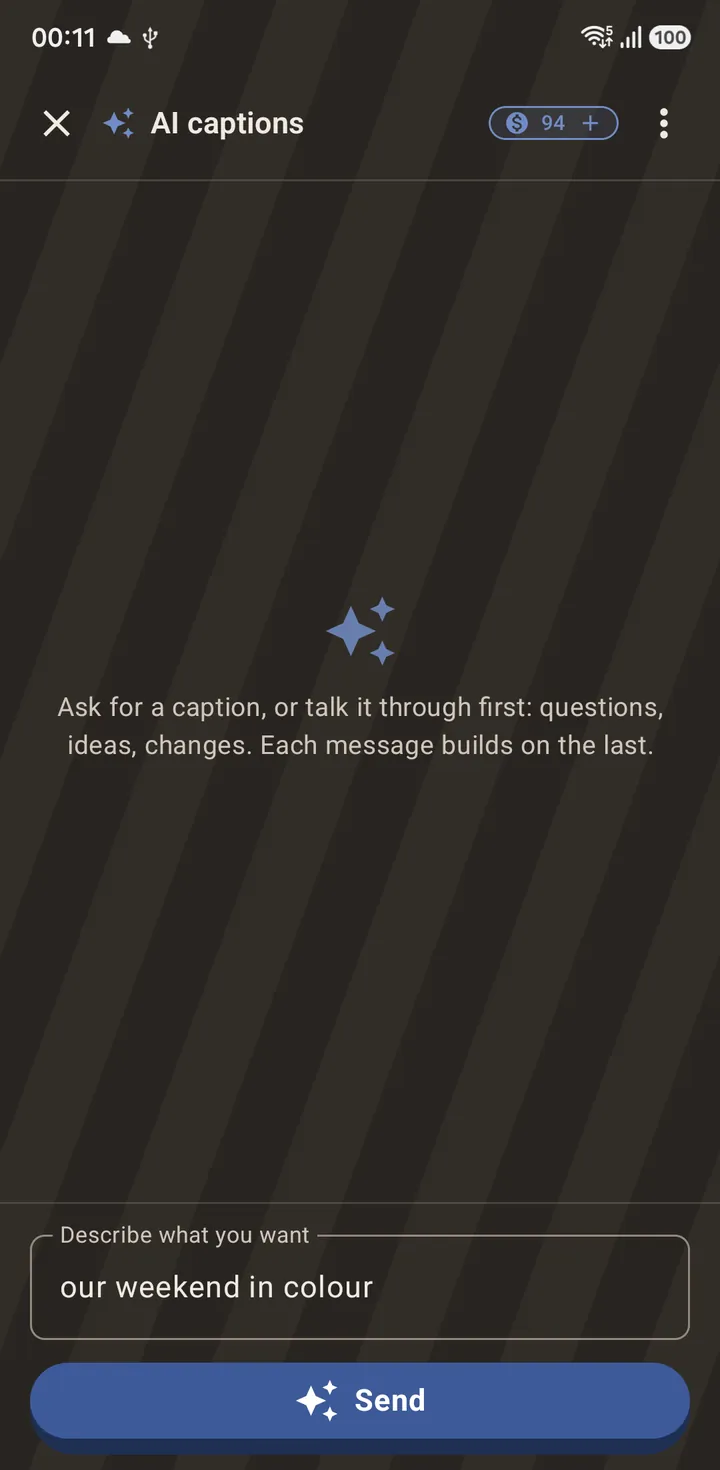
The result, back on your clip
Tap the caption you like and it lands in the caption field, burned into the preview immediately so you can see how it sits before you export.
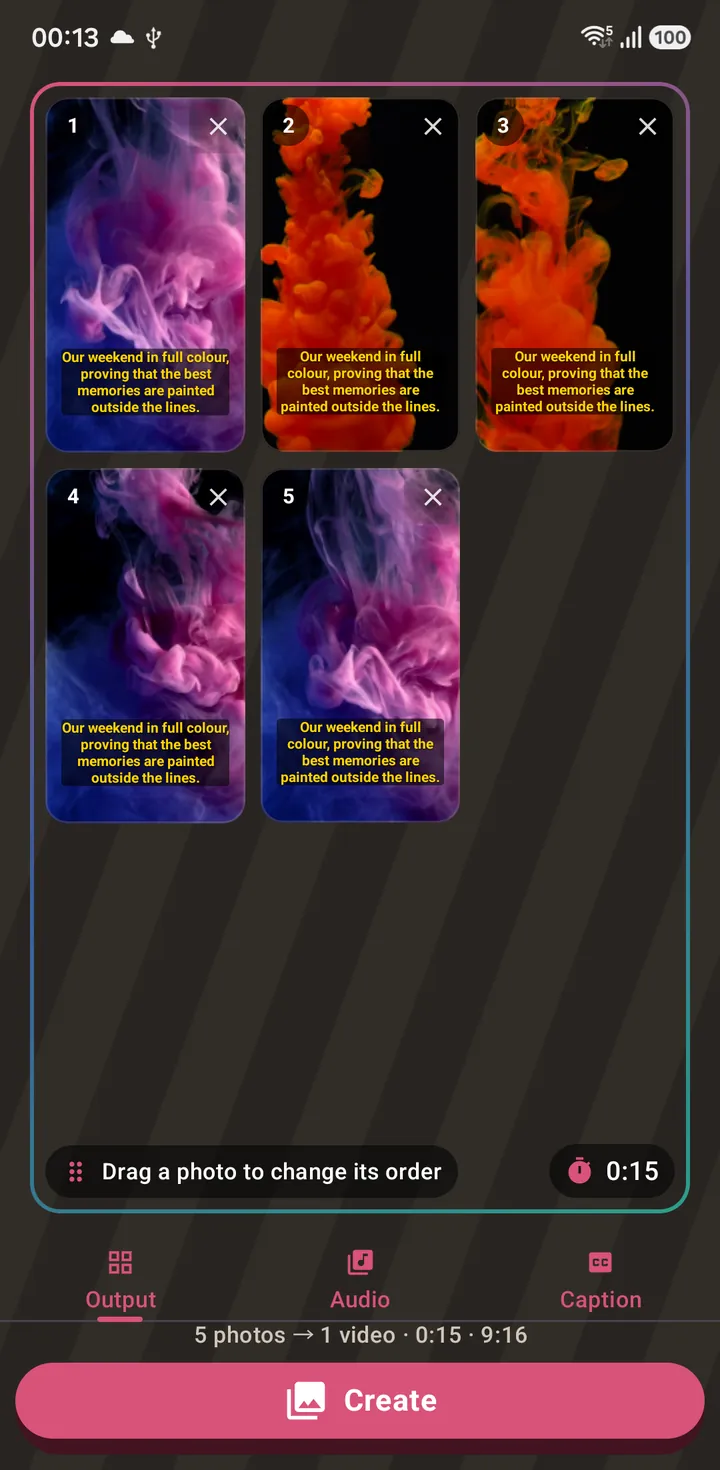
What you actually get
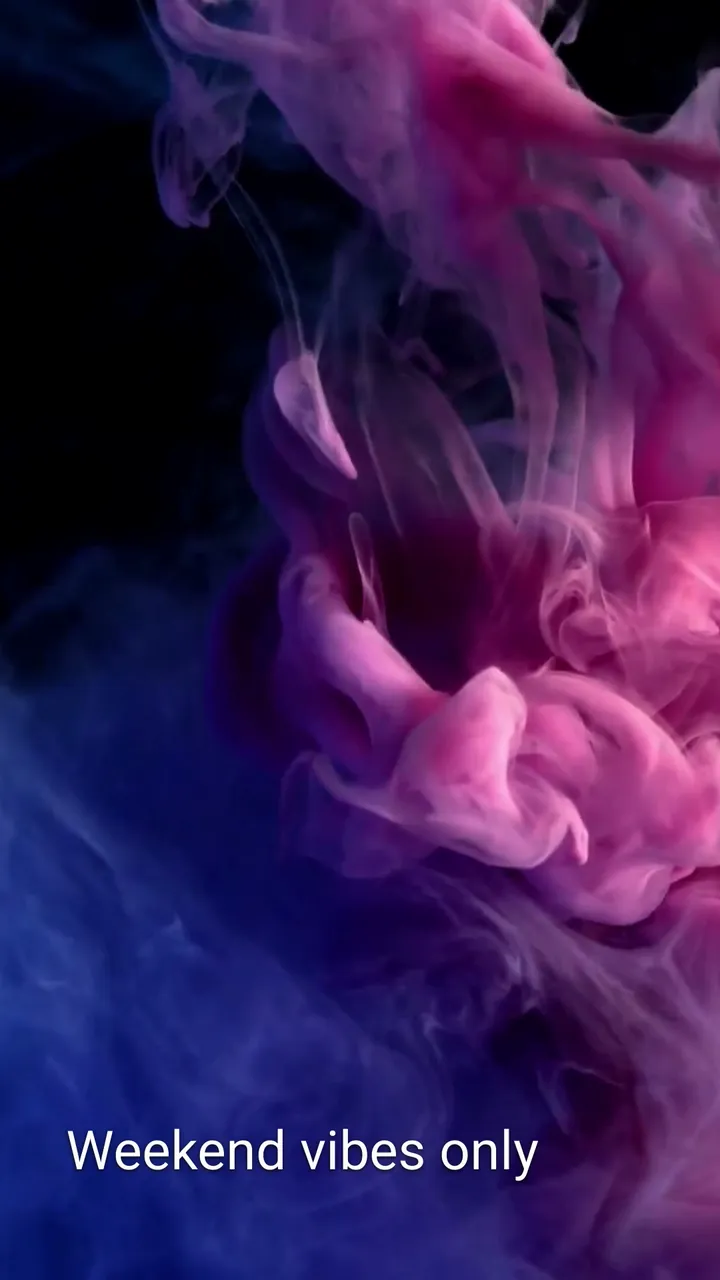
Everything above is the preview. This is the exported file — the caption is part of the picture now, at full resolution, exactly as anyone you send it to will see it. It survives being saved, re-shared, downloaded and re-uploaded, because there is no separate caption layer left to lose.
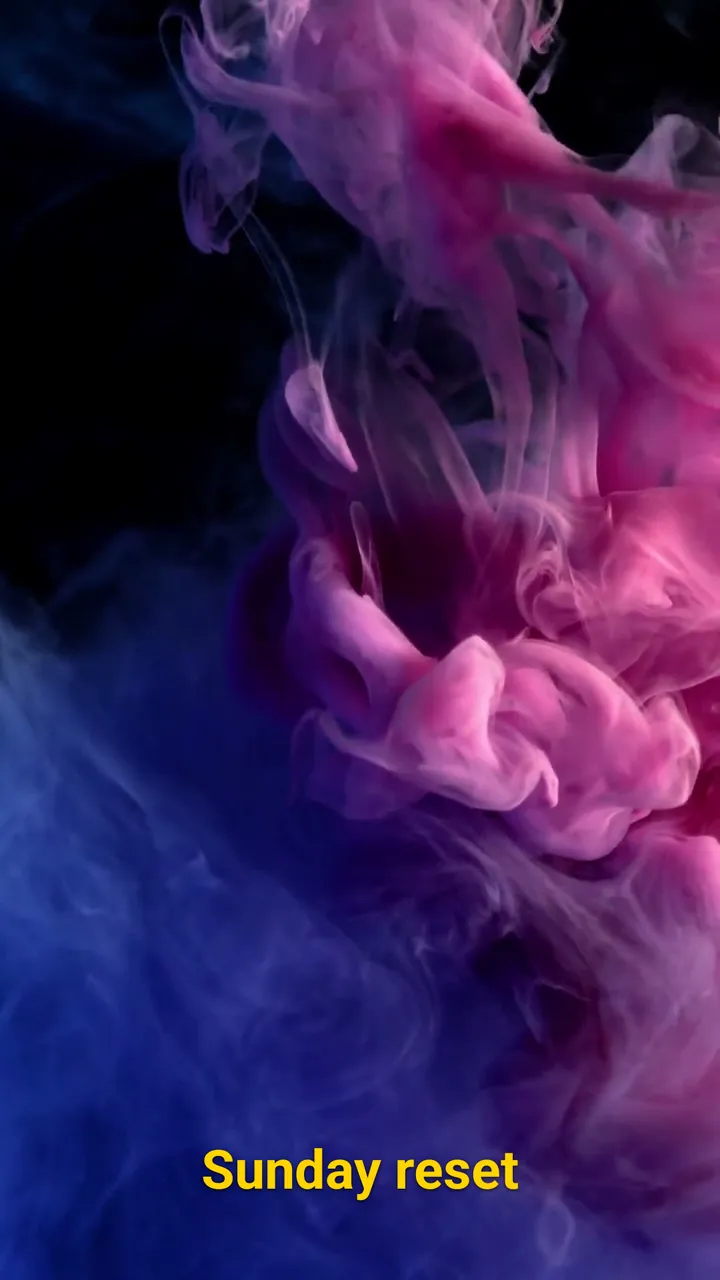
The same thing on a video
Video works identically — the caption is drawn into every frame, so it is there whether someone watches it, pauses it or screenshots it.
Both examples here were exported by an account holding AI credits, which removes the small watermark and the short branded ending a free export carries. See the saving and sharing guide for what that looks like otherwise.
Questions about this
Does every clip get the same caption?
Yes. One caption is applied to the whole export. To caption clips differently, export them separately.
Can I move the caption or change where it sits?
Yes. A small grid under the caption field places it in any of nine positions — left, centre or right, and along the top, the middle or the bottom of the frame. One tap sets both. The bottom of the frame is the default, and captions now sit further in from the edge than they used to, so they clear the buttons the app you post to draws over your status. For text you can drag to any position at all, use the photo editor's Text tool.
Is the caption part of the file, or metadata?
It is drawn into the pixels. It cannot be turned off by whoever watches it, and it survives re-sharing.
Also searched for as: add text to video, caption maker, text on video, subtitle a video