
How to write a caption with AI
Tap the sparkle button next to any caption field, or on the text status canvas. Sign in with Google, describe what you are posting, and the app returns several different captions for the same moment on one swipeable card. Tap one to drop it into the field.
Caption generation is one of the app’s AI tools, and those are the only features here that use the internet. Everything else — splitting, cropping, slideshows, text statuses, and every photo edit except Restyle — happens entirely on your phone. It sends the message you type to a server so a model can answer it, which is why it needs a sign-in and why it is kept clearly separate from the rest.
Step by step
Tap the sparkle button
It sits next to the caption field on the Caption tab, and on the text status canvas itself. If you have already typed something, the chat opens with that text ready to send.
Sign in with Google
A one-time sign-in. It exists so your AI credits belong to you rather than to the device. The same account covers AI music, and you can also sign in from Settings → AI credits & account. You do not have to sign in to look: the chat opens either way, with its ideas and its composer, and only the button at the bottom asks for an account.
Describe what you are posting
A new chat opens on tappable ideas rather than a blank box — some drawn from what you have asked for before, some suggested for whatever you are captioning. Tap one to fill the composer, or just write your own.
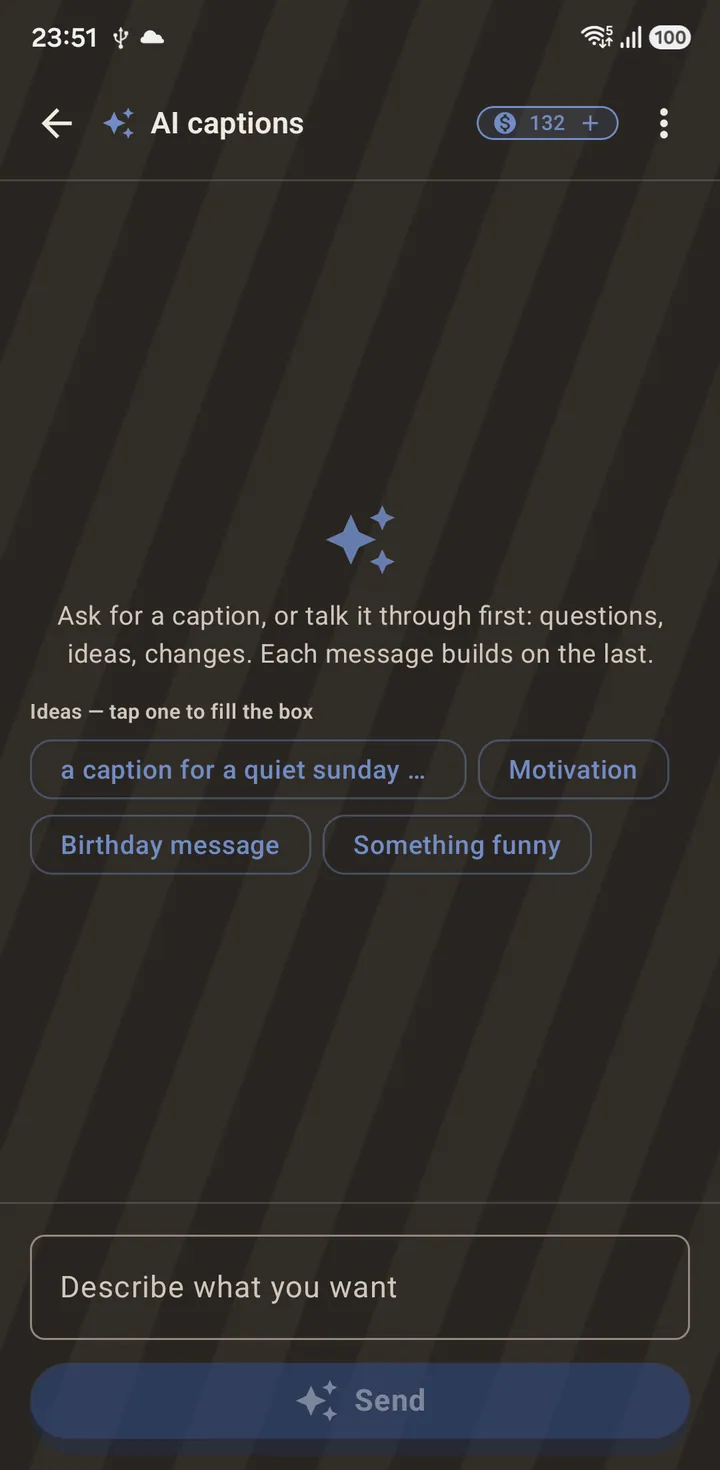
A new chat opens on ideas, mixing what you have asked for before with fresh starters. Read the reply, then pick a caption
It answers you first, then offers several different captions underneath on one card you swipe between — different takes on the same moment rather than the same line at different lengths. Every reply and every caption has a flag button to report it.
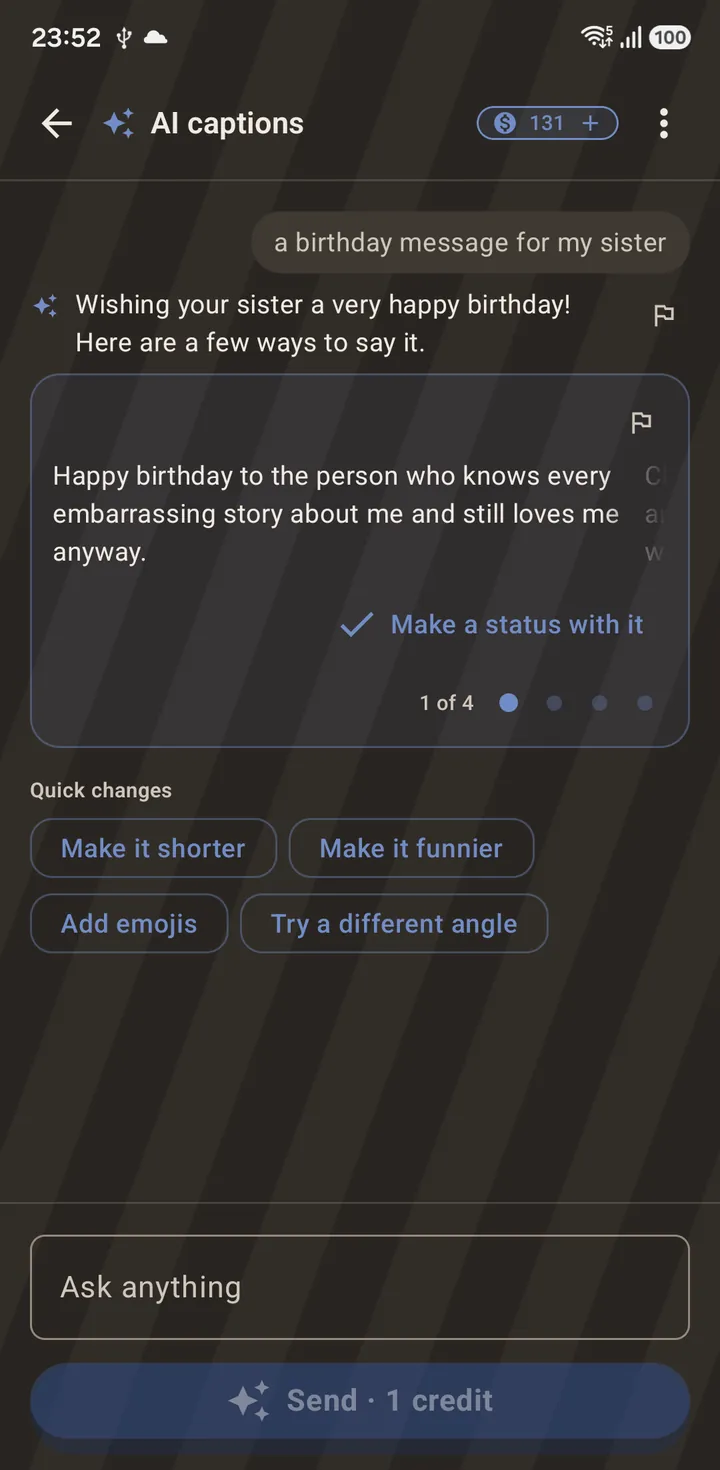
A reply plus a swipeable card of caption options. The balance ticks down by one. Keep talking to refine it
It is a real conversation, not a one-shot generator. Ask for something funnier, shorter or without emoji and it answers, building on what came before. The Quick changes chips at the end of the conversation are one-tap versions of the usual asks — tapping one fills the box rather than sending, so you can edit it first.
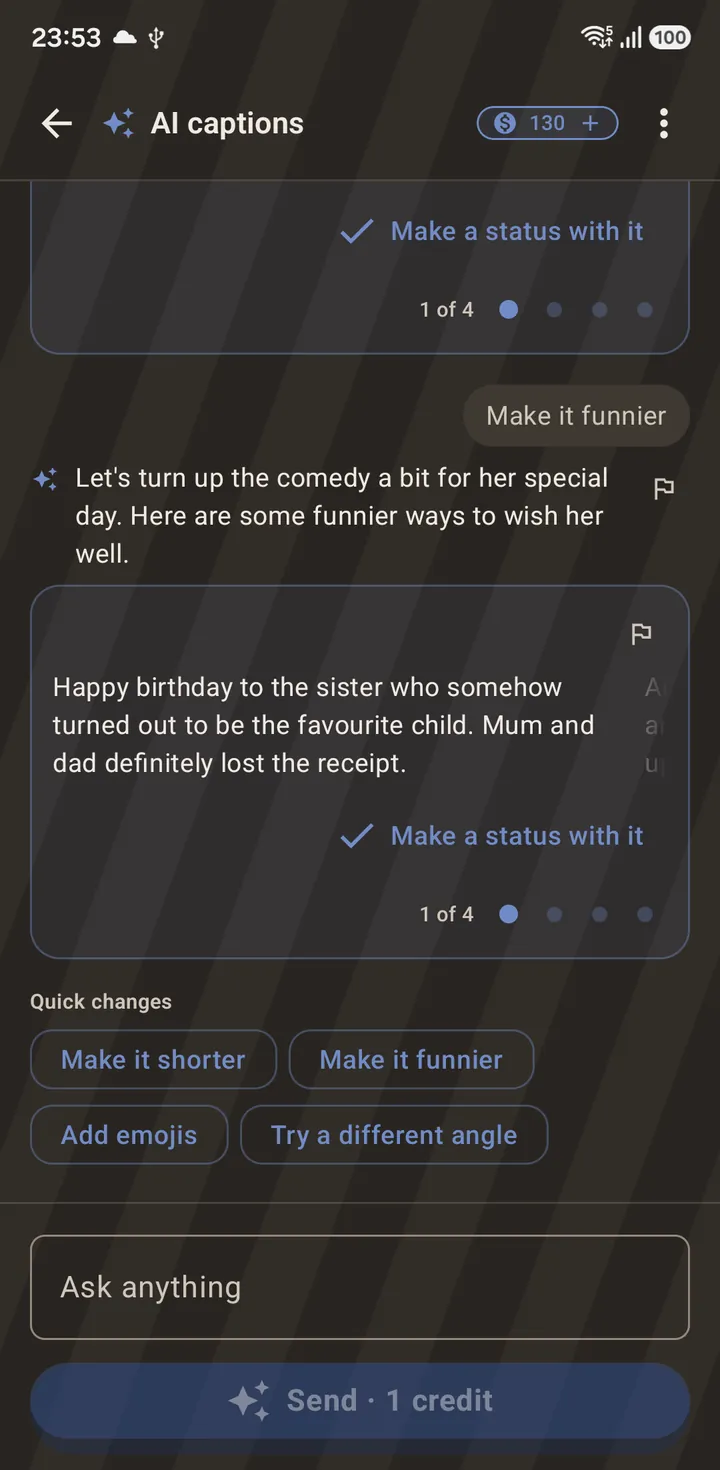
“Make it funnier”, answered in context rather than starting over. Tap a caption to use it
The caption drops straight into the field you opened the chat from — a Text Status page, or either Caption tab.
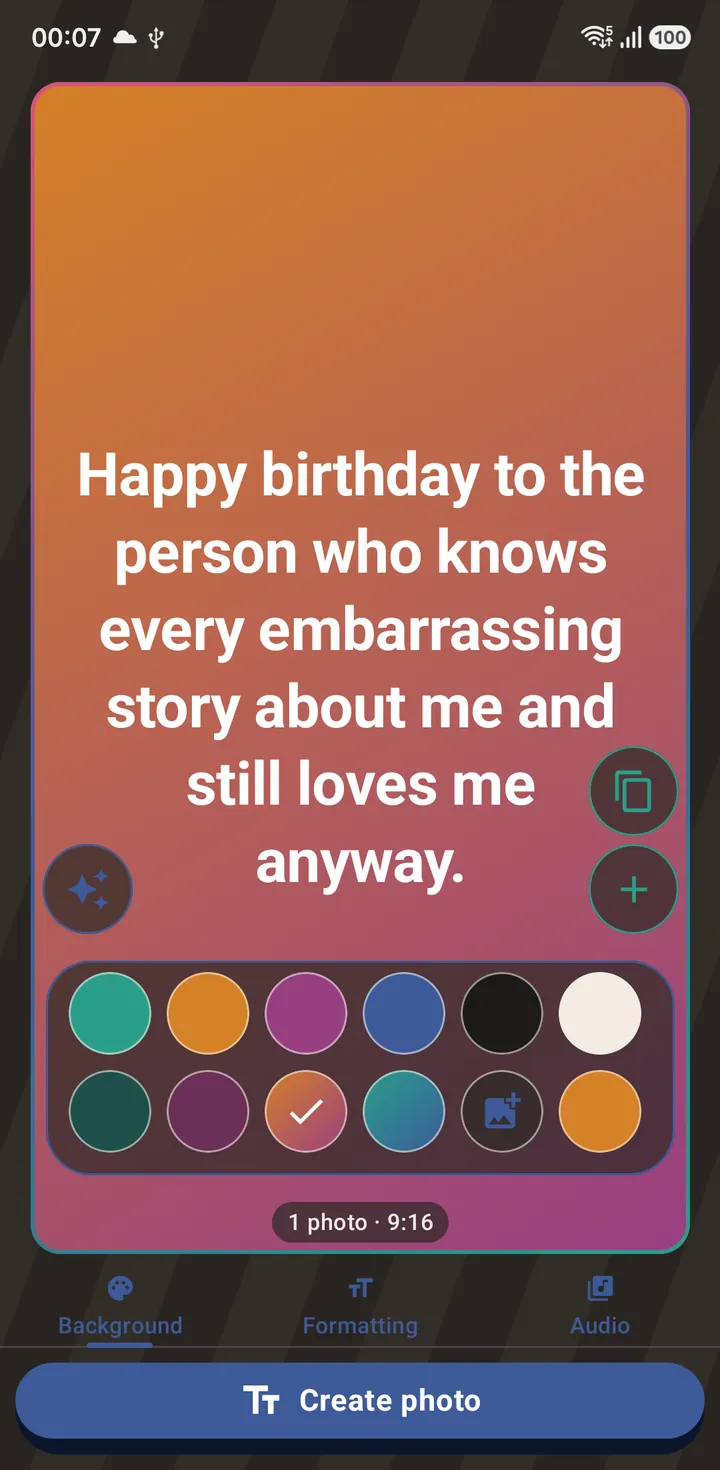
The chosen caption on a Text Status page, here on the Sunset gradient theme. Export it
From there it is an ordinary export. The caption is drawn into the finished file rather than attached to it — see what the exported file looks like.
It answers in your language
The app sends your phone's language along with your message, so a short prompt that gives the model nothing to go on — a name, a place, an emoji — still comes back in your language rather than defaulting to English. It is a tiebreaker, not an override: if you write to the app in English on a Spanish phone, you get English back.
Credits, and what happens to what you type
Generation runs on AI credits, bought as a one-off pack in the app — there is no subscription for it. While you are holding unused credits the app also drops the branded video ending and the photo watermark.
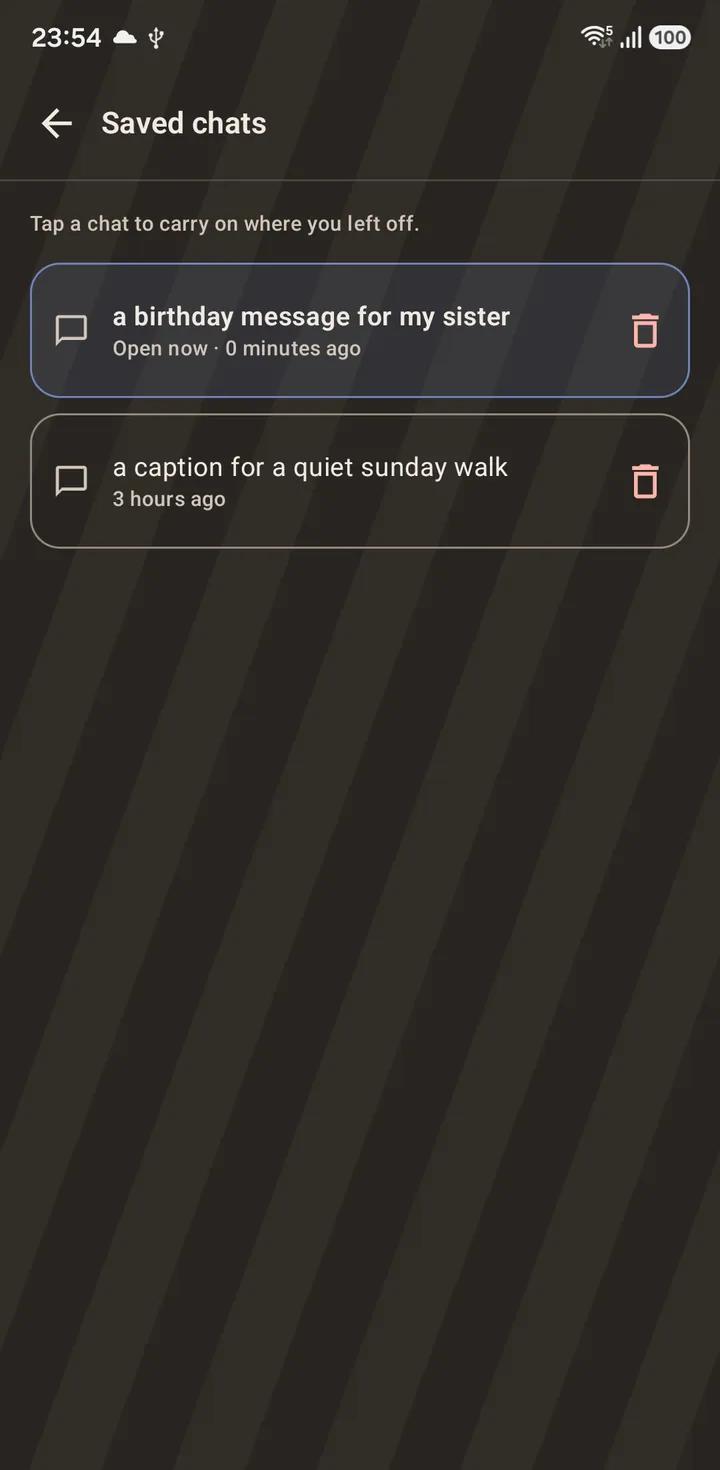
Your chats are stored on your phone, not on a server, and every one of them is listed under the history button so you can carry on where you left off. Deleting a chat is genuinely deleting it. Settings → AI credits & account has Export my data and Delete account if you want everything the backend holds, or want the account gone. Everything the AI makes — a caption, a track, a picture — has a Report button if something comes back that should not have.
Questions about this
Do I need an account to use the rest of the app?
No. Sign-in is required only for the optional AI tools. Splitting, cropping, editing, slideshows, collages and text statuses all work with no account at all.
What does it cost?
AI credits are sold in one-off packs, from the credit badge at the top of the chat or from Settings → AI credits & account. The same credits pay for every AI tool in the app, including AI music.
What is sent to the server?
The message you type and the recent turns of that conversation, so follow-up questions make sense. The caption model only ever sees text — your videos and photos are not sent to it. (Restyle, in the photo editor, is the one tool that sends a photo.)
Are my chats stored online?
No. They are kept on your device and listed in the saved-chats view. Deleting one removes it.
Can I use the AI caption on a video as well as a text status?
Yes. The sparkle button appears on both Caption tabs and on the text status canvas, and fills whichever field it was opened from. On the text status canvas it offers music and pictures alongside captions, since that screen can use all three.
Also searched for as: AI caption generator, caption ideas, status caption writer