
How to make an audio status
Make a text status as usual, then open the Audio tab and choose where the track comes from. Attaching a track turns the export from an image into a video, so the sound plays when someone views it.
Status feeds take photos and videos, not bare audio files. Wrapping the audio in a video whose picture is your styled text page is the way around that — and it looks deliberate rather than like a workaround.
Step by step
Write and style the page
Home → Create text/audio status. Type your text and pick a background and font styling exactly as for a text status.
Open the Audio tab
The third tab. It only accepts a track on page 1 — one track plays under the whole status however many pages it has — so on later pages the tab is dimmed rather than hidden, and tapping it says so and offers to take you back to page 1. It has one button until something is attached. Your page dims while this tab is open — that is deliberate, and it means the text is not what you are editing right now. Swiping between pages still works.
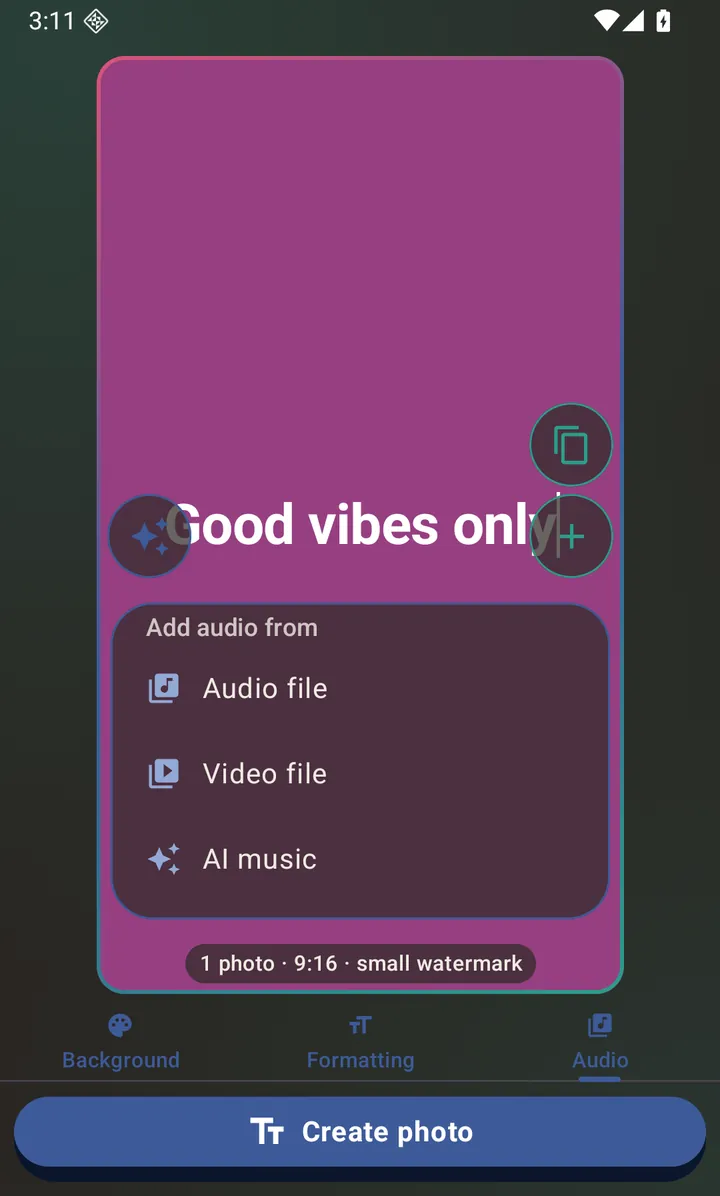
The Audio tab — attaching a track is what makes the output a video. Attach a track
Open the Audio tab and pick a source — the choices are on the tab itself, with no button to open first. The sparkle button in the corner of the page offers making a track with AI as one of its three choices — on this tab and on every other one, so you can reach it without leaving whatever you were doing, and swap a track you have already attached without removing it first.
Create the video
The button changes from Create photo to a video export. This one does run a real export with a progress screen, because it is muxing your page with the audio.
How long the video comes out
The audio decides. If your track is longer than the clip length you picked, the track wins and the page repeats to cover it — the video is as long as the song, not the other way round. That is deliberate and matches how background audio behaves in the photo slideshow.
Questions about this
Can I use a voice note?
Yes. Anything your phone can play as an audio file works, including a recorded voice note.
Can a multi-page status have audio?
Yes. Multiple pages plus audio exports as one video that flips through the pages while the track plays. Attach the track on the first page — one track plays under the whole status, so the Audio tab lives on page one rather than on every page.
Can I attach audio to a photo instead of typed text?
Yes — that is the photo flow's job. Pick your photos, set the output format to Video and attach a track on its Audio tab.
Also searched for as: audio status, voice note status, song status, music status