
How to replace the audio in a video
Pick your video in Create a video status, open the Audio tab, set Change audio to Replace, then pick a source under Replace audio with — an audio file, or a video to take the audio from. Export and the original soundtrack is gone, replaced by the track you picked.
This is a genuine replacement, not a mix: the original audio track is discarded and the new one takes its place. If you want the original voices and a song underneath, that is a different tool — see adding background music.
Step by step
Open the Audio tab
Home → Create a video status, pick your video, then tap Audio in the tab row.
Choose Replace
The Change audio dropdown has three options: Keep original, Mute (strip the sound entirely) and Replace. Pick Replace.
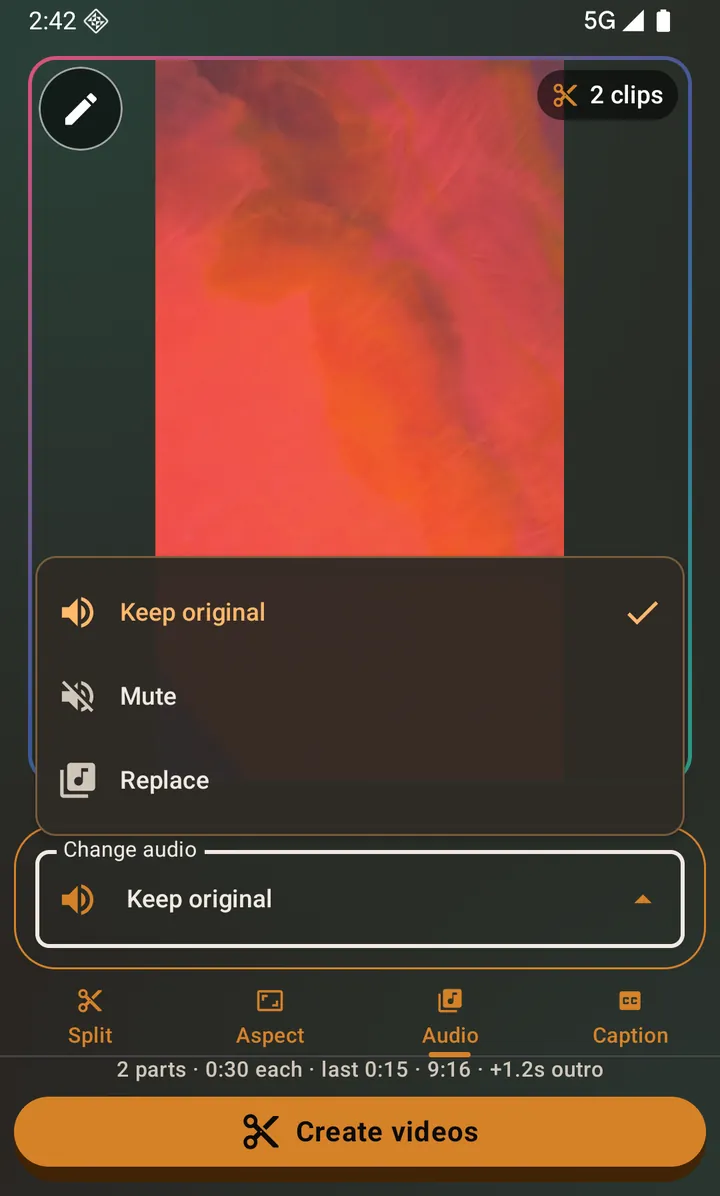
Keep original, Mute, or Replace. Pick the new audio
The sources appear under Replace audio with as soon as you pick Replace. Take the audio from an Audio file (any music or voice recording on your phone), from a Video file, in which case the app pulls the soundtrack out of that video and leaves its picture behind, or from AI music.
Check the length warning, and pick a range if you want
The app tells you what the output will be and warns if the new audio is shorter than the video. A range slider lets you replace only part of the video's audio, keeping the original (or muting it) outside that range.
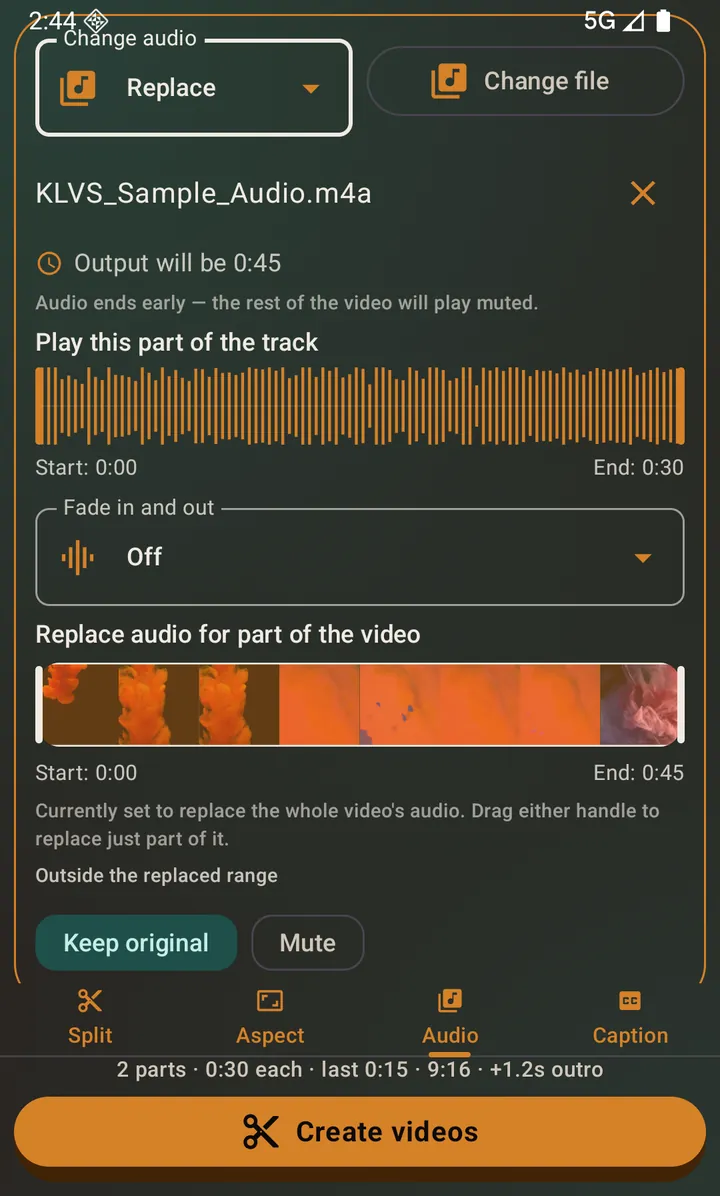
An attached track, the resulting length, and the partial-replacement range control. Export
Tap the start button. Audio replacement runs as its own step before any splitting, so you can replace the audio and split the result in one go.
Questions about this
What if the song is shorter than the video?
The app says so on screen before you export. What happens after the song ends is set by Audio/video length mismatch in Settings → Editing defaults: Mute (the default) leaves the rest silent, Loop restarts the track, Trim ends the output when the track does.
Can I keep the original audio and just add music on top?
Not with this tool — Replace is deliberately a replacement. Use the video editor's Music tab instead, which layers a background track under the original audio with a separate volume slider for each, a fade in and out, and an Auto duck switch that drops the music under speech and brings it back in the gaps.
Why was my video file rejected as an audio source?
Because it has no audio track at all — a muted export, for instance. The app checks up front rather than letting the export fail later with an unhelpful error.
Can I replace the audio for only part of the video?
Yes. Drag either handle on the range slider. Outside the replaced range you choose whether the original audio keeps playing or the video goes silent.
Also searched for as: audio changer, add music to a video, change video sound, put a song on a video