
How to make background music with AI
Open any audio slot in the app and choose AI music, which sits beside the two file sources. Describe what you want, and the chat replies with up to three directions, each with a title and a plain description of how it will sound. Pick one, confirm the cost the button shows you, and the finished track appears in the chat to play and use.
Music generation is one of the app’s AI tools, and those are the only features here that use the internet. Everything else — splitting, cropping, slideshows, text statuses, and every photo edit except Restyle — happens entirely on your phone. Generating music sends what you type to a server, which is why it needs a sign-in and why it is kept clearly separate from the rest.
It is deliberately built so the expensive step is the last one. Talking about the music is cheap, and nothing is actually made until you have read a description of it and confirmed.
Step by step
Open any audio slot and choose AI music
The same three sources appear everywhere the app attaches audio: a video’s Audio tab, the video editor’s Music tab, the photo flow’s Audio tab, and a text status’s own. Whichever one you started from is where the finished track lands.
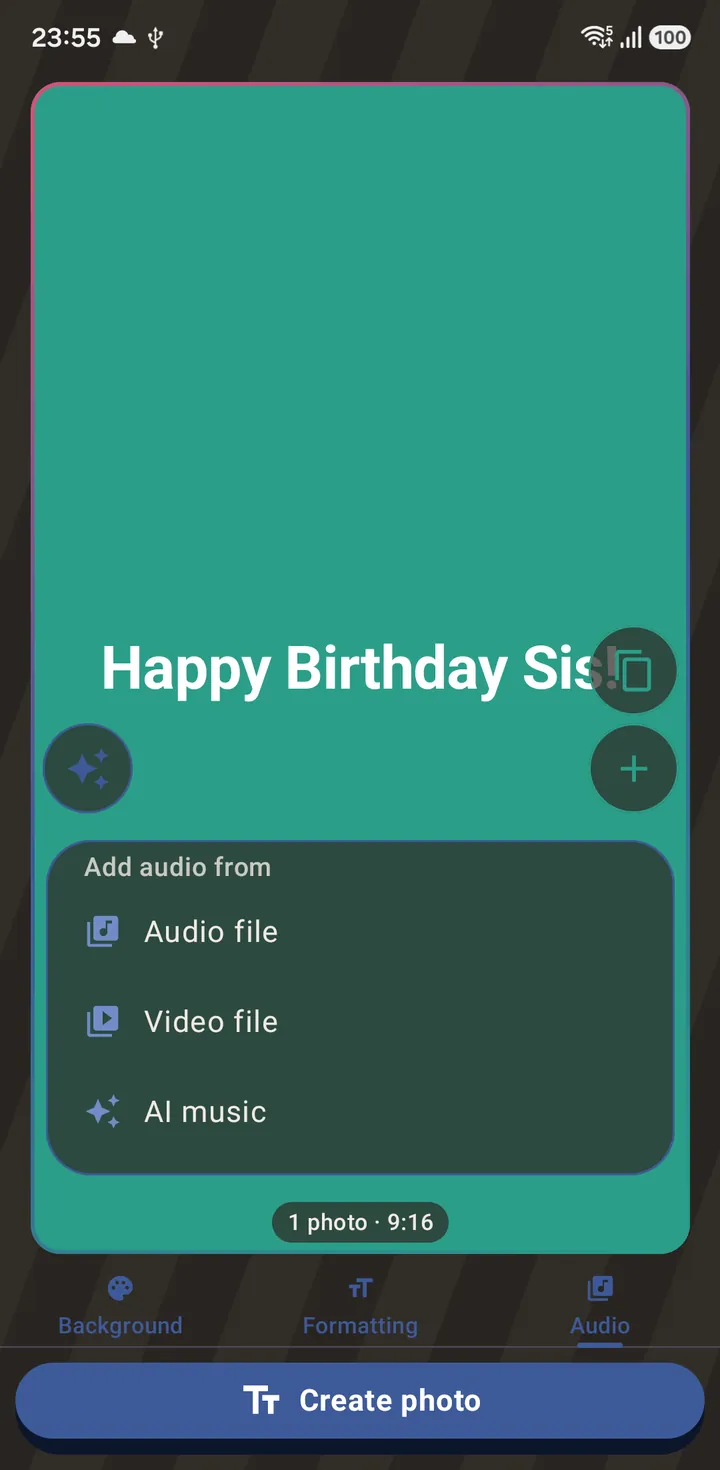
The audio sources, here on a text status. AI music sits beside the two file options. Sign in with Google
The same one-time sign-in the app's other AI tools use — AI captions among them — and the same credits; if you have already signed in for one of them, this asks for nothing.
Describe the music you want
A new chat opens on tappable ideas rather than an empty box. Say as little as you like: a mood, an occasion, a genre. It may also ask a short question or two — what genre, what feel, whose voice — with tappable answers, but it never makes you answer them before it offers you something.
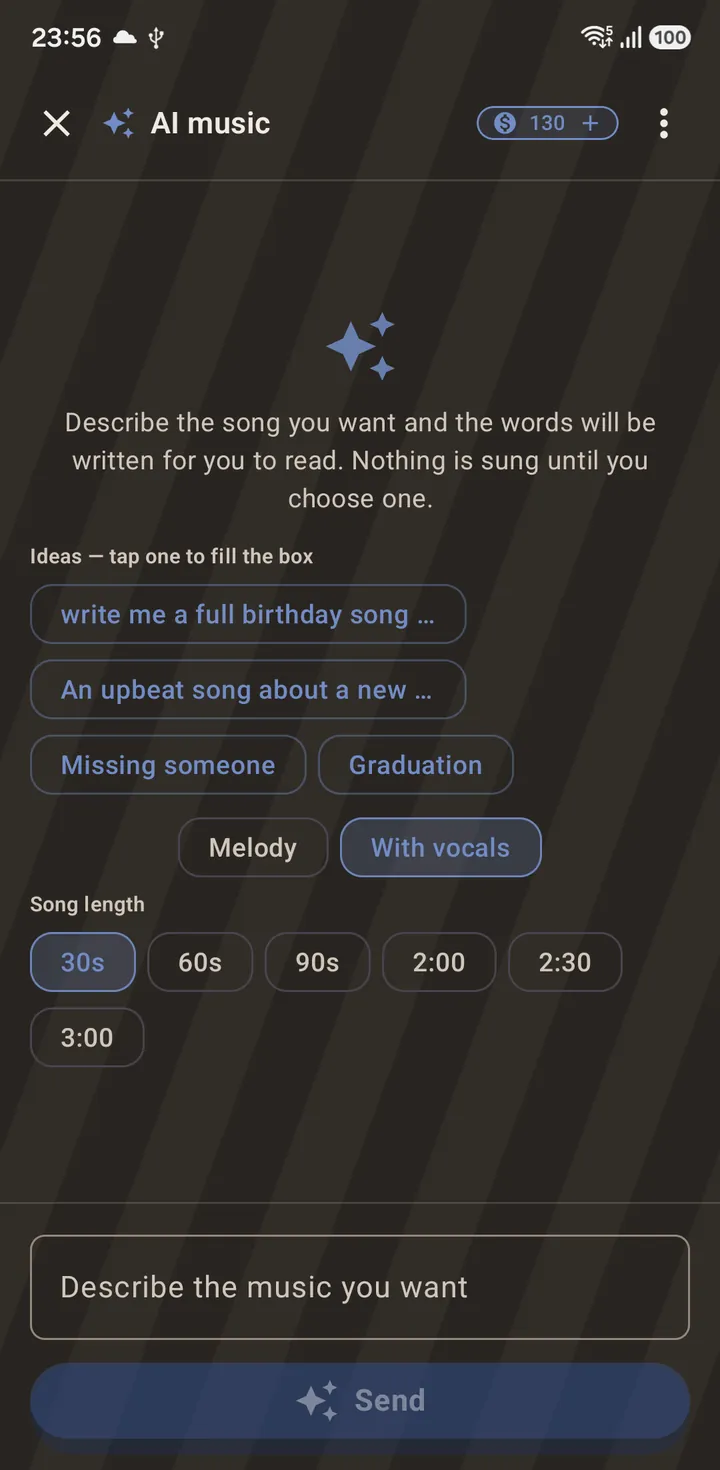
The opening state. Nothing is made until you pick a direction. Read the reply, then swipe the ideas
It answers you first, then offers up to three directions on one swipeable card, each with a title and a description of what it will sound like. This is where you decide, and no music has been made yet — a message like this is the cheap part.
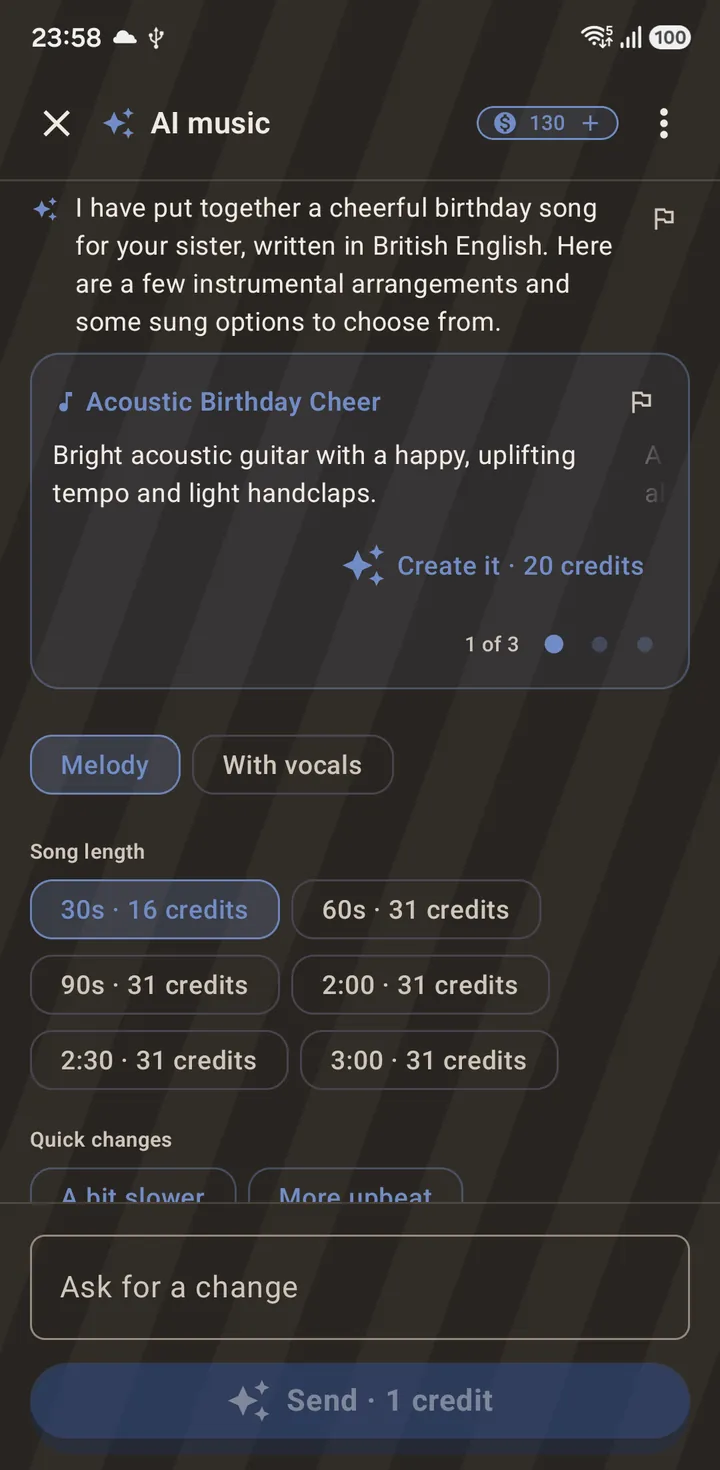
Three directions on one swipeable card. The button names what making it costs. Ask for changes until one is right
It is a conversation, not a one-shot generator. Ask for it slower, warmer, or something else entirely and it answers in context. The Quick changes chips at the end of the conversation are one-tap versions of the usual asks.
Pick one and confirm
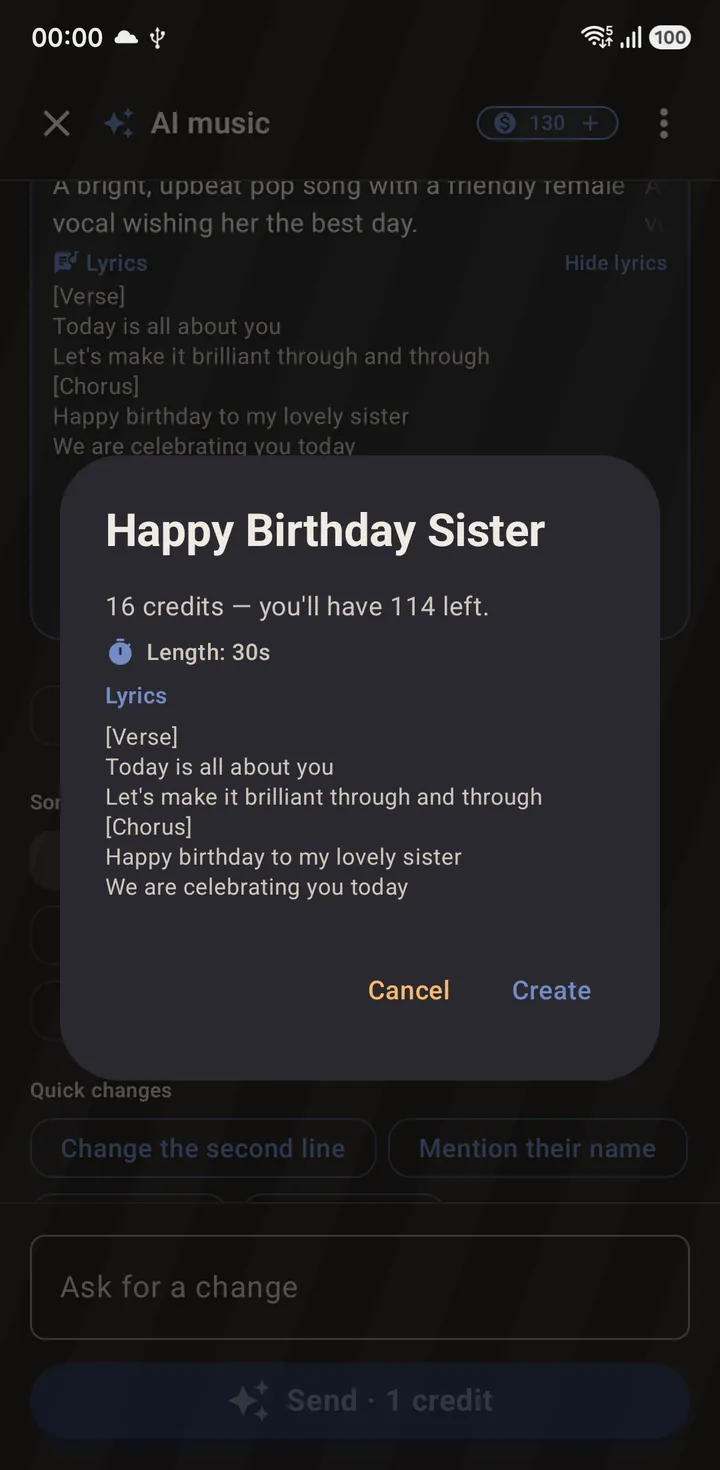
The Create it button on the card names the price before you tap it, and the confirmation names it again next to your balance. This is the one step that costs more than a message, which is why it asks.
Listen to it in the chat
The finished track appears as a small player on the direction that produced it, rather than replacing the conversation — so “I preferred the second one” is still something you can act on several messages later.
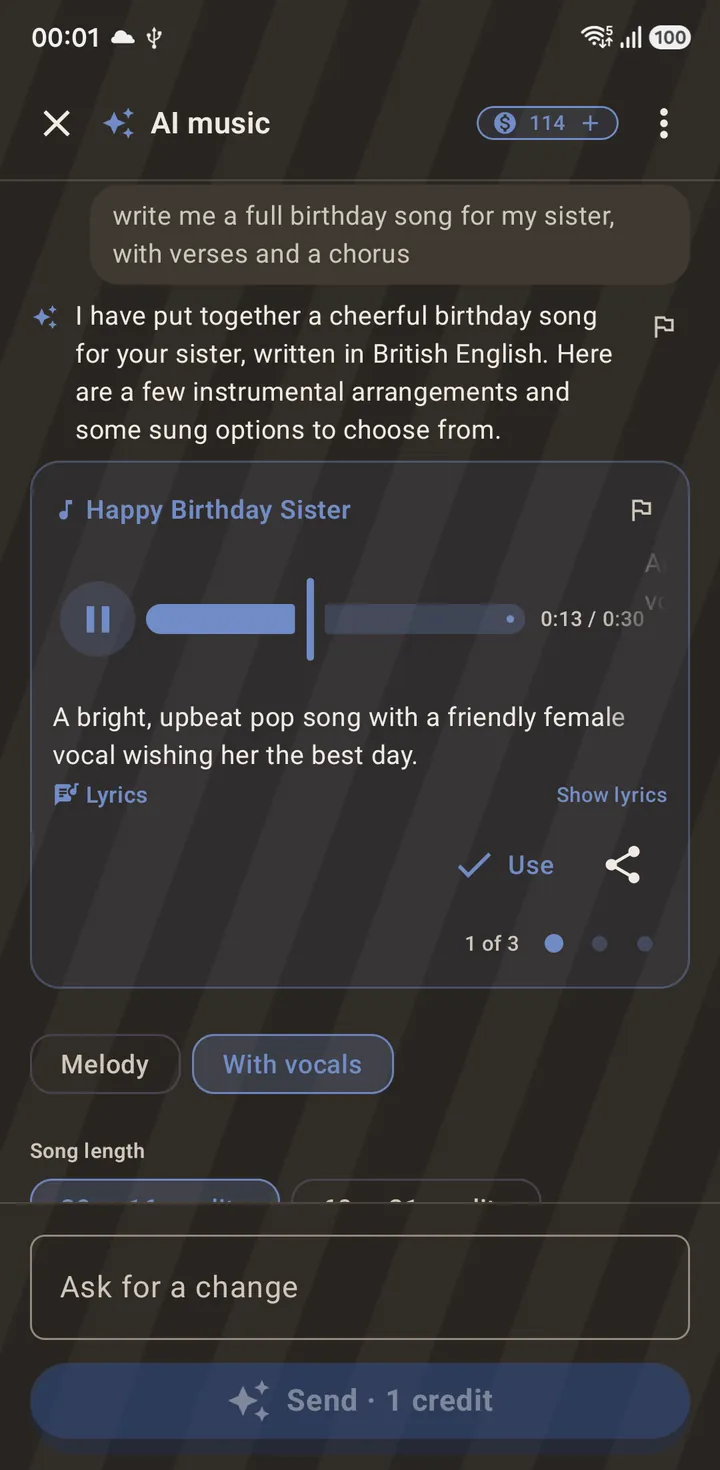
The finished track, playing in the transcript on the option that produced it. Use it, or send it
Use attaches the track to the slot you opened the chat from, exactly as if you had picked a file off your phone. From there it is an ordinary export. The share button beside it sends the track itself to any app on your phone — handy when the music is the thing you wanted rather than the video.
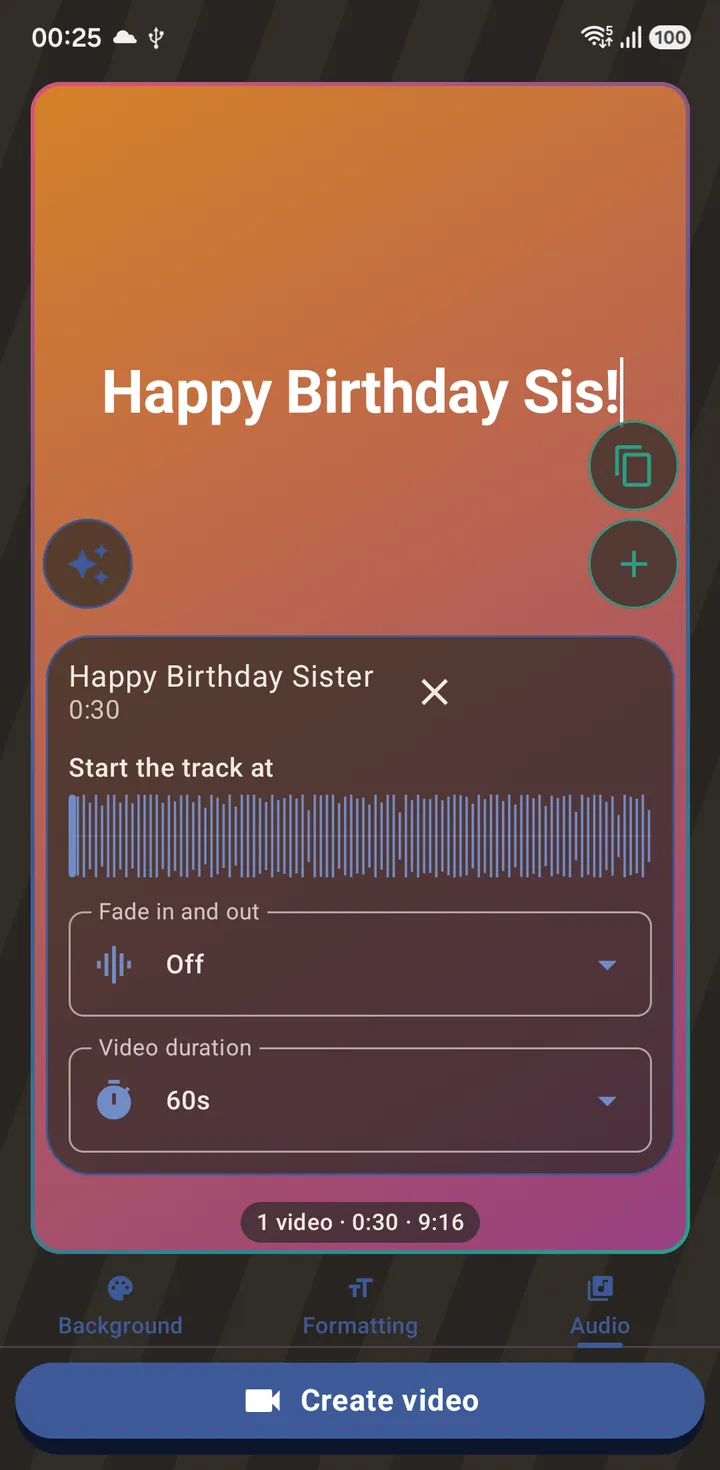
Attached to a text status — the button flips to Create video, because a status with audio exports as one.
Two kinds: an instrumental, or a song with words
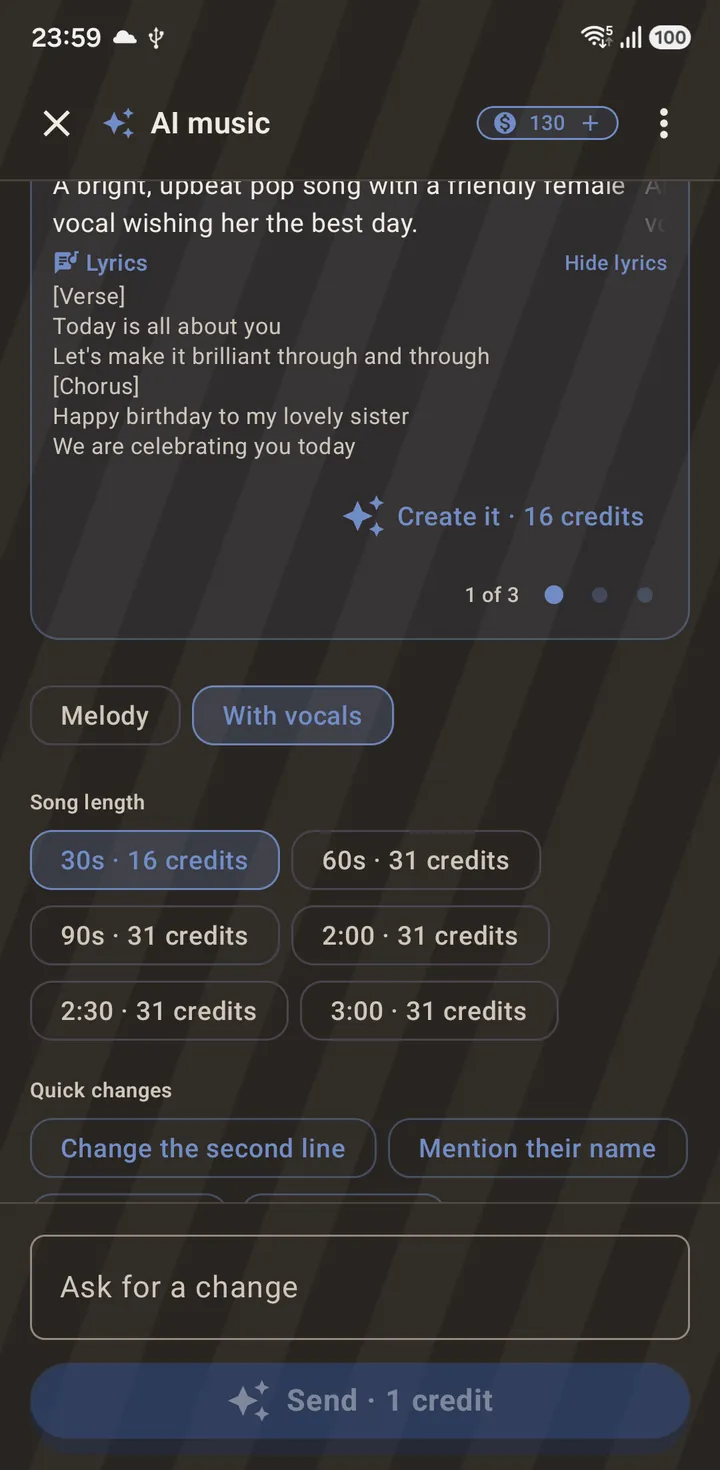
The Melody and With vocals chips in the chat decide which kind you get. Melody is instrumental. With vocals is really sung, with words written for your occasion.
Both are planned from the same message, so switching between them is instant, costs nothing, and applies to ideas already on the screen — you are not retyping anything or paying again to hear what the other one would have been. The two are priced differently, and each option’s own button tells you which before you commit.
The words are agreed before anything is sung
A sung direction carries its lyrics in the chat, where you can read them, ask for a line to change, or have a name worked in — all at the price of a message. The confirmation shows them one more time.
That ordering is the point: you approve the words while changing them is cheap, rather than hearing them for the first time in a finished track.
How long the song runs is picked before you send the message — a Song length row in the chat, anything from half a minute up to three minutes, each length showing its own price. That ordering matters for the same reason the lyrics do: the words are written to fit the length you chose, so a three-minute song gets real verses rather than a short one repeating. The confirmation then names the length it is about to generate. An instrumental ignores it: that is always one fixed clip of about half a minute.
Your tracks are kept, and offered back for nothing
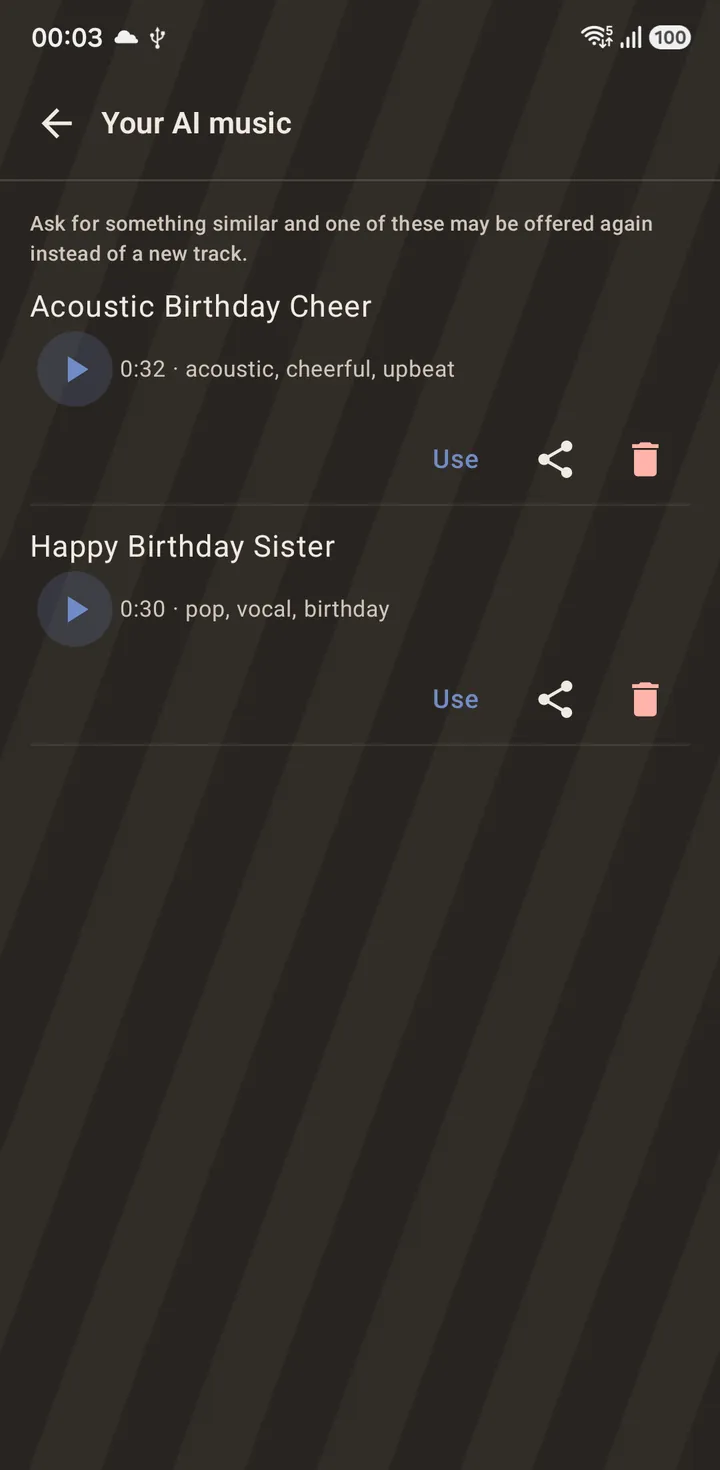
Every track you make is saved on your phone, listed under Your AI music, and filed in your Gallery under AI music like any other thing the app has made for you. The files themselves go to a Music/KLStatusMaker folder, so any music player on the phone can see them.
The useful part is what happens next time: ask for something similar and one of the tracks you already own may be offered instead of a new one, which costs nothing to accept. Deleting a chat does not delete the tracks that came out of it.
Questions about this
How long is a generated track?
An instrumental is a fixed clip of about half a minute, which is the length a status wants. A sung song has a Song length row in the chat — half a minute up to three minutes — and each length shows its own price. Pick it before you send the message: the words are written to fit the length, so a three-minute song gets more verses than a half-minute one.
What does it cost?
Talking to it costs a credit a message. Actually making a track costs more, and the app always shows you the number on the button and again in the confirmation before it spends anything — the confirmation also tells you what you will have left. AI credits are sold as one-off packs, bought from the credit badge at the top of the chat or from Settings → Account.
Is a generated track free to post?
It is written for you rather than taken from a music library, so there is no attribution line to include and no per-track licence to go and read. The model is also instructed never to base a track on a named artist, band or song.
What if I do not like what it made?
Ask for a change and pick again — messages are the cheap part. Tracks you have already made are kept either way, so trying a second direction does not cost you the first one.
Can I send a generated track to someone?
Yes. Every track has a share button — on the player in the chat, on its row under Your AI music, and on its tile in your Gallery — which hands the audio file to WhatsApp, a messaging app, email or anything else installed.
Does this work offline?
No. The AI tools are the only features in the app that need a connection; every edit and export in the app runs on your phone.
Are my music chats stored online?
The chats themselves are kept on your device and listed in the saved-chats view, the same as caption chats. What is sent is text: the message you type, the recent turns of that conversation, and the titles and tags of tracks it has already made for you — that last one so it can offer you a track you already own instead of charging for a new one. The audio files themselves never leave your phone.
Can I put a generated track on a photo slideshow?
Yes. AI music appears on every audio slot in the app, including the photo flow’s Audio tab and the video editor’s Music tab, which mixes it under the video’s own sound instead of replacing it.
Also searched for as: AI music generator, make music for a video, AI song generator, background music maker