
How to make a photo collage
Tap Create from photos on the home screen, pick your photos, then on the Output tab choose One collage under What are you making? for an image, or Collage video for a short clip with a soundtrack. Choose a Layout and tap Create.
Step by step
Pick your photos
Home → Create from photos, then select the pictures you want in the collage.
Choose One collage
On the Output tab, What are you making? shows each outcome as a card rendered from the photos you just picked — so the two collage cards are the real collage, not a diagram of one. Tap One collage, and a Layout picker appears.
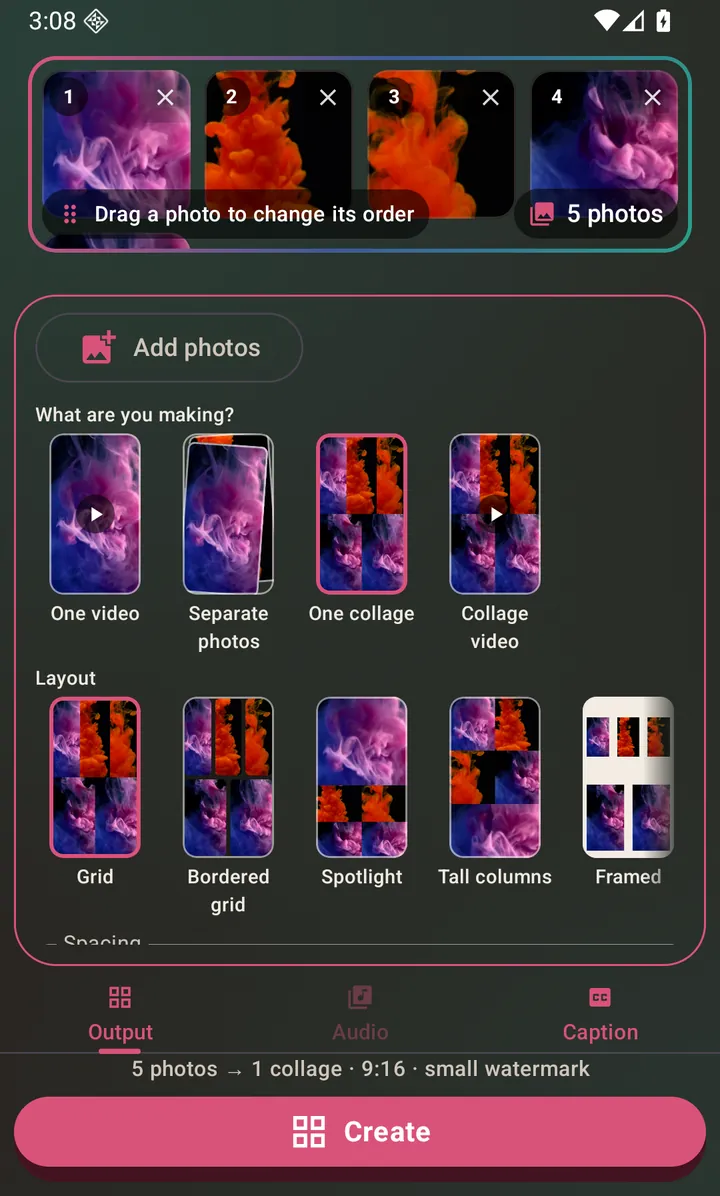
Collage mode, with its own Layout control. Choose a layout
Seven to pick from, each one drawn as a small thumbnail of your own photos in that arrangement, so you can see what you are choosing before you make it: Grid, Bordered grid, Spotlight (one photo large, the rest small), Tall columns, Framed, Polaroid and Before/After (two photos side by side, each labelled). Swipe the row to see them all. Spacing underneath opens a gutter between the photos - None, Small, Medium or Large - and the thumbnails follow it, so you can see the gap before you export. Polaroid and Before/After space themselves, and the control dims and says so.
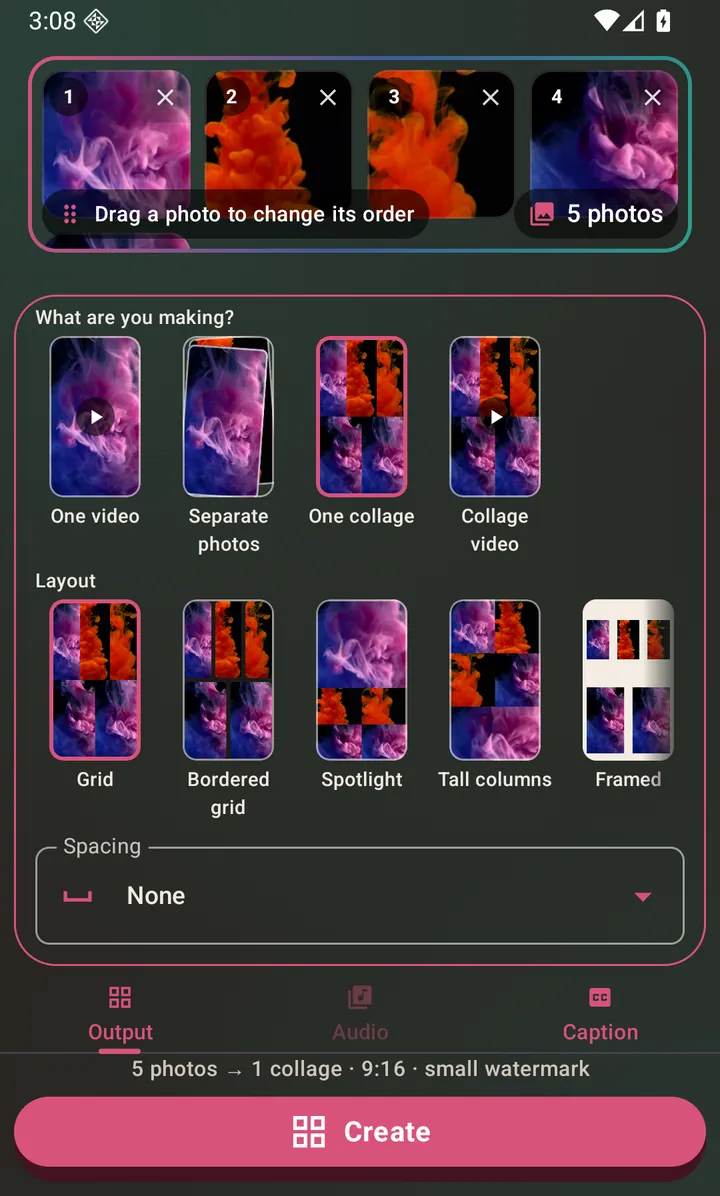
The collage layouts. Image or video is the same question
One collage gives you a single image. Collage video gives you a short clip of the same collage, which is what you want if you also plan to attach audio — that one needs a track before it can be created, and the line above the button says so.
Create and share
Tap Create. The result appears with save, share and delete buttons.
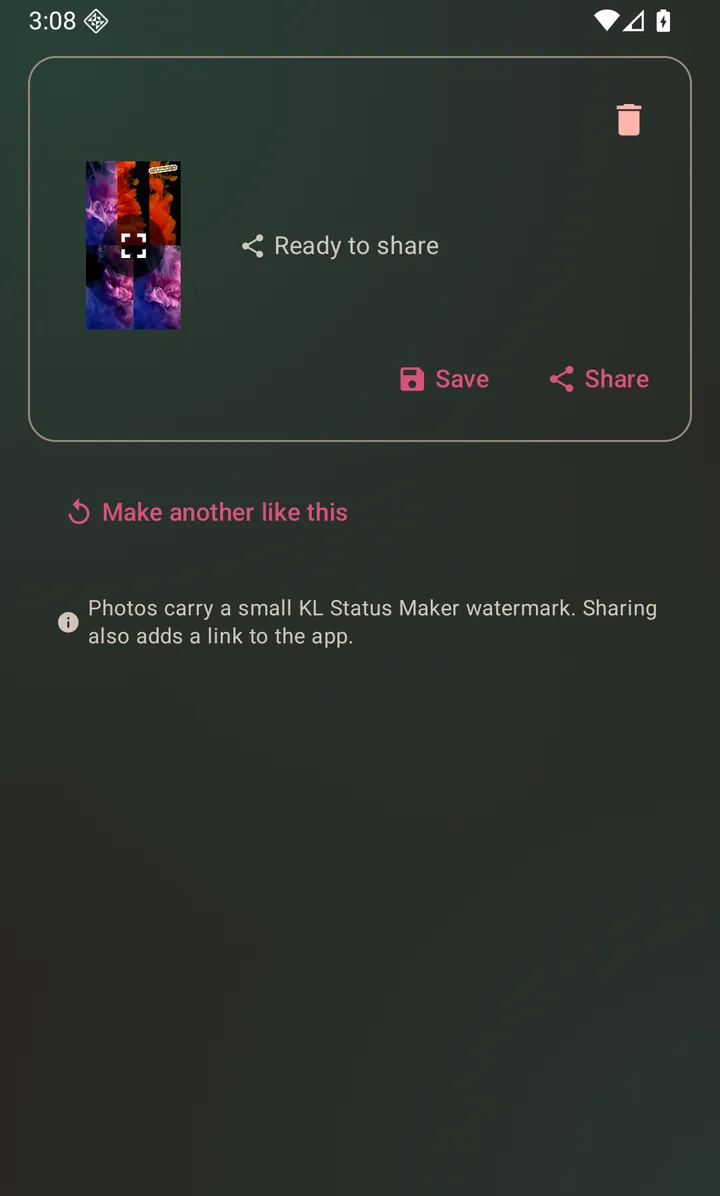
A finished Polaroid-layout collage, ready to save or share.
Questions about this
How many photos fit in a collage?
The layouts adapt to how many photos you picked. Grid and bordered grid scale to fit; spotlight gives one photo prominence and tiles the rest. Before/After is the exception: it uses the first two and leaves the rest in the grid, and the line above the button tells you so.
Can I make a before-and-after photo?
Yes. Pick Before/After as the layout. It splits the frame down the middle, puts your first photo on the left labelled Before and your second on the right labelled After, and the labels are in your own language. Pick just one photo and it falls back to a plain full-frame crop rather than refusing.
Can I add a caption to a collage?
Yes. The Caption tab works the same way for collages as for slideshows.
Why would I want a collage as a video?
Because a video can carry audio. A collage exported as video can have a background track attached on the Audio tab; a still image cannot.
Can I edit an individual photo before it goes into the collage?
Yes. Tap its thumbnail to open the photo editor — crop, rotate, adjust, blur, draw, add text or stickers — and the edited version is what gets used.
Also searched for as: collage maker, photo grid, picture collage