
How to edit a photo before you use it
Open Home’s Edit a photo row, or tap any picked photo's thumbnail in the Create from photos flow. The editor opens with six tabs — Adjust, Blur, Draw, Elements, Restyle and Cutout. Tap Done and the edited version replaces the original for the export.
The photo editor has its own way in — Home’s Edit a photo row, under Edit and post — and it is still reachable from the photo slideshow/collage screen by tapping a thumbnail. Either way the edit applies to that photo for this export; your original file in your gallery is never touched.
Step by step
Open the editor
From Home, tap Edit a photo under Edit and post and pick one. Or, in Create from photos, tap any picked photo — the prompt on the preview says Tap photo to edit.
Rotate, crop and adjust
Adjust combines the crop handles and a rotate button with a row of looks drawn from your own photo: Original, B&W, Vivid, Warm, Cool, Vintage, Fade and Custom, with a strength slider under them so a look can be half applied rather than all or nothing. Auto sits at the head of the row and sets the sliders for you in one tap - it restores a flat photo's contrast and leaves the brightness you shot it at alone, so on a picture that needs nothing it does nothing and says so. Custom keeps the three sliders - brightness, contrast and saturation - each with its own reset.
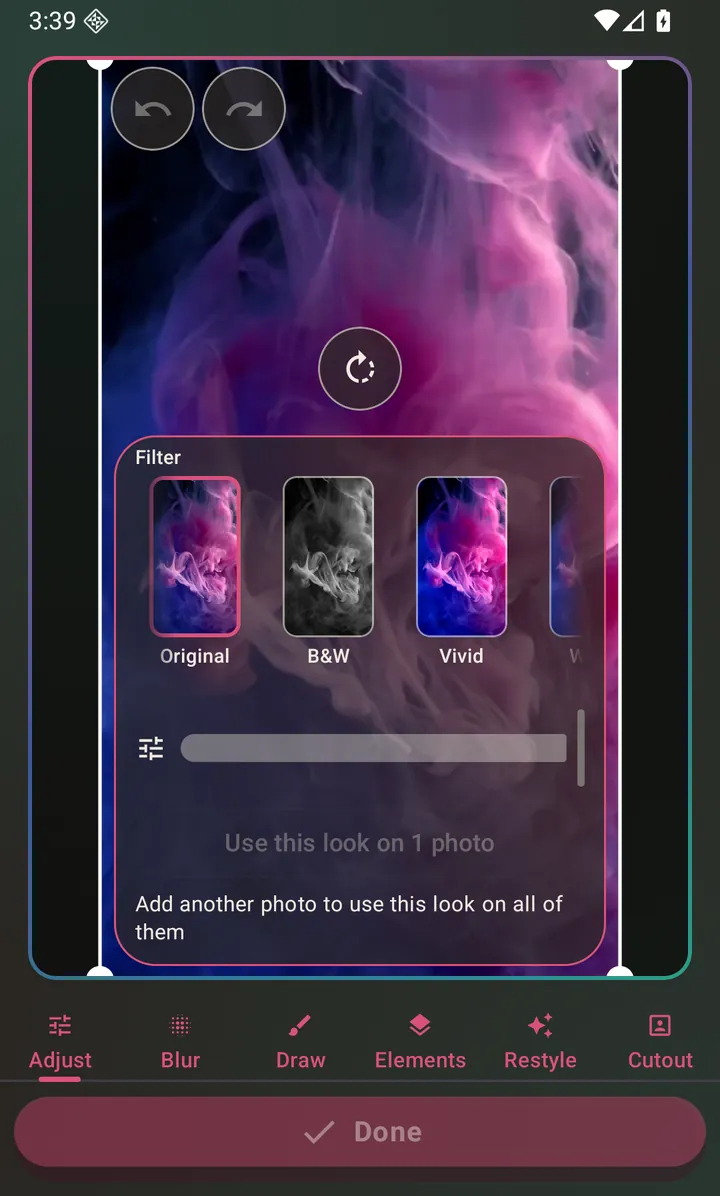
Crop handles, rotate, the row of looks and the three adjustment sliders. Blur part of the picture
Blur is a brush. Paint over a face, a licence plate or anything else you want obscured; undo steps back one stroke at a time.
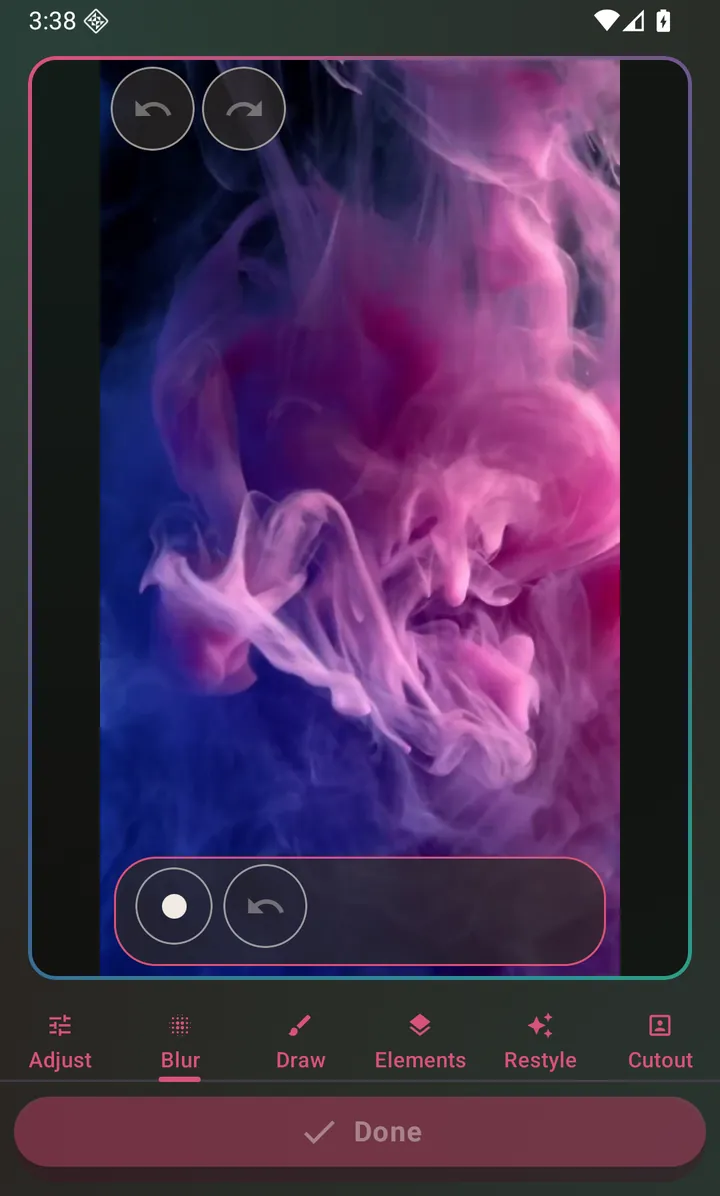
The blur brush, with brush size and undo. Draw on it
Draw is freehand, in your choice of colour, with an undo that steps back one stroke at a time.
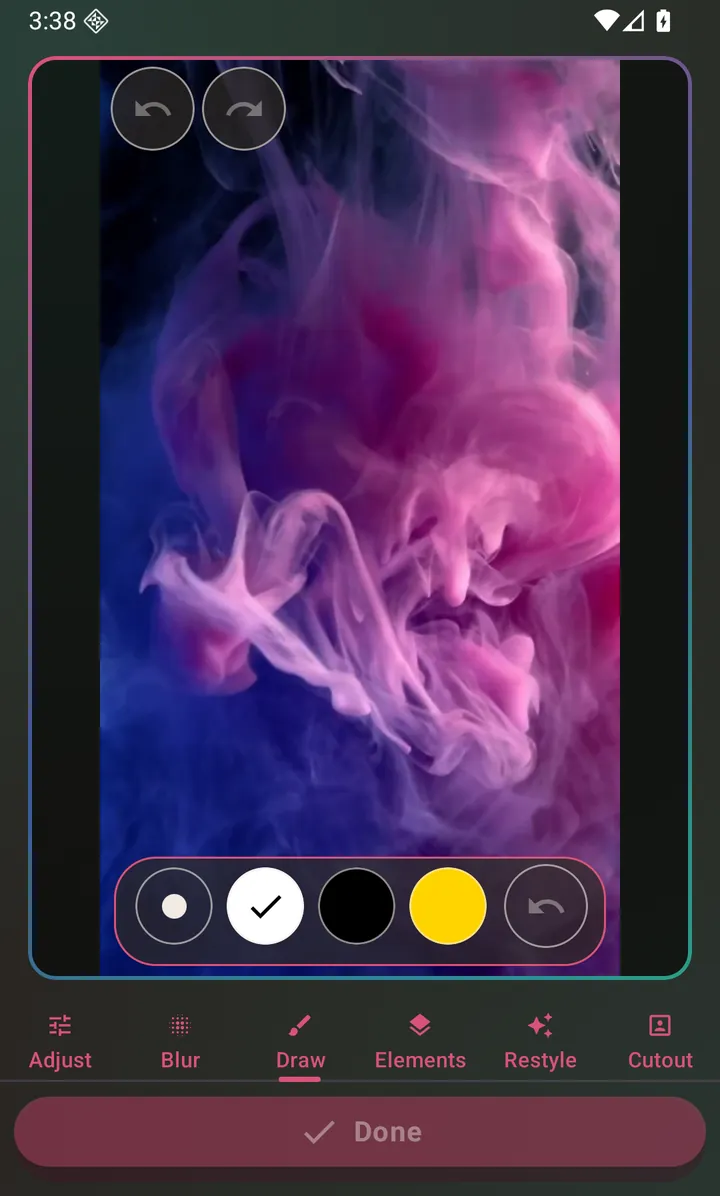
Freehand drawing, with a colour row and undo. Add text and stickers
Elements holds both. Tap Add text for a text block, or pick an emoji from the row beside it — and then drag to move, pinch to scale and twist to rotate either one. Unlike a caption, which sits in a fixed place, an element goes anywhere on the picture. Select one and you can change its colour, its size and how transparent it is, or duplicate and delete it from the two buttons that appear beside it.
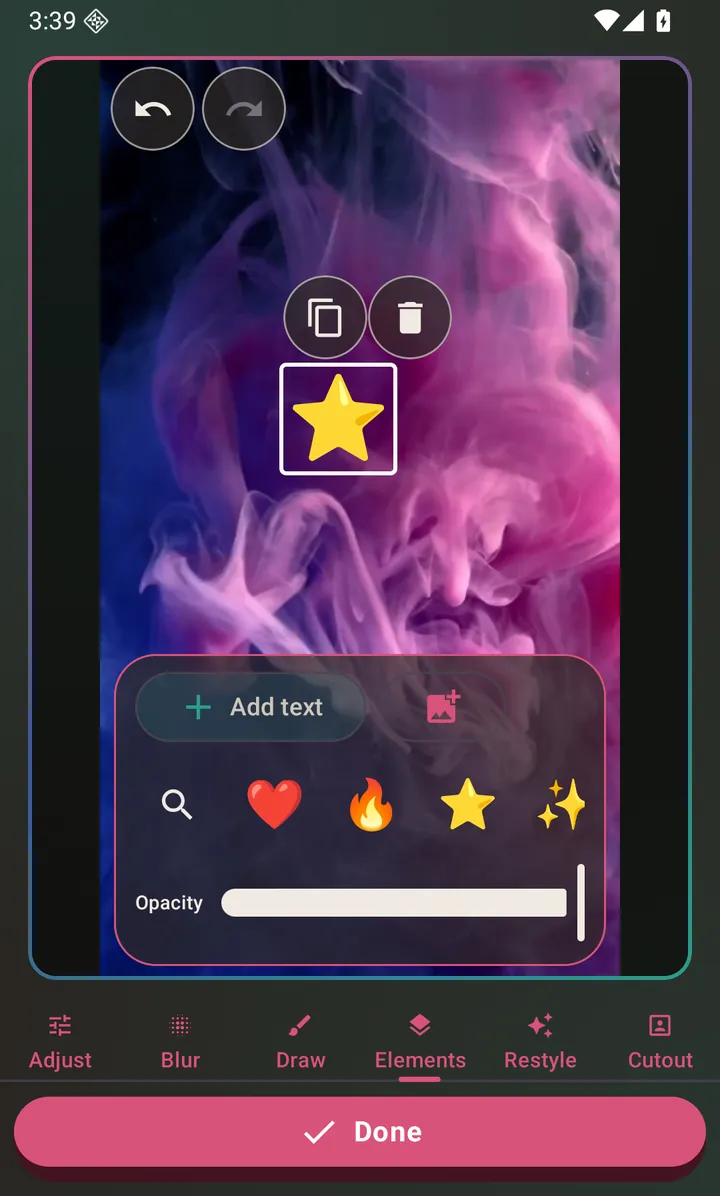
Text and stickers in one tab, dragged anywhere on the picture. Cut the subject out of the background
Cutout has three one-tap actions built on a single on-device subject-detection pass: Blur the background, Replace it with a colour, or Auto-crop tight to the subject. It is AI, and it runs entirely on your phone — no account, no connection, and the photo is not uploaded anywhere.
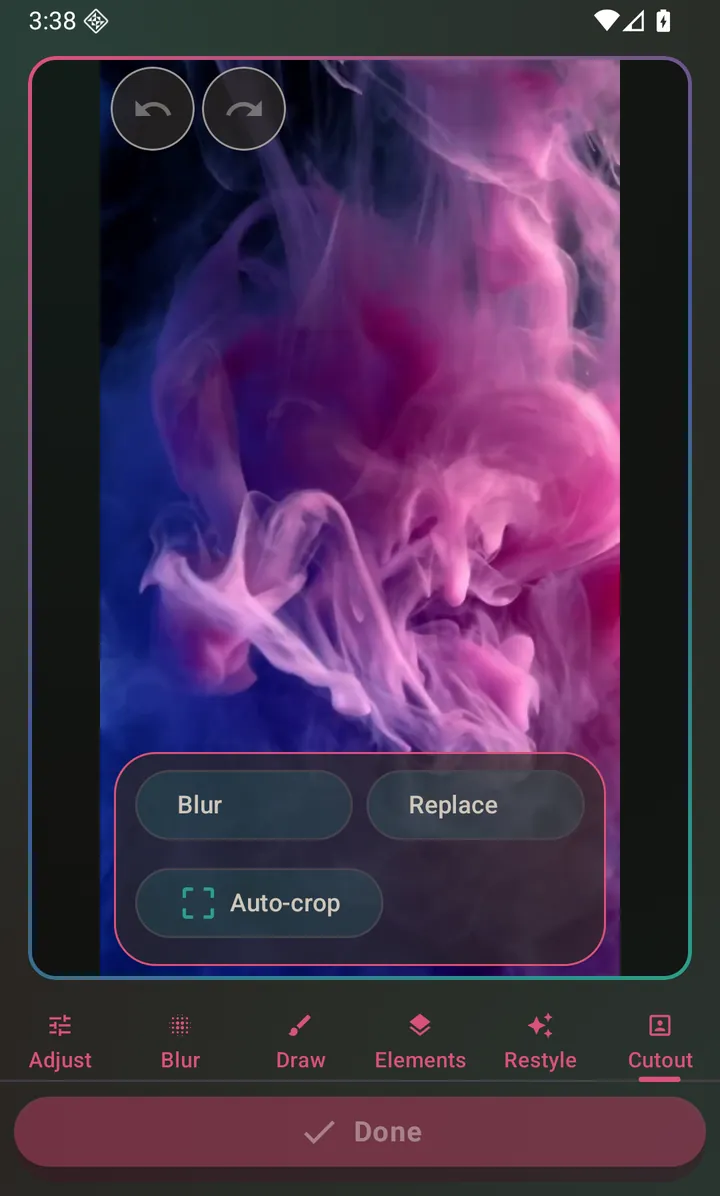
Cutout: background blur, colour replace and auto-crop, all on-device. Repaint it with AI
Restyle is the one tab that is not on-device, and the tab says so before you tap. Pick one of the named looks in the row, or tap Describe it yourself to talk to the AI about what you want instead. Either way it sends the photo you have open to be repainted with your edits already applied, so a crop, a rotation or a drawing is part of what gets restyled — and either way the app shows you what it will cost before you confirm. Each look's picture is an example of that treatment, made ahead of time on the same sample photo, so you can compare them at a glance: it shows you what the look does, not what your own photo will turn into. It needs the same free Google sign-in as the other AI tools and costs credits. If you do not like the result, Undo puts your own photo back.
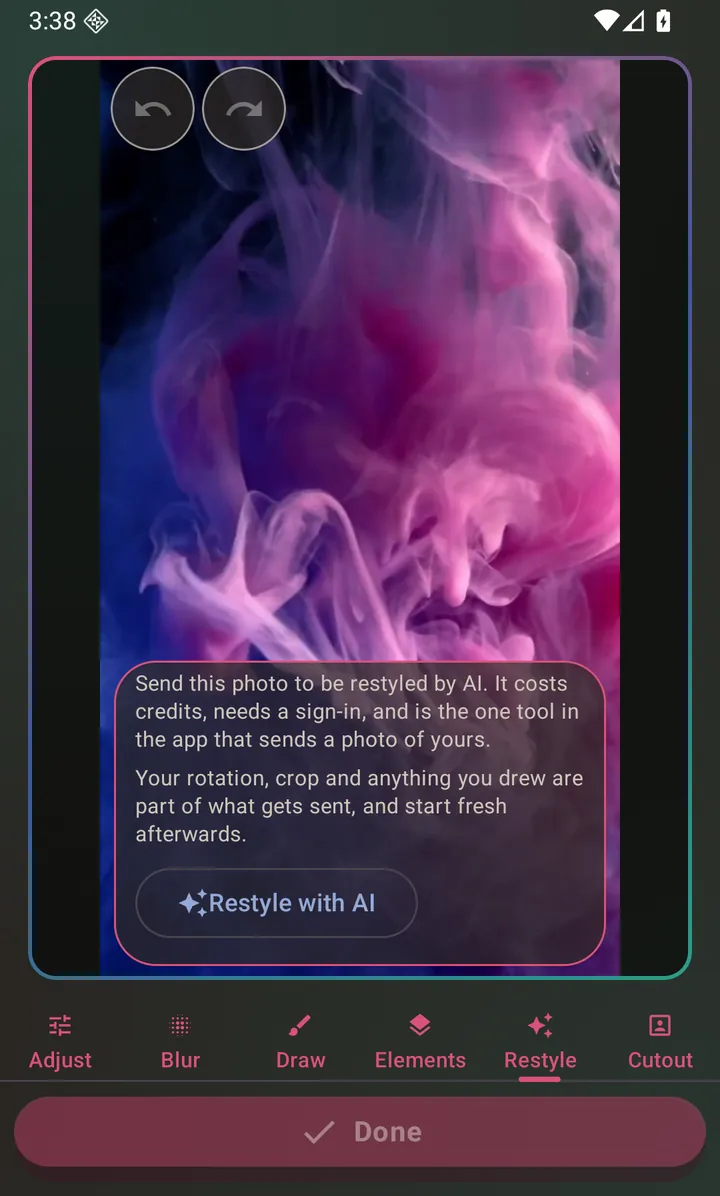
Restyle: pick a named look or describe one, and see the price before you confirm. Tap Done
You return to the photo grid with the edited version in place.
Questions about this
Does the Cutout tab send my photo to a server?
No. The subject detection runs on the device using Google's on-device ML Kit. Nothing about the photo leaves your phone. That is why the tab is called Cutout rather than AI — in this app the word AI is reserved for the features that need an account and send something to a server. Restyle, two tabs along, is one of those: it does send the photo you have open. Cutout does not.
Does editing overwrite my original photo?
No. The edit applies to the copy used for this export. Your file in your gallery is unchanged.
Why is the Cutout tab not doing anything on my phone?
The subject-detection model is downloaded through Google Play services on first use. On a device with no Google account or no connection at that moment, the download cannot happen and the app tells you so rather than failing silently.
Can I edit a video from this screen too?
Yes. If you added a video into a slideshow, tapping its thumbnail opens the full video editor instead.
Also searched for as: photo editor, blur background, crop a photo, add text to a photo, cutout, remove background