
Settings worth knowing about
Tap the gear icon on the home screen. Six sections, each collapsed with a one-line summary of its own current settings: Appearance holds the theme, Editing defaults holds Audio/video length mismatch, and Privacy & data holds the analytics and crash-reporting switches. Help & about links back to these guides.
Step by step
Open Settings
The gear icon in the top-right of the home screen.
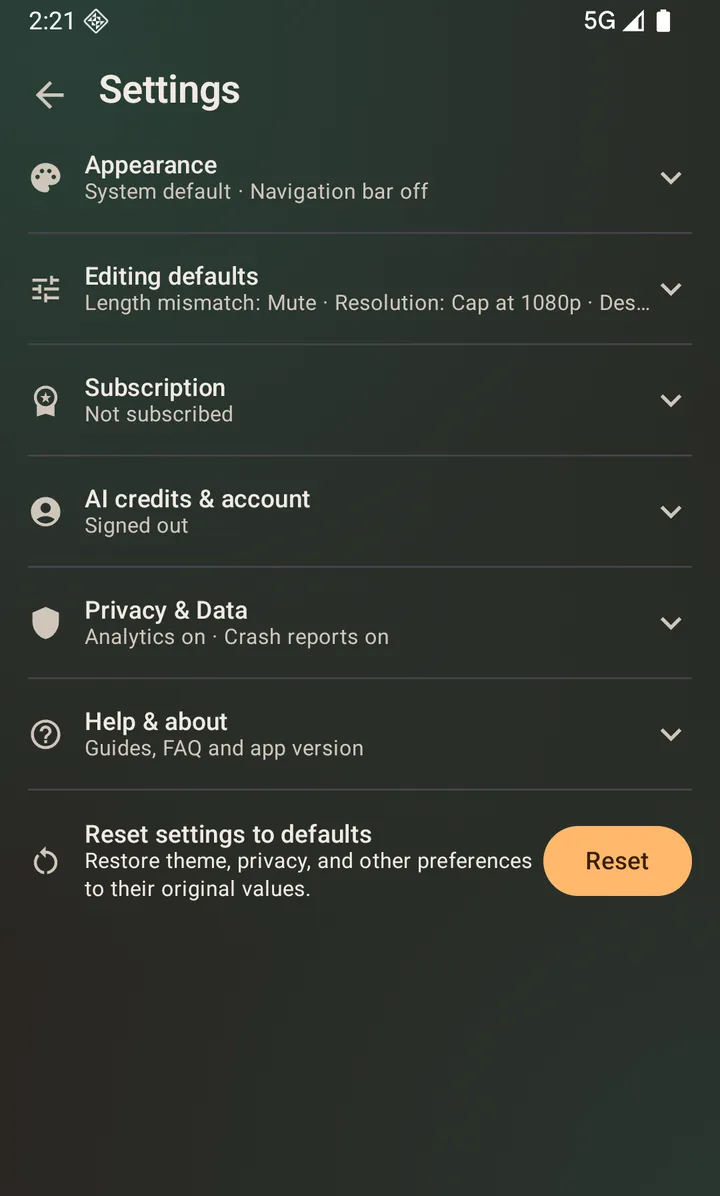
Settings, with each section collapsed until you need it. Set the theme
System default, light or dark. It changes the app only, not your phone.
Decide what happens on an audio length mismatch
Audio/video length mismatch under Editing defaults controls what a replacement or background track does when it does not match the video: Mute (the default) leaves the remainder silent, Loop restarts the track, Trim ends the output when the track does.
Check the privacy switches
Privacy & data holds independent off switches for usage analytics and crash reporting, plus the link to the privacy policy. There is no ad-consent form, because the app shows no ads.
Find the guides and replay the intro
Help & about opens these guides and the FAQ in your browser, replays the welcome intro from the app's first launch, and shows the version you are running.
Questions about this
Can I turn off analytics and crash reporting?
Yes, both, independently, in Privacy & Data. They are on by default and switching them off is a real off switch.
What is “Navigation bar on editing screens”?
Under Appearance. It adds the back/gallery/settings bar to the configure, editing and result screens; the home screen, gallery and settings always have one. It is off by default, but turning it on costs you nothing — on the text-status screen those three buttons float over the canvas, so your exported pages come out exactly the same size either way.
Can I see the welcome intro again?
Yes — Help & about › Show the intro again. It replays the same five pages you saw on first launch and returns you to Settings.
How do I remove the watermark and the video ending?
Two places. The results screen’s own line about them has a Remove this ending (or Remove this watermark) button that opens the plans, and Settings › Subscription always has them. The subscription also removes the app link added to the text when you share, and skips a whole extra encoding pass on video exports. Holding unused AI credits removes all three too, for as long as the balance lasts.
Where do I delete my account?
Settings → AI credits & account, which also has Export my data, AI credits and Credit history. If you have already uninstalled the app, use the web deletion page instead.
Where do I buy AI credits?
Either from the credit badge at the top of an AI chat — tap it at any balance, not just when you have run out — or from Settings → AI credits & account → AI credits. The same screen has Credit history, which lists what your credits have been spent on; purchase receipts live in Google Play.