
Start from an idea instead of a tool
The home screen opens on What are you making? Tap one of the six ideas, pick the photos or video it asks for, and you land on the setup screen with the layout, timing, crop and styling already chosen. Nothing is created until you tap Create, and every choice is still yours to change.
The rest of this site is organised the way the app used to be: by tool. Split a video, make a collage, write a text status. That is the right question once you know what you want to make, and the wrong one when you have just remembered it is your mother’s birthday.
So the home screen asks the other question first.
Step by step
Pick an idea, not a tool
The home screen opens on six named outcomes under What are you making? Under them is Make it with AI, for when the thing you need does not exist yet — a caption, a song or a picture — then the three plain ways in under Start from scratch, with Edit and post below them for going straight into the video or photo editor.
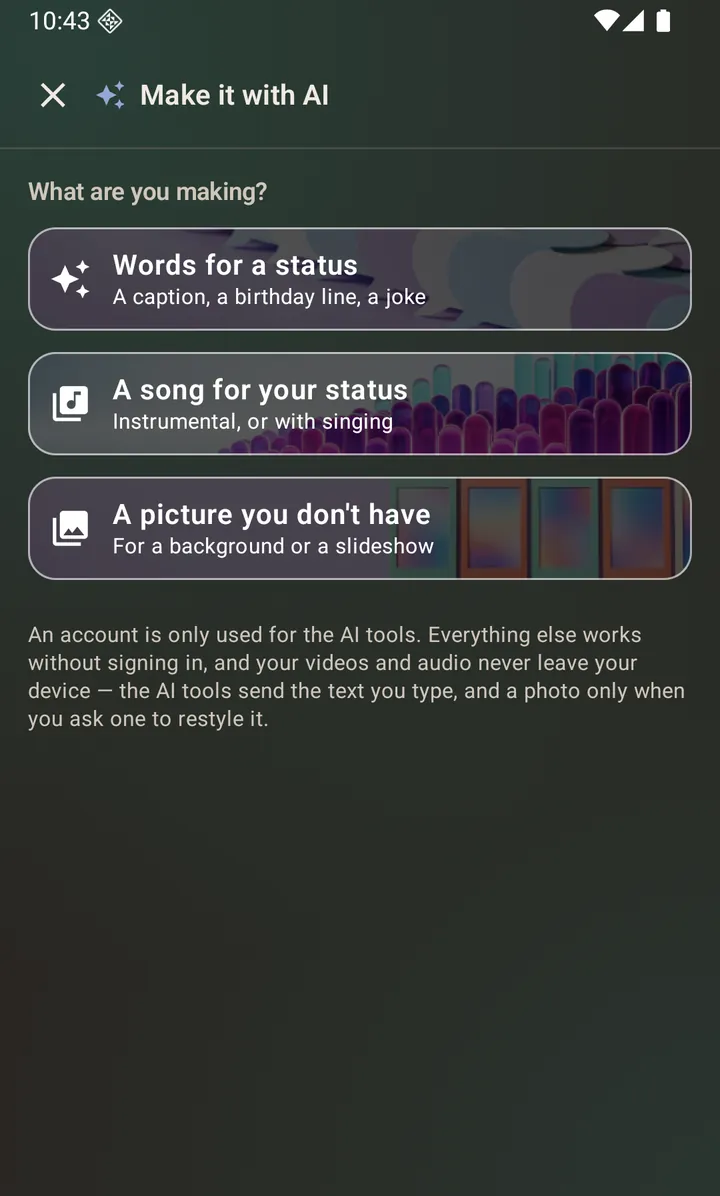
Make it with AI: words, a song, or a picture, from one place. Give it the photos or video it asks for
Each idea knows how much media it wants, so the picker opens ready for it — two photos for Before & after, up to ten for a Photo dump, one video for a Split a video. The three text ideas need no media at all and open straight onto the canvas.
Land on a screen that is already set up
The layout, the transition, the per-photo timing, the crop, the text size and the theme are already chosen, the right tool panel is open, and Create is lit. The line above that button says exactly what you are about to get.
Change anything, then create
An idea is a starting point, not a mode. There is nothing to leave and nothing to switch off — every control works exactly as it does when you start from scratch.
What each of the six does
Birthday message opens a text status on a warm sunset background at the largest text size, with the greeting already typed.
Photo dump takes three to ten photos and makes one video of them, two seconds each, fading between.
Before & after takes two photos and puts them side by side in one frame, each half labelled, in your own language.
One photo, big words takes a single photo and opens the caption box at the largest size, ready to type over it.
Split a video takes one video, cuts it into fifteen-second pieces and crops them to 9:16 — the shape WhatsApp Status wants.
Song + words opens a text status on a dark background with a line already typed and the Audio tab open, so the song is one tap away. Close the tab to change the words — while it is open the canvas dims, because those controls are about the track.
What it does not do
An idea never creates anything on its own, never spends AI credits, and never changes the defaults you have set. Tapping one fills the form; you still press the button. If you have set your own default clip length or caption styling, an idea uses its own for that one session and leaves your settings exactly as they were.
Questions about this
Do I have to use them?
No. The three original ways in — video, photos, text — are on the same screen under Start from scratch, with Edit and post underneath for opening either editor directly, and nothing about them has changed.
Can I get back out of an idea once I have tapped one?
There is nothing to get out of. An idea sets the controls and then stops existing; the setup screen you land on is the ordinary one, with every control still yours.
What if I pick a different number of photos than it asked for?
It still works. Before & after with one photo makes a single full-frame crop instead of a split; with five it uses the first two and leaves the rest in the grid. The line above the Create button tells you which is happening.
Does an idea cost anything?
No. None of them touches the AI features, so none of them can spend a credit.
Also searched for as: status templates, status ideas, quick status