
How to make a photo with AI
Start a slideshow or collage from photos, then on the Output tab tap Add photos and choose AI photos instead of your gallery. Describe the photo you want, and the chat replies with ideas — each one a title and the description it would be drawn from. Pick one, confirm the cost the button shows you, and the finished photo appears in the chat to use, share or keep.
Photo generation is one of the app’s AI tools, and those are the only features here that use the internet. Everything else — splitting, cropping, slideshows, text statuses, and every photo edit except Restyle — happens entirely on your phone. Generating a photo sends what you type to a server, which is why it needs a sign-in and why it is kept clearly separate from the rest. Generating from a description sends only the words — none of your own photos. There is one mode that does send a photo, and it says so before it does: Restyle in the photo editor repaints a picture you already have, so that picture has to go with the request. It is the only place in the app that sends one.
It is built the same way as AI music, and for the same reason: talking about the photo is cheap, making it is not, so nothing is made until you have read a description of it and confirmed.
Step by step
Open a photo picker and choose AI photos
Anywhere the app adds a photo — the Add photos button on a slideshow or a collage, and the background swatch on a text status — the menu offers Your photos and AI photos. Whichever flow you started from is where the finished photo lands.
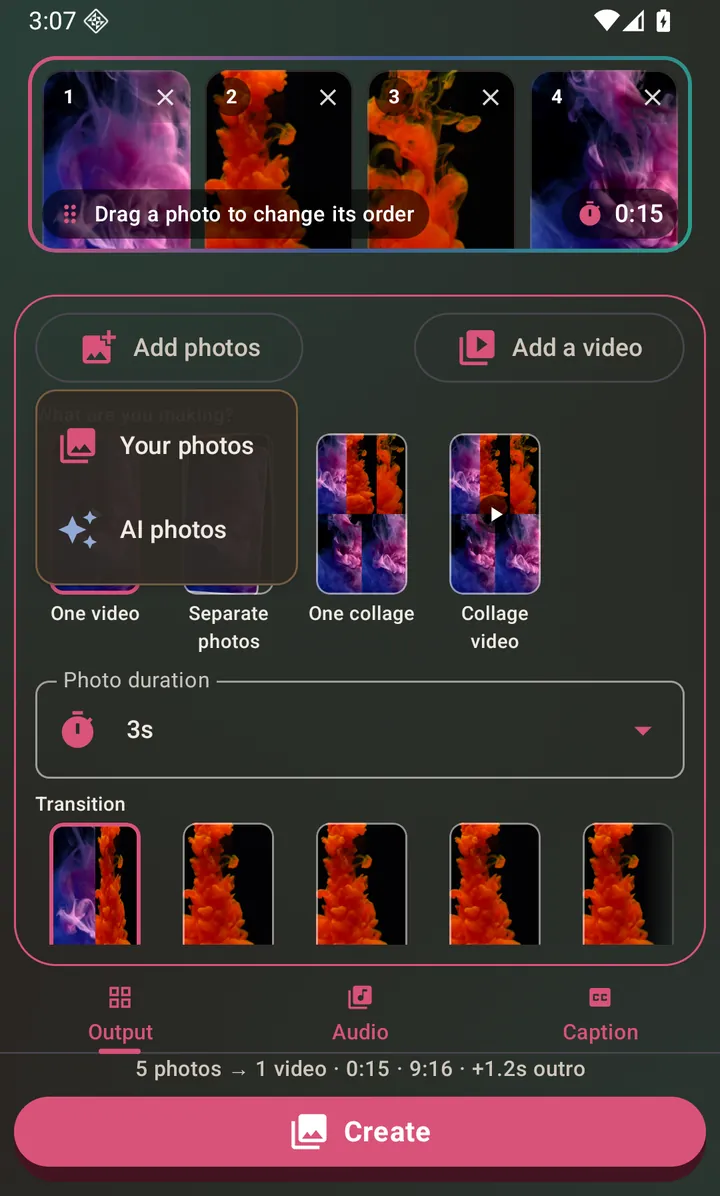
Add photos offers your own gallery or an AI picture. Sign in with Google
The same one-time sign-in the app's other AI tools use — AI captions and AI music among them — and the same credits; if you have already signed in for one of them, this asks for nothing.
Describe the photo you want
A chat opens under Your AI photos, on tappable ideas rather than an empty box. Say as little as you like — a subject, a mood, a time of day. It may ask a short question or two with tappable answers, but it never makes you answer them before it offers you something.
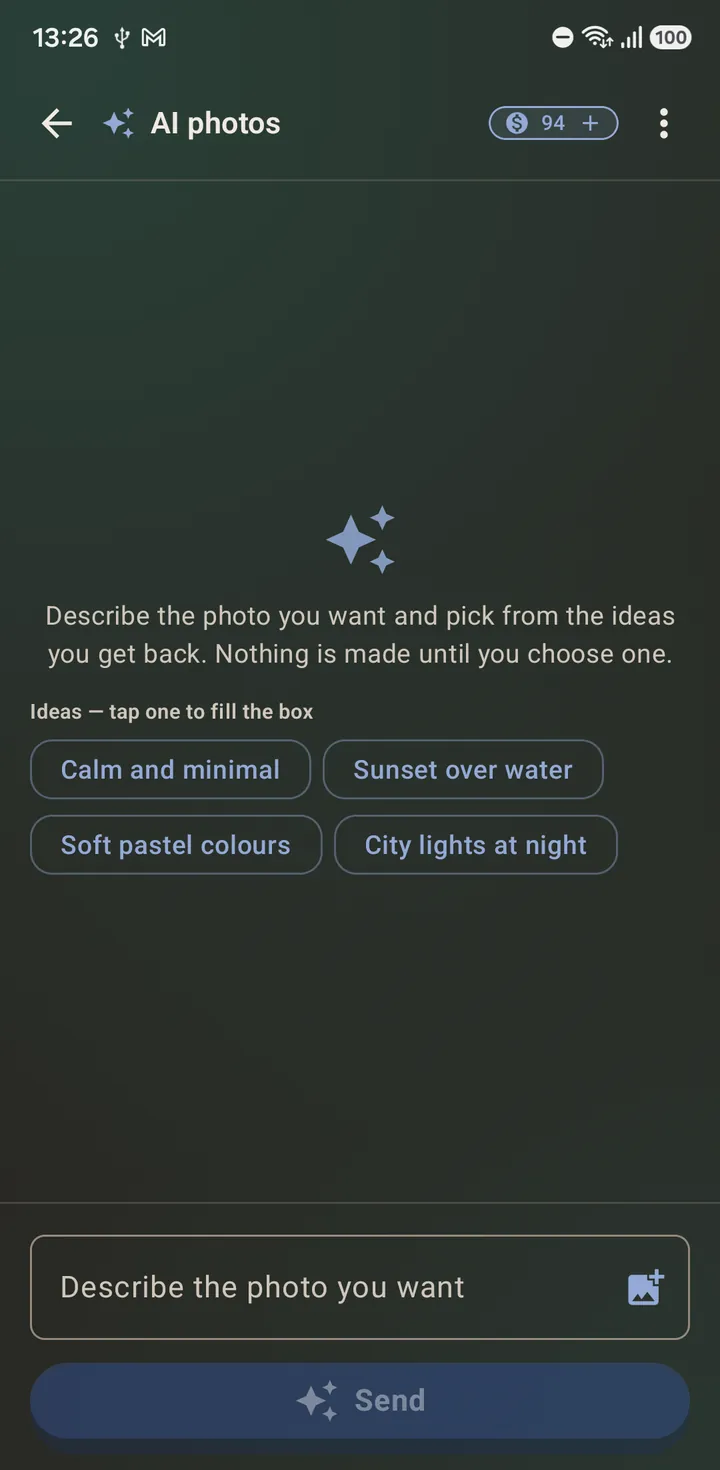
The AI photos chat opens on ideas, not an empty box. Read the ideas and pick one
Each idea has a title and the prompt it would be drawn from, which you can open and read before anything is made. Swipe between them. If none of them is right, say so in the same chat — asking for a change costs a fraction of making the wrong photo.
Confirm, and it is made
Create it asks you to confirm, and the button names the cost in credits before you tap it. The number comes from the server that will do the work, so it is the real price rather than something the app guessed. A moment later the photo is in the chat.
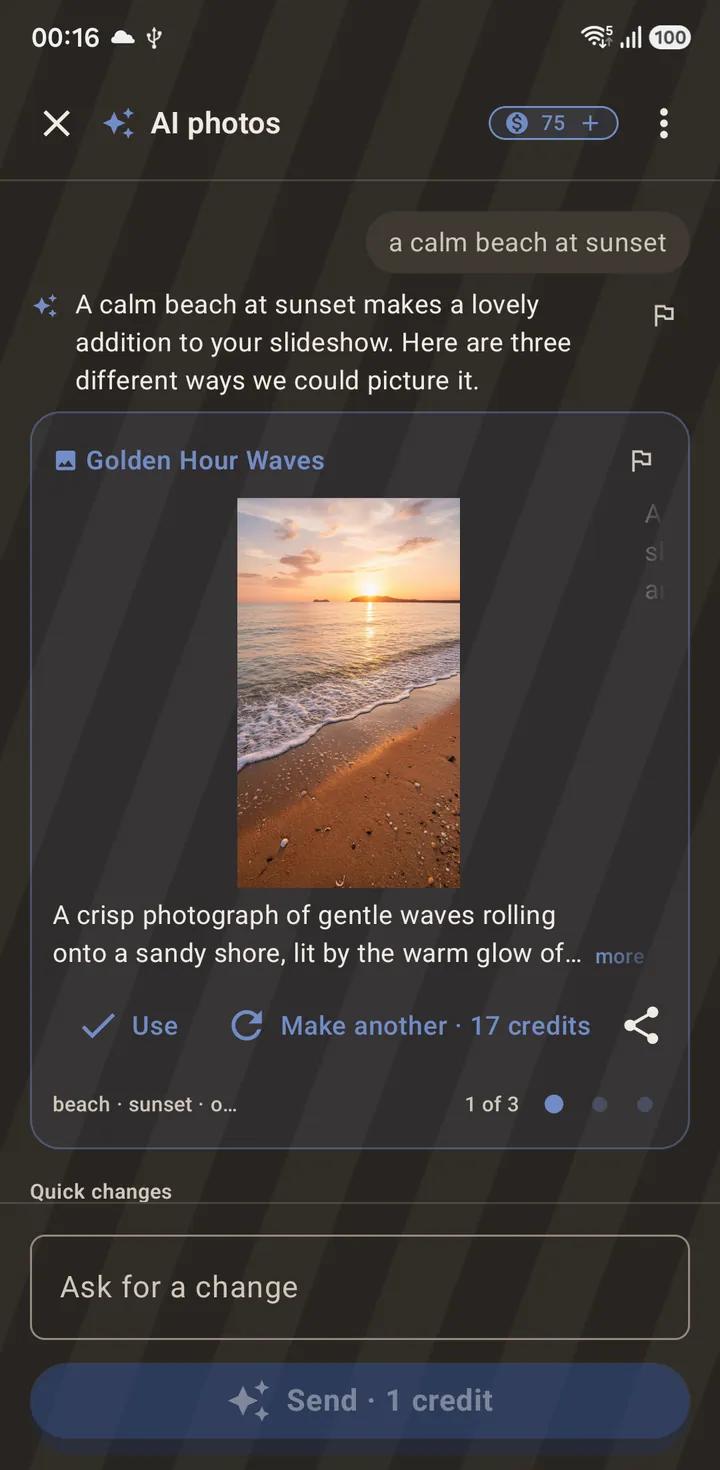
The finished picture arrives on the idea that produced it. Use it, share it, or keep it
Use drops the photo into the slideshow or collage you started from. The share icon hands it to any app on your phone. Either way it is saved to your device, under Your AI photos and in your gallery, so using it again later costs nothing.
Or restyle a photo you already have
The photo editor's Restyle tab offers a row of named looks you can tap, with this same chat one control below it and your photo pinned above, so it is clear which picture is being repainted. It sends the version you are looking at — crop, rotation and drawings included — rather than the original file.
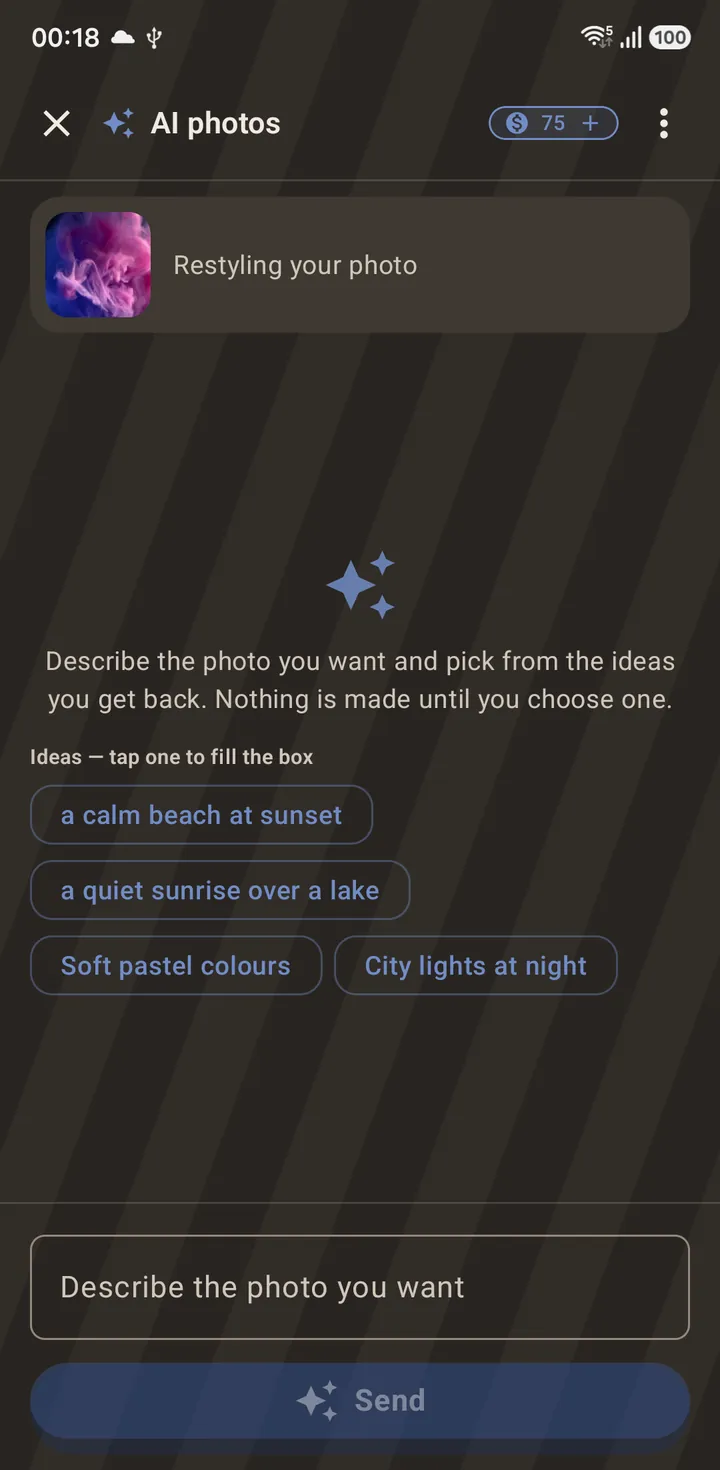
Restyle pins the photo being repainted above the chat.
Why it asks before it makes anything
A generated photo costs many times what a chat message costs, so the app splits the two: the conversation is cheap and the picture is the expensive step, and the expensive step never runs until you have read what it is going to be and said yes. That is why the ideas come back as descriptions rather than as pictures — arguing with a sentence is nearly free, and arguing with a finished photo is not.
It also means a photo you already have can be offered back to you. If you ask for something close to a picture the chat made for you before, it will say so and offer that one instead, which costs nothing at all.
What is checked before you see it
Every generated photo is checked before it reaches you — the image itself, and also any words the model drew into it. A photo that fails the check is discarded and the credits go back. Your own typed description is checked before it is sent, too.
If a photo you do get is offensive or wrong, the flag icon reports it without leaving the app. What is sent is the text — what you typed and the description it was drawn from. The photo itself stays on your device.
Questions about this
Does it use my own photos?
Only if you ask it to. Generating from a description works from your typed words alone — the app sends words and receives a picture, and none of your own photos go with it. The photo editor’s Restyle tab is one of two places that send one: it repaints the photo you have open, and that one photo is sent when you confirm. The other is the picture chat itself, where you can attach a photo and ask about it — the photo is sent once, when you attach it, and the chat says what that costs before you tap. Both need credits. Your videos never leave your device either way.
Can I attach a photo of my own to the chat?
Yes. The composer has an attach button beside the text box: attach a photo and ask about it, and the chat answers in the same thread. The photo is sent once, when you attach it — not while you type, and not again on the messages that follow. After that the conversation carries a short written description of what the model saw instead of the picture. Attaching costs credits on top of the message it rides on, and the composer names the price before you send. A screenshot, or a photo of a screen, is not supported yet — the app says so rather than charging you for an answer it cannot give. The conversation and that written description are kept on your device only.
Do I have to describe the look I want?
No. The Restyle tab offers a row of named looks you can just tap. The chat is still there under it, and it is the better choice when you want something the named looks do not cover, or when you want the AI to ask you questions first.
Will the result be marked as made with AI?
It may be. Pictures from this feature can carry a provenance mark added by the model itself, and some apps also add their own label when you post a picture they can tell was AI-generated. We do not remove either, and we cannot promise a picture will be labelled everywhere it is shared.
Can it just edit the photo instead?
Often, and it will say so. If what you are asking for is something the photo editor already does — black and white, brighter, straighten it, blur the background, crop it square — the chat offers to do it on your phone instead. That path costs nothing, runs offline, and lands in the editor as a single step you can undo.
Do I need an account?
Yes, for this. It is the same free Google sign-in the other AI tools use, and the same credits. Everything else in the app — splitting, cropping, editing, slideshows, collages, text statuses — works with no account at all.
What does it cost?
AI credits, sold in one-off packs from the credit badge at the top of the chat or from Settings → AI credits & account. A chat message costs a fraction of what making a photo costs, and the Create button names the exact number before you tap it. The same credits pay for every AI tool in the app.
Where is the photo kept?
On your device, in two places: the app’s own Your AI photos library, and your gallery’s Pictures/KLStatusMaker folder, so other apps can see it. It is not kept on any server. Deleting your account removes the library copy and leaves the gallery copy alone — see the privacy policy.
Can I get the same photo twice?
No. Asking for the same thing again gives you a different picture, which is why the app keeps every one you make rather than expecting you to regenerate it. Deleting a photo is final.
Does it work offline?
No. The AI tools are the only features in the app that need a connection; every export, and every edit but the photo editor’s Restyle tab, runs on your phone.
Can I put a generated photo in a slideshow or a collage?
Yes — that is one of the places the option lives; the text status background offers it too, for the picture behind your words. A generated photo behaves like any other photo you picked: you can crop it, edit it, caption it, and mix it with photos from your gallery in the same slideshow or collage.
Also searched for as: AI photo generator, AI image generator, text to image, make a picture from words