
How to use the in-app Gallery
Tap the Gallery icon at the top of the home screen. Everything you have saved appears newest first, tagged by the flow that made it, with share and delete on every item and a ⋮ menu holding Make another like this — plus Edit on saved text statuses.
Step by step
Open the Gallery
The picture icon in the top-right of the home screen. (There used to be a second, unlabelled way in on the logo in the middle; it was removed, because an entry point that has to be taught is one nobody finds.)
Filter and sort
The All dropdown narrows the list to one kind of output. It only offers the kinds you have actually made, so the list stays short and never points at an empty category. The button on the right flips between newest and oldest first.
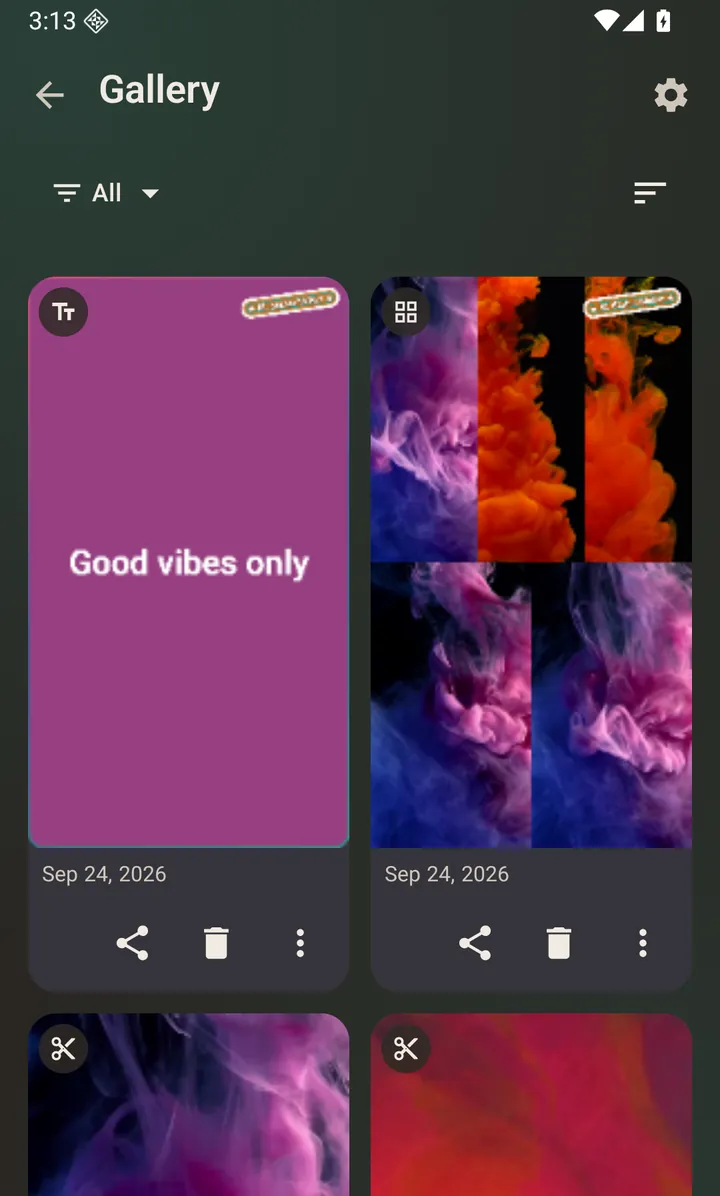
Saved output, each card tagged with the flow that made it. Replay, share or delete
Tap an item to view or play it. The buttons under each one share it again or delete it.
Make another with the same settings
The ⋮ menu on a card offers Make another like this for anything the app made from settings you chose. It asks for today’s photos or video and drops you back on the setup screen with the caption, crop, layout and timing already filled in. See the full guide.
Re-edit a saved text status
The same ⋮ menu offers Edit on text statuses saved as images, which the other kinds do not get. It reopens the editor with the text, theme and styling intact; saving replaces the file rather than adding a second copy.
Questions about this
Why does this need storage permission on my older phone?
It only ever lists files it created itself, never the rest of your photos. On Android 10 and later that needs no permission. Older Android has no such distinction — an app either has storage access or cannot see its own saved files either — so on Android 7 to 9 the app has to ask.
Does deleting here delete the file from my phone?
Yes. It removes the file, not just the listing.
Why is there music in my gallery?
Tracks you made with AI music are listed here too, under AI music. They are the one thing the app saves that is neither a video nor an image, and they live in a Music/KLStatusMaker folder.
Why can I re-edit a text status but not a video?
Two different things, and both are available. Edit reopens the saved file itself and replaces it, which only works for a text status: that one is regenerated from the words and styling you typed, which the app still has, while a video’s edits are baked into the exported pixels and there is nothing left to reopen. Make another like this works on everything: it reuses the settings against media you pick now, and makes a new file.