
How to make a WhatsApp status on Android
Open KL Status Maker and pick what you are making from the home screen: Create a video status for a video, Create from photos for a slideshow or collage, or Create text/audio status for words on a background, with or without a song. Set it up, tap Create, then tap Share and choose WhatsApp — your status is already the right shape and length.
A status has rules a normal video or photo does not: it is shown full screen in portrait, and a video is cut off after a short time. Most editors leave you to deal with that yourself. KL Status Maker starts from it — every flow produces something already in the 9:16 frame and, for video, already in clips short enough to post. You choose what you are making; the app handles the shape.
Step by step
Choose what you are making
The home screen asks What are you making? and offers six ready-made ideas — a birthday message, a photo dump, a before-and-after and more — that set everything up for you (see Start from an idea). Below them, Start from scratch has one row for each kind of status.
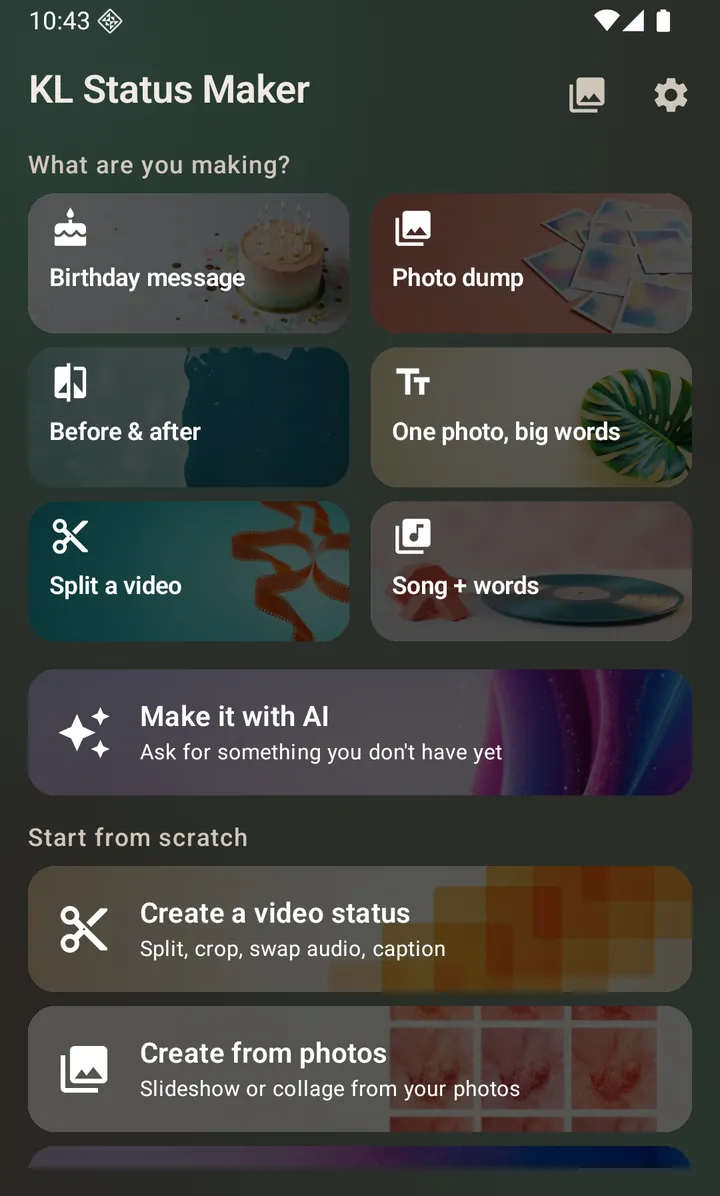
The home screen: ready-made ideas first, then a row for each kind of status. For a video status
Tap Create a video status and pick a video. The app cuts it into Status-length clips — 15, 30, 60 or 90 seconds each, a set number of equal parts, or at points you choose — and can crop it to 9:16, swap its audio or add a caption. See Split a video for WhatsApp Status.
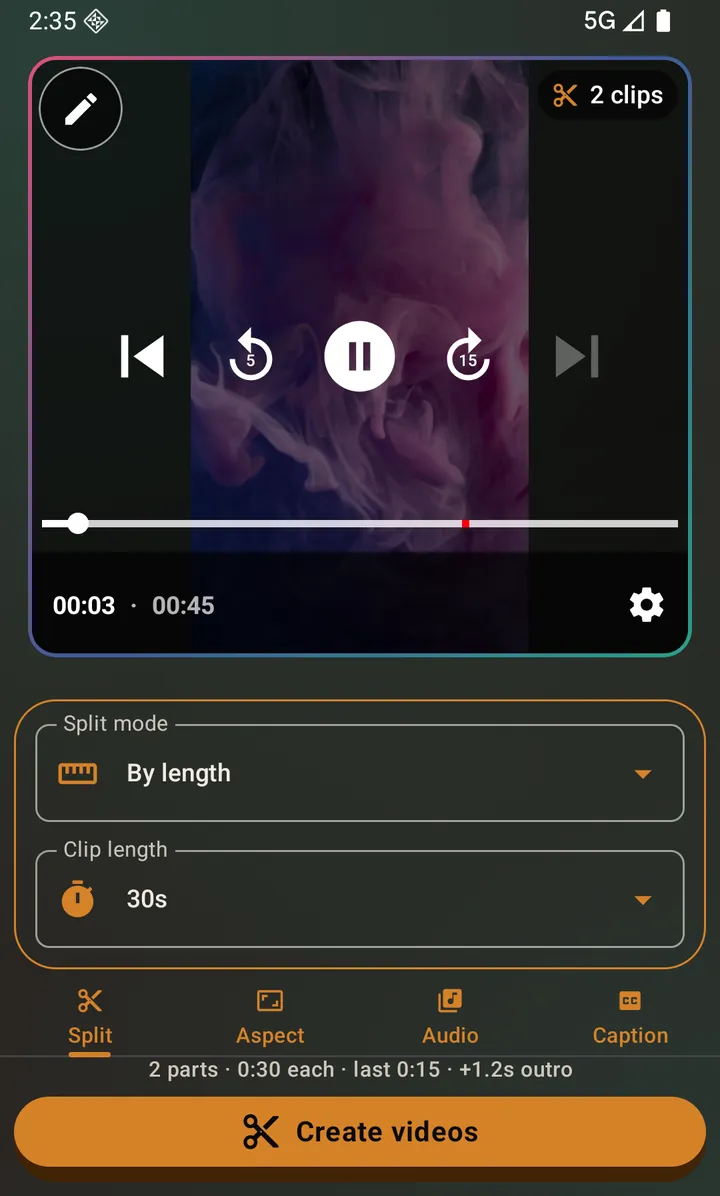
Splitting a video into Status clips. For a photo status
Tap Create from photos and pick one or more photos. Turn them into one slideshow video with music, a collage, or separate photos ready to post one after another. See Make a slideshow and Make a collage.
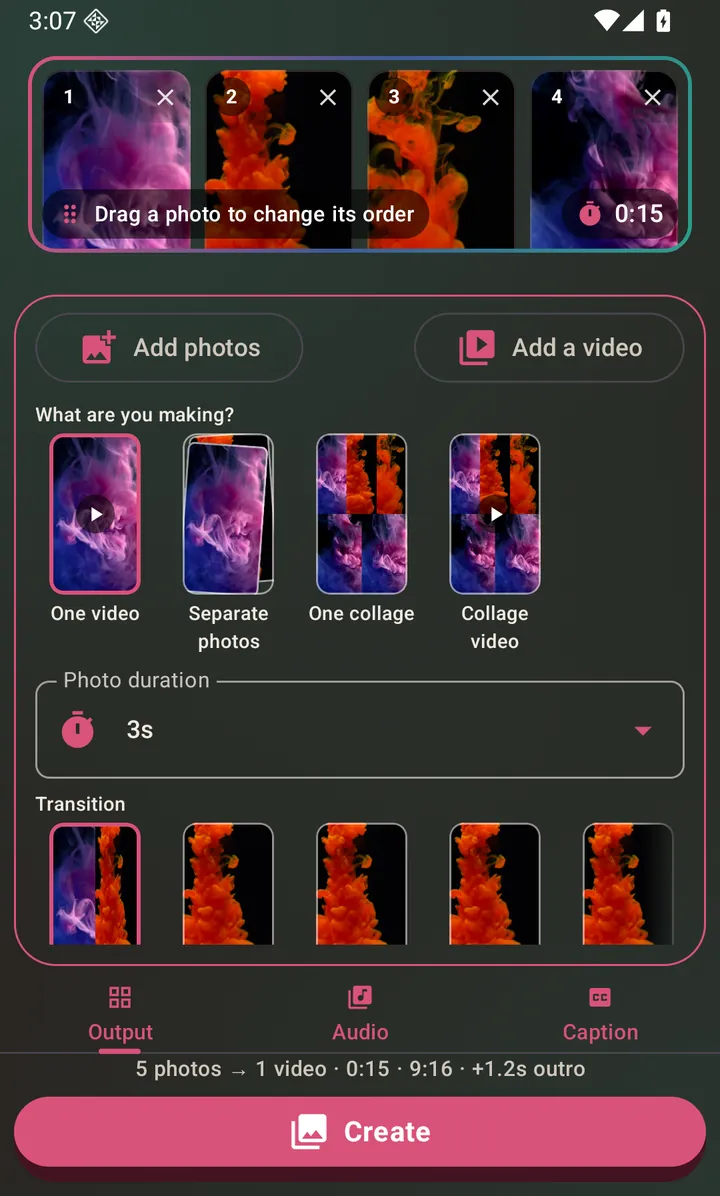
Choosing what to make from your photos. For a text or audio status
Tap Create text/audio status and type. Pick one of ten background themes, add more pages with +, and attach a song if you want one — with audio, the pages become one video. See Create a text status and Create an audio status.
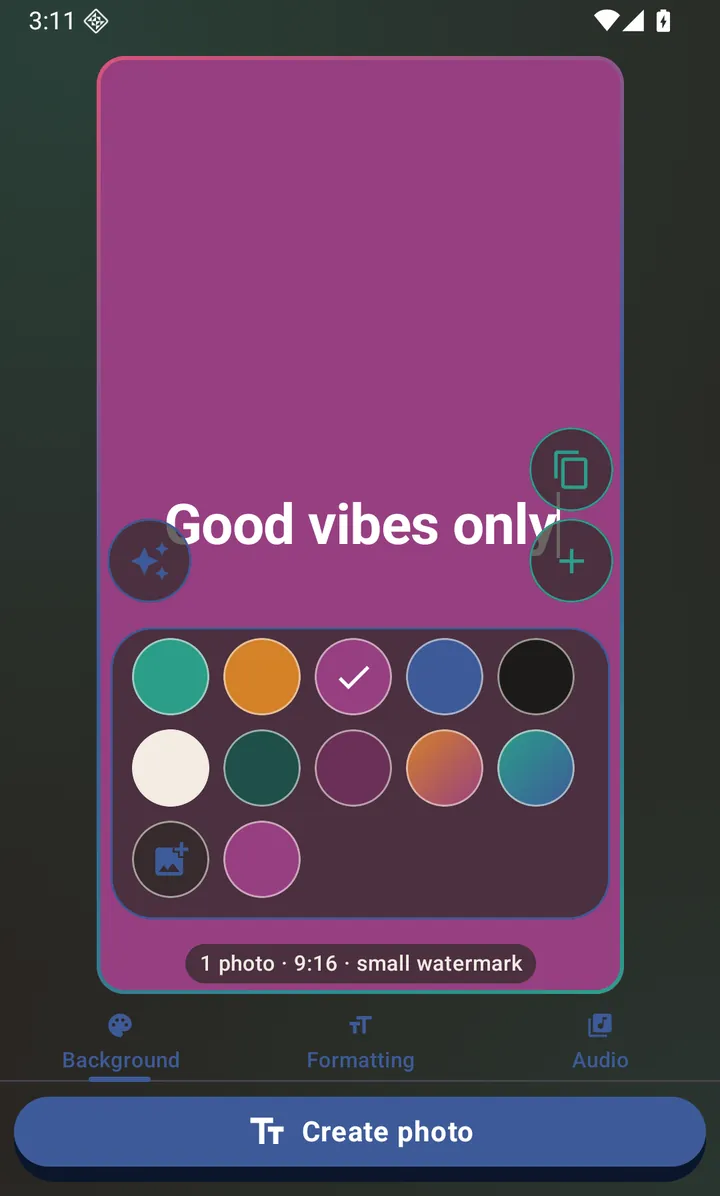
A text status, with its background themes. Create, then share to WhatsApp
Tap Create. When it finishes, tap Share (or Share all for several clips) and choose WhatsApp, then My status. You can also save everything to your gallery and post it later. See Save and share to WhatsApp Status.
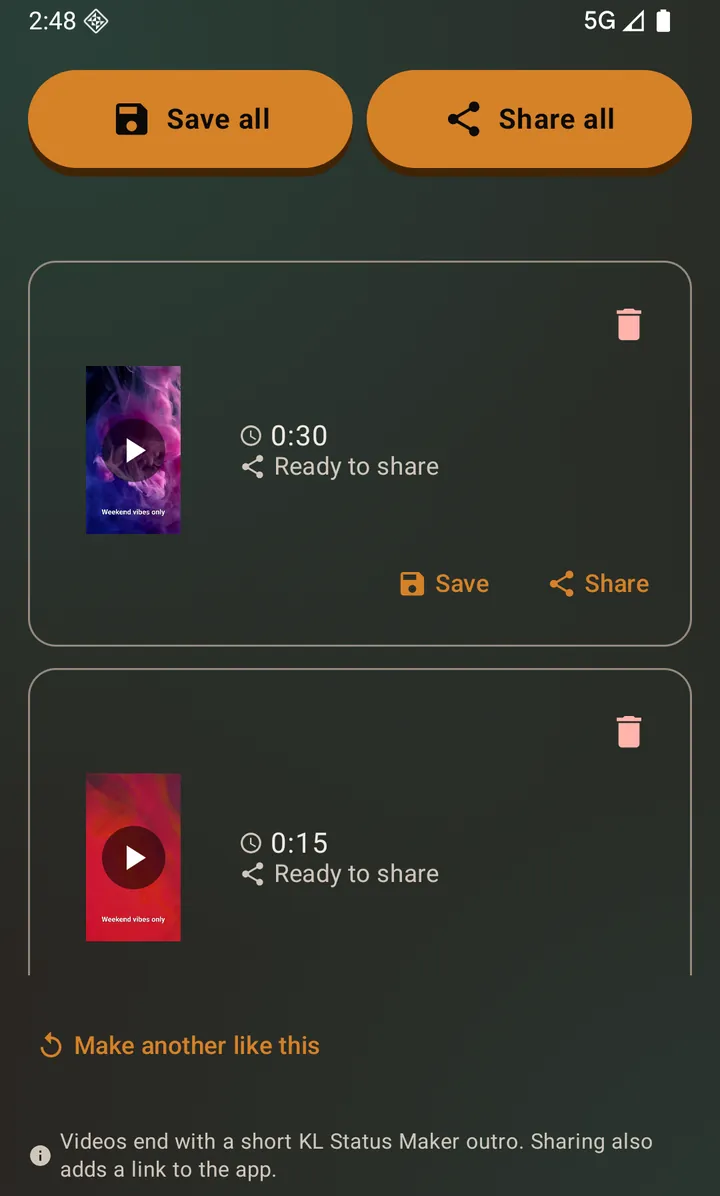
The results screen, with Save and Share for each output.
Questions about this
Is it only for WhatsApp?
No. Everything comes out as an ordinary video or photo in the 9:16 frame, so the same share sheet sends it to Instagram Stories and Reels, YouTube Shorts, TikTok, Facebook or any other app on your phone.
Is the status maker free?
Yes, and there are no ads. Free exports carry a short branded ending on videos and a small watermark on photos; an optional subscription removes them. The AI tools are optional and paid for with AI credits.
Can the app write my status for me?
Yes, optionally. AI captions writes the words, AI music makes a track, and AI photos makes a picture. They need a Google sign-in and AI credits; everything else in the app needs neither.
Also searched for as: status maker, whatsapp status maker, status video maker, status editor, status maker app, capcut alternative, inshot alternative, vn alternative, kinemaster alternative, canva alternative, picsart alternative